

Introduction
The Vault is a central library of every photo, video, GIF, and audio file stored on a creator’s OnlyFans account. On top of the native OnlyFans vault, AgencyKey adds its own layer of metadata — captions, hashtags, suggested prices, tagged creators, and uploader history — so your team can find, re-use, and prepare media without ever re-typing the same descriptions. Navigate to Automation > Vault to open the page.What you can do
- Browse all media for a creator in one searchable library
- Attach captions and hashtags to any item and re-use them across chats, PPV, and mass messages
- Organize media into OnlyFans lists (categories), rename or reorder them
- Filter and search by caption, hashtag, type, date, category, and sorting preference
- Edit metadata for many items at once with bulk actions
- Download available media individually or as a selected batch
- See which AgencyKey user uploaded each file and when
Page layout
After selecting a creator in the header, the Vault splits into two panes: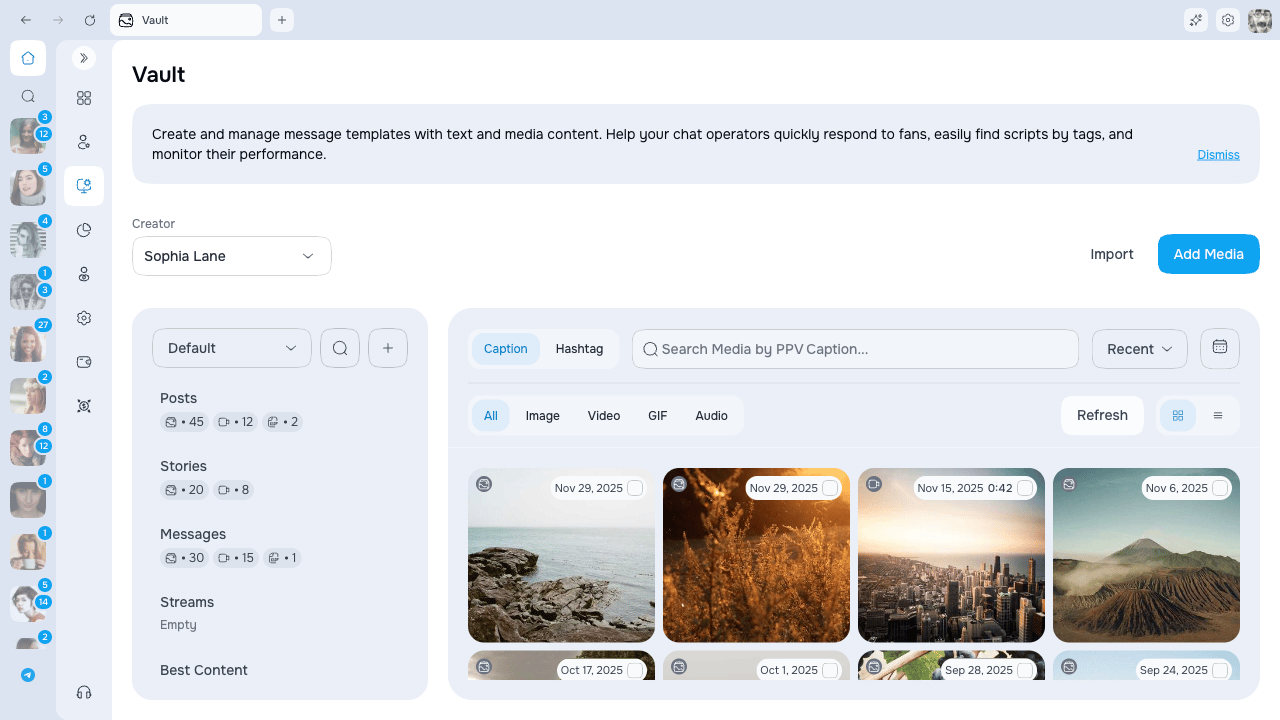
On your phone
Choose the model in Automation → Vault. The current-category button, initially All Media, opens Categories instead of a permanent sidebar. Search stays visible; the sliders button Media filters contains search mode, type, sort, date, and refresh. Grid view and List view stay beside it. Tap a card for details, use its visible checkbox to select it, or open File actions → Open file details / Download. Category and bulk actions still depend on your permissions. This is the ordinary mobile Vault and does not require Experimental chat.View modes
Toggle between:- Grid view — compact thumbnails with overlays for caption, hashtag, likes, and tips
- List view — row view that also shows the uploader and upload time
Categories sidebar
The sidebar shows All Media and every OnlyFans list connected to the account.- Click a category to scope the grid to just that list
- Each category shows small counters for photos, videos, GIFs, and audio
- Use the search field to filter the sidebar
- Open the three-dot menu on any category to Rename or Delete. It stays visible on touch screens and appears on hover when using a mouse
- Click Customize order to drag categories into the order you prefer — the order is saved per creator
Filters and search
Above the grid you have:- Search tabs — switch between Description (caption) and Hashtag search
- Type filter — All / Image / Video / GIF / Audio
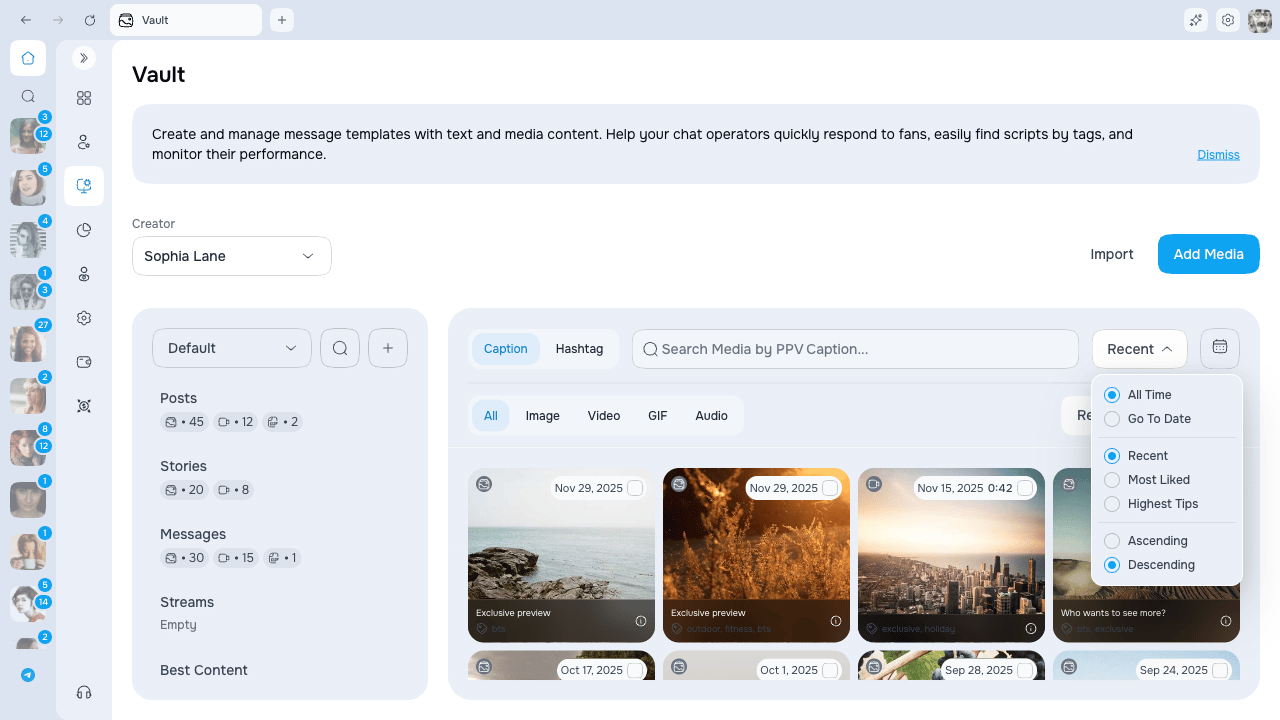
- Sort — Most Recent, Most Liked, Highest Tips, or Buyers, plus ascending or descending direction
- Date filter — All time, or pick a specific date with Go to date
Downloading media
With Download media permission, use Download from a media card, a List-view row, or the media details window. Choose where to save the file when your device asks. The Vault header shows the active file, byte progress when available, and any wait or retry state. If several downloads are running, open the header control to review or cancel them separately. Leaving the Vault does not stop the download; AgencyKey notifies you when it finishes, and any detailed batch summary remains available when you return. The action is unavailable while a file is still processing or when OnlyFans does not provide a downloadable file. DRM-protected media can be watched in the available player but cannot be downloaded. If your browser cannot save a batch directly into a folder, it can offer a prepared-file queue: keep the tab open, save or share each prepared file, check that it was saved, remove its prepared copy, and continue. See Bulk actions. For several selected items, use the batch flow described in Bulk actions.Download from the OnlyFans player in Desktop
In AgencyKey Desktop for macOS or Windows, you can save a video or audio file when its OnlyFans player offers a download action. Keep the account window open until its downloads finish.- Start the download from the OnlyFans player.
- In Choose a folder for downloads, select a writable folder and confirm Save here. AgencyKey uses this folder for subsequent player downloads until you fully quit the app. If the folder becomes unavailable, you will be asked to choose again.
- Open Downloads in the workspace bar to review this account window’s files. Up to two files download at once; additional files show Waiting in the queue. Results show Saved, Cancelled, or Not downloaded.
Adding media
Use Add Media to upload files through a separate agency-owned OnlyFans account linked to the selected model. Each batch is sent to that account as a free direct message, then the message is deleted after the files appear in the Vault. Never bind a real fan as the recipient. If cleanup fails, follow the instruction to delete the message manually. The Uploading media guide covers recipient setup, permissions, up to 300 files per wizard, progress, and recovery of eligible interrupted uploads with the same original file.Permissions
Access to the Vault is controlled by separate permissions:
If you do not have the matching permission, the related button is hidden or disabled.
Uploading also needs Messages → Send Messages, Upload Media, and Unsend Messages for the selected model. Finding the linked recipient additionally needs Messages → Section View. Ask the Owner or an administrator to check your role and model scope. Queue permissions do not replace these rights.
Next steps
- Captions, hashtags, and metadata — How per-item metadata works
- Bulk actions — Edit, move, or delete many items at once
- Gallery picker — Attaching vault media to chat, PPV, and mass messages
- Preview in OnlyFans chat — What you see on vault media inside the OnlyFans chat