

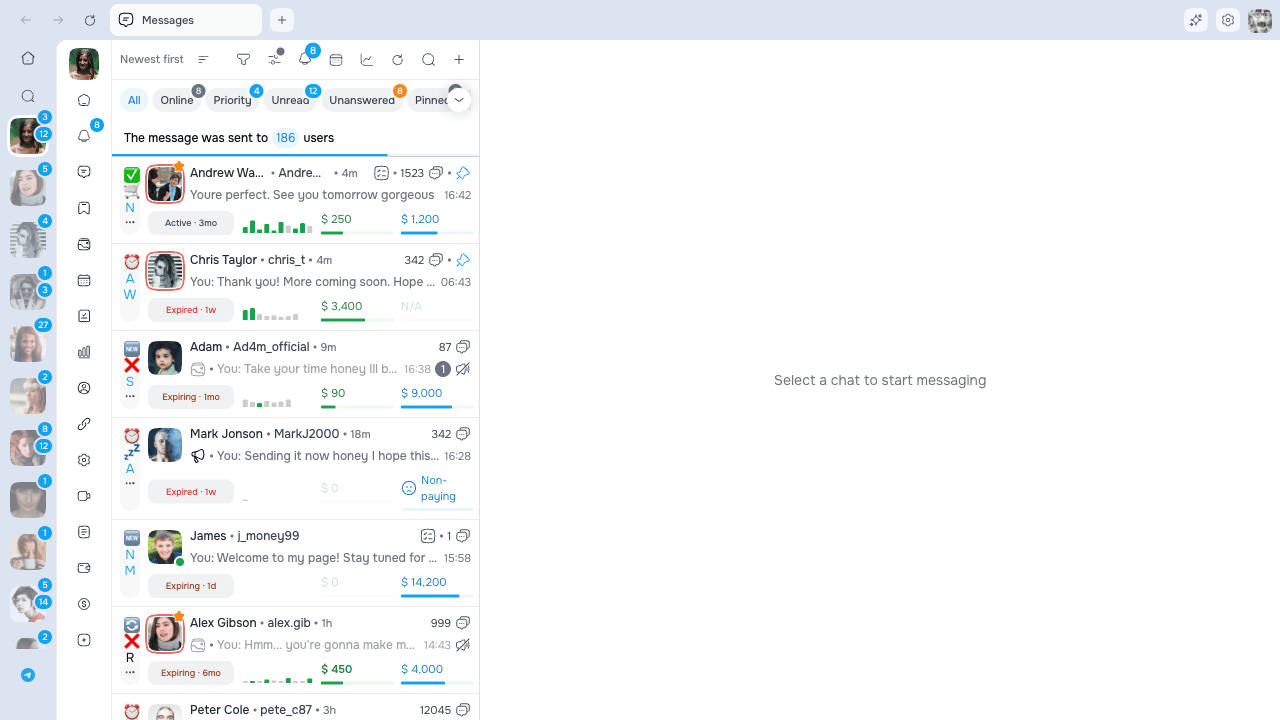
Desktop state is also kept separately for each signed-in AgencyKey account. One operator’s open tabs and drafts are not reused when another AgencyKey account signs in.
Desktop layout
Use the Settings gear above the workspace to adjust two OnlyFans layout areas.OnlyFans content
Choose Left, Center, Right, or Full width under OnlyFans content. The setting applies to chats, Mass Messages, Vault, statistics, and other OnlyFans pages.- Full width is the default and uses the available workspace.
- Left, Center, and Right keep a fixed readable content width at the selected side.
- The choice is saved and updates across AgencyKey Desktop windows.
OnlyFans page menu
The expanded menu shows localized section labels. Collapse it manually when you need more room; the icon tooltips keep each destination identifiable. In a narrow window, the menu collapses automatically and expands again when space returns unless you chose a manual state. Your manual choice applies immediately to every open model workspace in AgencyKey Desktop and survives a reload.Chat list
The list on the left belongs to the currently selected model. A row can show:
A Non-paying signal can replace a cross-model maximum when enough permitted shared data is available. It is guidance, not proof of the fan’s finances or future behavior. See Insights Panel.
Subscription badge
An active subscription shows its known duration. A subscription with renewal off shows the remaining time in a warning color, with stronger emphasis during the last seven days. An ended subscription shows a muted Expired label instead of an ever-growing count of days since expiry. Hover the badge for the full status and date.Recent-purchase highlight
When enabled in chat-list view settings, Total Spent can use a stronger green highlight for a configurable period after a recorded purchase. Use it as a recency signal and still verify the payment in the conversation or statistics.PPV and tip spending mix
The filled spending bar separates known chat revenue by source: PPV is green and tips are violet. The bar keeps this compact split, while its hover card can show every available non-zero category: chat PPV, tips, subscriptions or renewals, paid posts, streams, and other purchases. Each percentage is measured against the full displayed total. The hover card can also show Avg PPV purchase, PPV Paid Rate, and the latest purchase. A Refunded (included in total) row is informational: displayed spending is gross, before creator commission and without subtracting that refund. Older or partial data can show fewer categories; AgencyKey does not invent the missing remainder.Recent PPVs and tips
When the PPV badge is enabled in chat-list view settings, its timeline shows the latest 10 available PPV and tip events. Older events are on the left and newer events are on the right.- Green — bought PPV
- Gray — unpaid personal PPV
- Violet — tip
- Red — refunded event
If the newer event history is unavailable, AgencyKey can show the earlier PPV-only version of this timeline instead.
Pinned chats
Pin a conversation from its context menu or with the displayed keyboard shortcut.- Maximum: 10 pinned chats per model
- Pinned chats stay above normal rows in filters and search
- Pin state is synchronized for authorized users/devices
- Unpin a chat before pinning another when the limit is reached
Tabs and filters above the list
Built-in tabs can include All, Online, Priority, Unread, Unanswered, Pinned, and With Tips. Custom lists can also appear as tabs. Unanswered helps manage conversations where the fan still needs a reply or the chat was marked unanswered manually. Use Mark as Answered / Unanswered when available. At the bottom of a long result, Scan more checks older chats.- All remains available as the fallback.
- Use the tabs dropdown to show/hide optional native tabs.
- Unread remains in the tab row while unread chats still exist, even when the hide filters reduce its visible badge to zero. The tab you are currently using also stays visible until you switch away.
- Pin frequently used custom lists to the tab bar. Original Smart List pins are shared with teammates who can access that model; changing them requires Chats → Pin and unpin Smart Lists.
- Search the dropdown when there are many lists.
- Hidden-tab choices are kept per model. Only original Smart List pins use the shared team setting; OnlyFans lists and Smart List copies keep their separate pin behavior.
- A Smart List filters by its current AgencyKey rules without waiting for its OnlyFans copy to synchronize.
- A copy filters by its current OnlyFans membership, so its audience can temporarily differ while background synchronization is running.
- Copies appear in a collapsible group at the start of the OnlyFans section. The group shows how many copies are pinned; search opens the matching copies automatically.
- The Smart List and its copy are pinned separately, so you can keep either or both on the tab bar.
- Teammates can use a shared pinned Smart List tab without the permission to change the shared pin set.
- Blue styling identifies Smart Lists; OnlyFans lists and synchronized copies use neutral styling. A check marks the selected row, while the highlighted pin only means that list stays on the tab bar.
If a list source cannot refresh
AgencyKey distinguishes an actual empty result from a source that did not load. Use the Retry action in the visible notice instead of assuming that there are no matching chats.
Counts are hidden while AgencyKey cannot confirm them. Retry from the notice; for Smart Lists, the normal chat-list refresh also updates the visible chat cards.
Search, filters, and view settings
Search
Search finds fans within the current model and combines with the active tab and filters. In the normal chat list, the search is applied after you enter at least 3 characters. With only 1–2 characters, the text remains visible but the list is not filtered; AgencyKey shows that the query has not been applied yet. Clear the search to return to the full current view.Filters
The filter popover can include:
Filters stack. A highlighted filter icon means at least one is active.
Hide non-paying depends on available shared statistics and the selected model’s sharing level. It is not a simple local spending threshold, and it may not classify every fan.
Chat-list view settings
Use the gear to choose what appears on rows:- custom name, original name, username, and emoji handling;
- avatar, creator marker, online state, list markers, message count, and unanswered indicator;
- subscription, PPV paid rate, total spent, recent-purchase highlight, and cross-model maximum;
- automatic refresh interval.
Opening and managing chats
- Click a row to open it.
- Cmd/Ctrl-click or Open in New Tab opens it in a background model tab.
- Drag tabs to reorder them.
- Close a tab with its X.
- Swipe left on a chat row to switch its read/unread state when that action is available.
Desktop tabs and address field
The desktop header displays one tab row at a time:
It does not display separate model and CRM rows simultaneously.
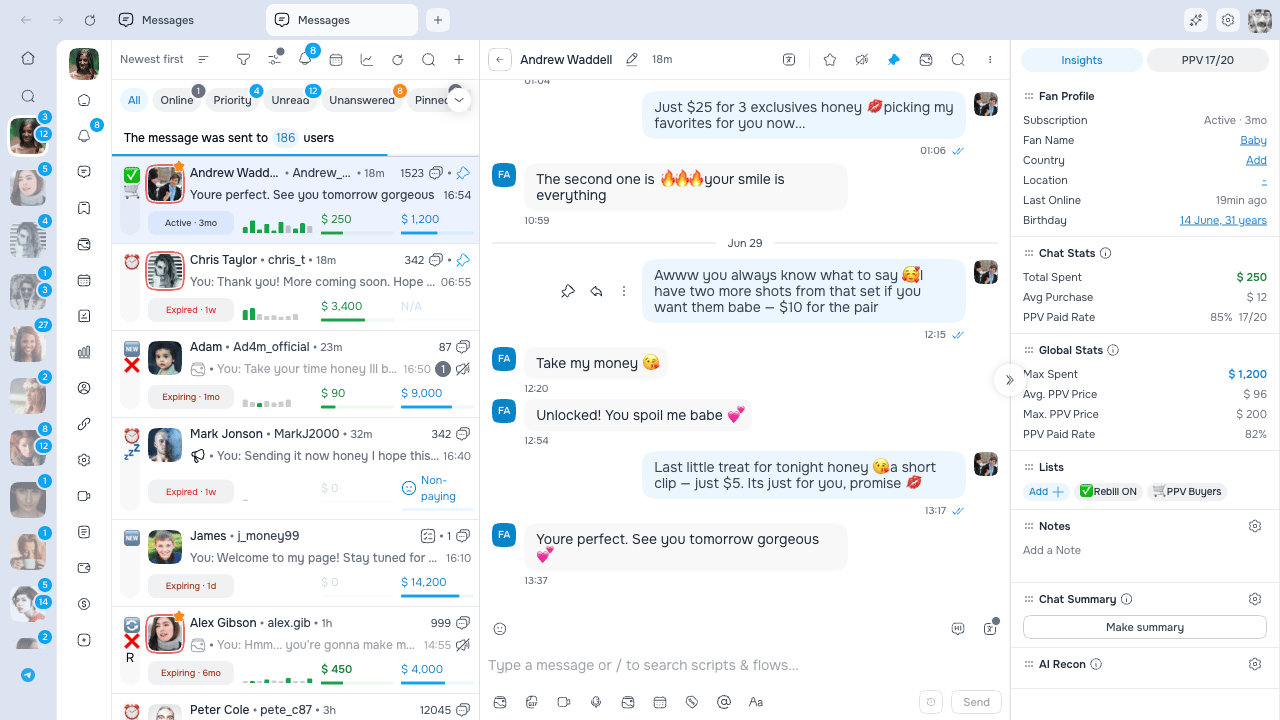
Edit the active tab address
Click the tab that is already active to turn its title into an address field.- Press Enter to open the address in that tab.
- Press Esc or click away to cancel.
- A model tab shows an OnlyFans address.
- A CRM tab shows the AgencyKey page route.
Where a pasted link opens
If there is not exactly one open model for an OnlyFans link, a searchable model picker shows the models you can access. Select deliberately: the resulting OnlyFans tab and session belong to that model.
New tabs and limits
- + on a model surface opens a new Chats tab for that model.
- + on CRM opens Dashboard.
- A model supports up to 40 OnlyFans tabs. At the limit, AgencyKey may close an eligible older tab and tells you which one closed. If every possible tab is pinned or otherwise protected, the new tab does not open; close or unpin one first.
- CRM supports up to 5 tabs. At the limit, + stays visible but disabled and explains that you must close a tab first.
- At least one CRM tab remains open, so the last one has no close action.
Chat header
Available controls can include:
Missing controls usually mean the action is not available in the current OnlyFans state or your role lacks the selected model’s permission.
When the latest incoming message still needs attention, hover the message or focus it with the keyboard to see the first employee whose view was recorded and the time. Later views do not replace that first reader. A view is recorded only while that chat and message are visibly open in the active app window. This is an internal team marker, not a fan read receipt.
Opening the Lists picker, searching it, or loading more options does not change the chat-list tab or fan-list filter selected above the left sidebar. Close the picker to continue with the same visible chat list.
Muting a chat suppresses configured message and social-activity pop-ups and sounds for that fan, including comments, tags or mentions, and likes. It does not hide or silence tips, PPV unlocks, or subscription events: they keep their configured pop-ups and sounds, and sale cards and purchase badges remain visible. Unmute the chat to restore message and social alerts.
Block and restrict
- Block prevents contact according to OnlyFans behavior and opens a confirmation.
- Restrict limits the fan’s interaction/visibility according to OnlyFans behavior. You can apply it from the open chat or directly from the chat-list row.
- Unblock and Unrestrict reverse those states when permitted.
Pinned messages
Open Pinned messages from the chat header to search the current chat’s pins.- Pin or unpin individual messages from their message actions.
- Continue through the list to load older pinned messages page by page.
- Unpin all asks for confirmation.
- Removing all pins cannot be undone automatically; re-pin messages manually if needed.
#pin: lines. Opening a chat backfills up to the 20 most recent text-bearing pins, preserves the existing note, and skips lines already present. Unpinning a message does not remove its note line; edit Notes manually if that context is no longer needed.
Insights / PPV and chat tools
The open chat can include:
Sections are shown only when permitted. Insights sections can be collapsed and reordered, and the right panel remembers its state for the model/operator workspace.
Read Chat Summary, AI Recon, and Insights Panel before relying on shared or AI-generated information.
Notifications panel
The bell opens OnlyFans notifications for the current model.- Open Notification categories to choose which unread categories contribute to the notification number. A disabled category stays visible and its items stay unread.
- Drag categories in that same panel to change the tab order independently of the counter switches.
- Refresh without leaving the chat workspace.
- Mark all as read affects only the active notification category and requires permission.
- Review quick fan statistics and add the fan to a list.
- Send a quick text reply or open the fan’s chat in a background tab.
- Opening the panel alone does not mark items as read.
Chat context menu
Right-click a chat row for actions available to your role:
Restrict appears only when your role has the restriction permission and OnlyFans allows the action for that fan. Unrestrict remains available for an already restricted fan when your role permits it. The action keeps the current chat list and scroll position.
These letter shortcuts work while the context or More menu is open; they are not global chat-list shortcuts. They do not bypass confirmation or permissions.
Permanently delete a chat
For a single chat, Delete Chat and its D shortcut open a confirmation dialog. Bulk delete also requires confirmation. Before confirming:- Check the selected model.
- Check the fan’s name and username.
- Make sure you intend to remove the entire OnlyFans conversation.
- Use mute, mark as read, or list organization instead if you only want to clean up your workspace.
Troubleshooting
- Wrong tabs after switching — Confirm the selected model; each model restores its own tab set.
- A pasted OnlyFans link asks for a model — Choose from the searchable picker; AgencyKey cannot infer the account when zero or several models are open.
- A CRM page opens in another tab — AgencyKey links pasted on a model surface intentionally open a CRM tab.
- A control is missing — Check the selected model, OnlyFans session, allowed section, and role permission.
- Inboxes, Online, or Smart Lists show an error — Keep the visible last-known rows, read which source failed, and use its Retry action. Do not treat an unknown count as a confirmed zero.
- Reconnect screen appears — Reconnect if you manage the account; otherwise ask a manager/admin.
- Shared or AI data differs between models — Their sharing scopes and creator-specific history can differ by design.