

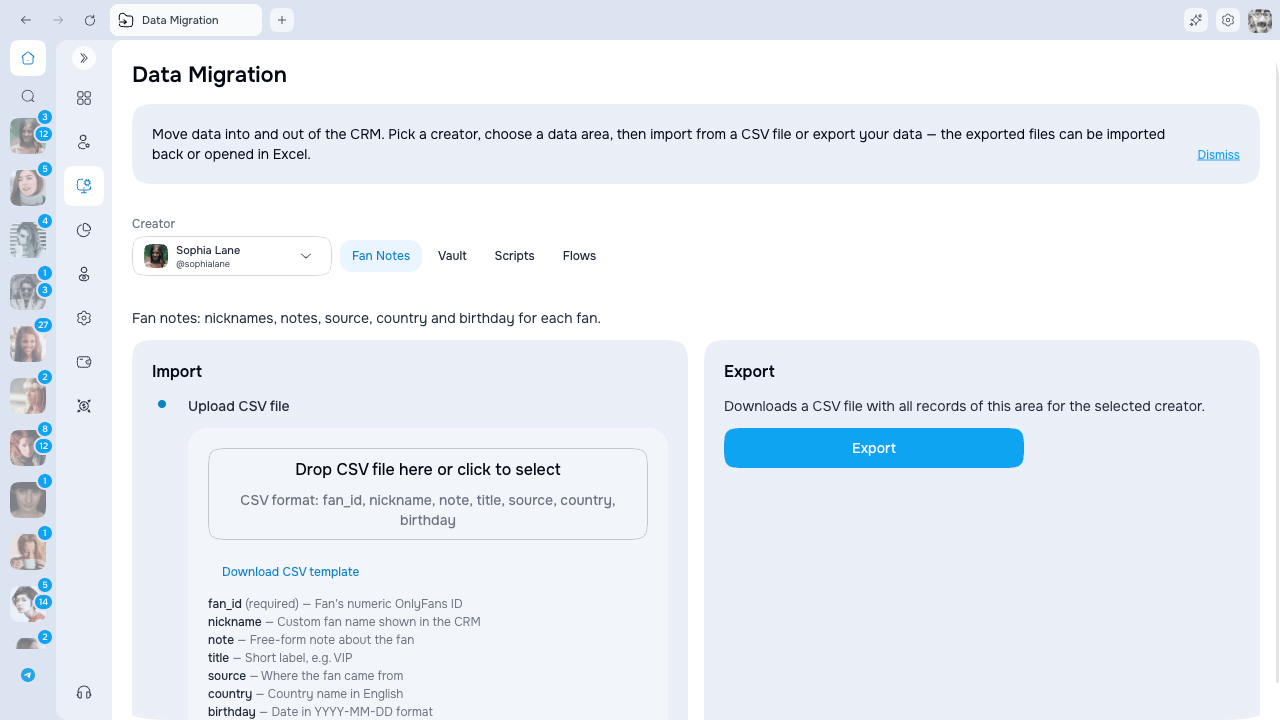
Supported data
Transfer work between agencies
Use the Archive tab when the same OnlyFans account is moving to another AgencyKey agency. Select the creator, choose the sections, and download one AgencyKey JSON archive. At the destination:- Select the creator connected to that same OnlyFans account.
- Open Archive and upload the JSON file (up to 25 MB, or the smaller limit shown on the page).
- Select the available sections and click Preview import.
- Review record and conflict counts, then confirm the import.
- Review imported drafts and settings before enabling them.
- Fan notes and details
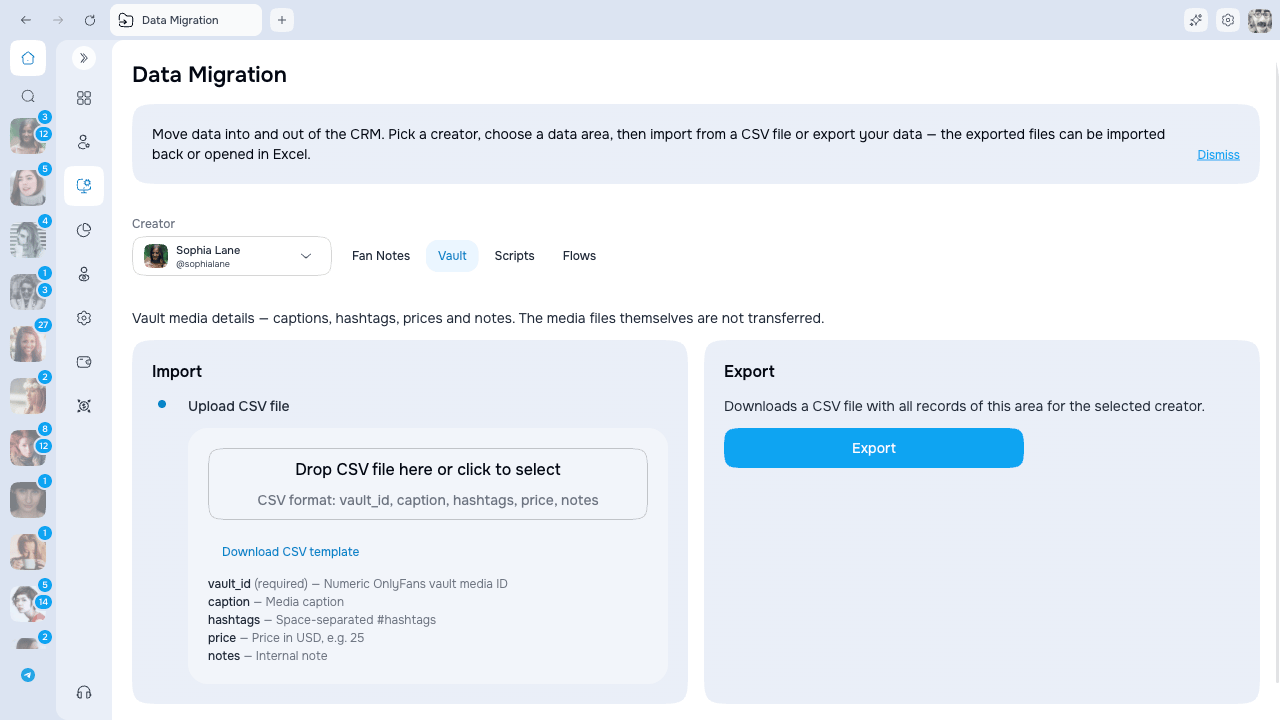
- Vault captions, tags, prices, and notes
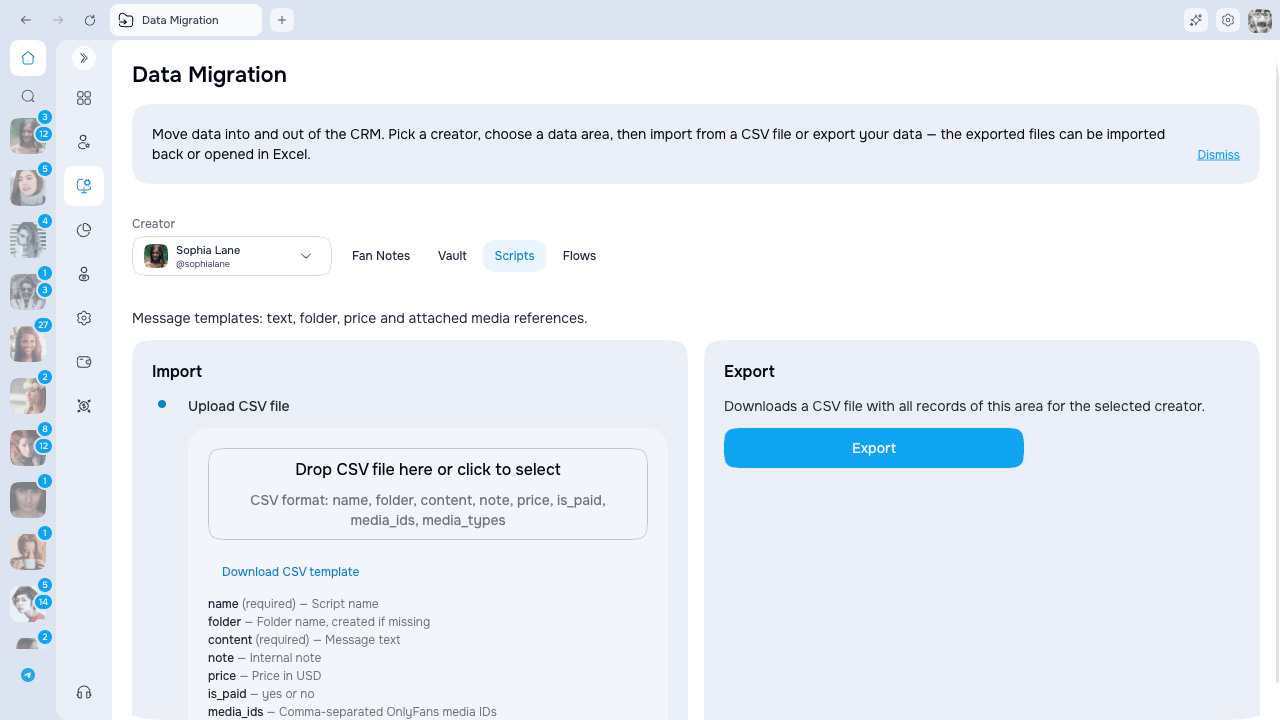
- Scripts, tags, and order
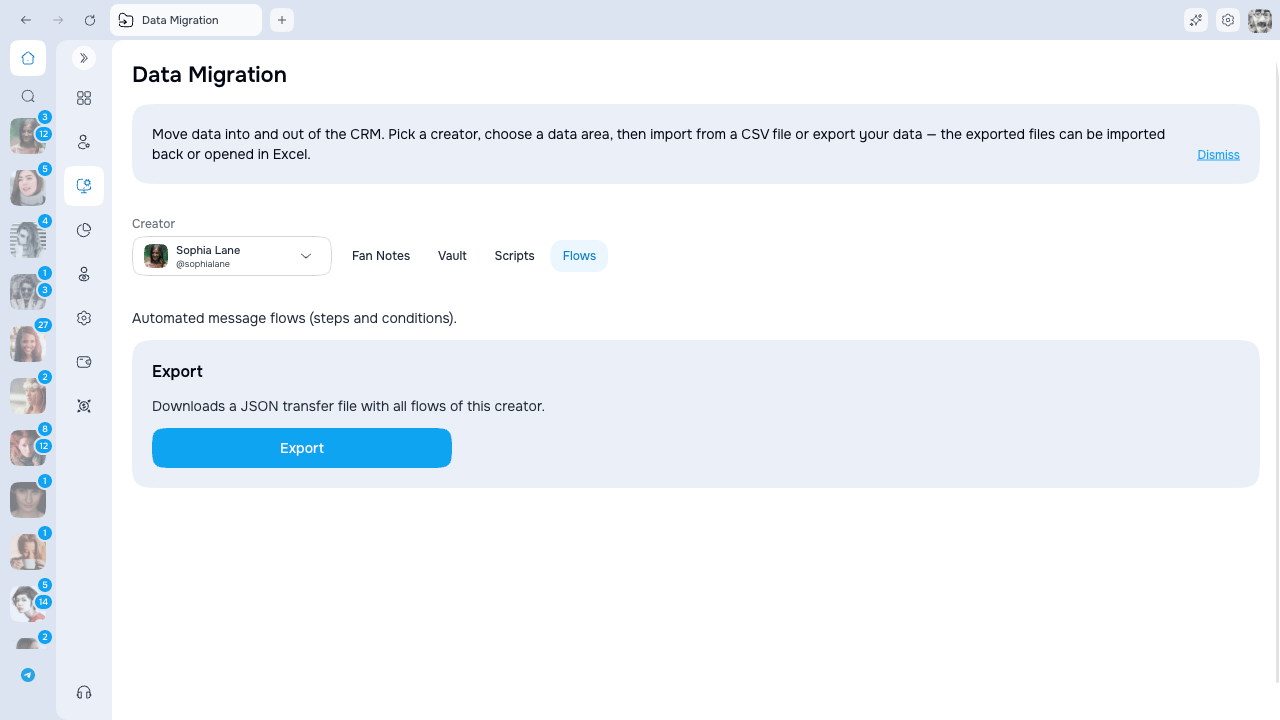
- Scenarios, steps, and conditions
- Smart Lists and criteria
- Mailings and autoresponders
- Inbox folders and fan membership
- Creator note and tags
Before you migrate
- Confirm whether the destination already contains the same notes, metadata, or scripts; importing does not serve as a general duplicate-cleanup tool.
- Keep the original export until the destination is verified.
- Review failed rows instead of assuming that a completed job imported every row.
- For Vault or Scripts, verify media separately because media files are not transferred by the CSV.
Import a CSV
- Select the destination creator and open Fan Notes, Vault, or Scripts.
- Download the template for that tab.
- Keep its column names and fill in your data.
- Upload a CSV file up to 10 MB.
- Review the preview: Total rows, Valid, and With errors.
- Start the import only after the valid count and destination creator are correct.
Export data
- Select the creator and data tab.
- Click Export.
- Keep the page open, or return later to the same creator and tab while the export is prepared.
- Download the file when its status is ready.