

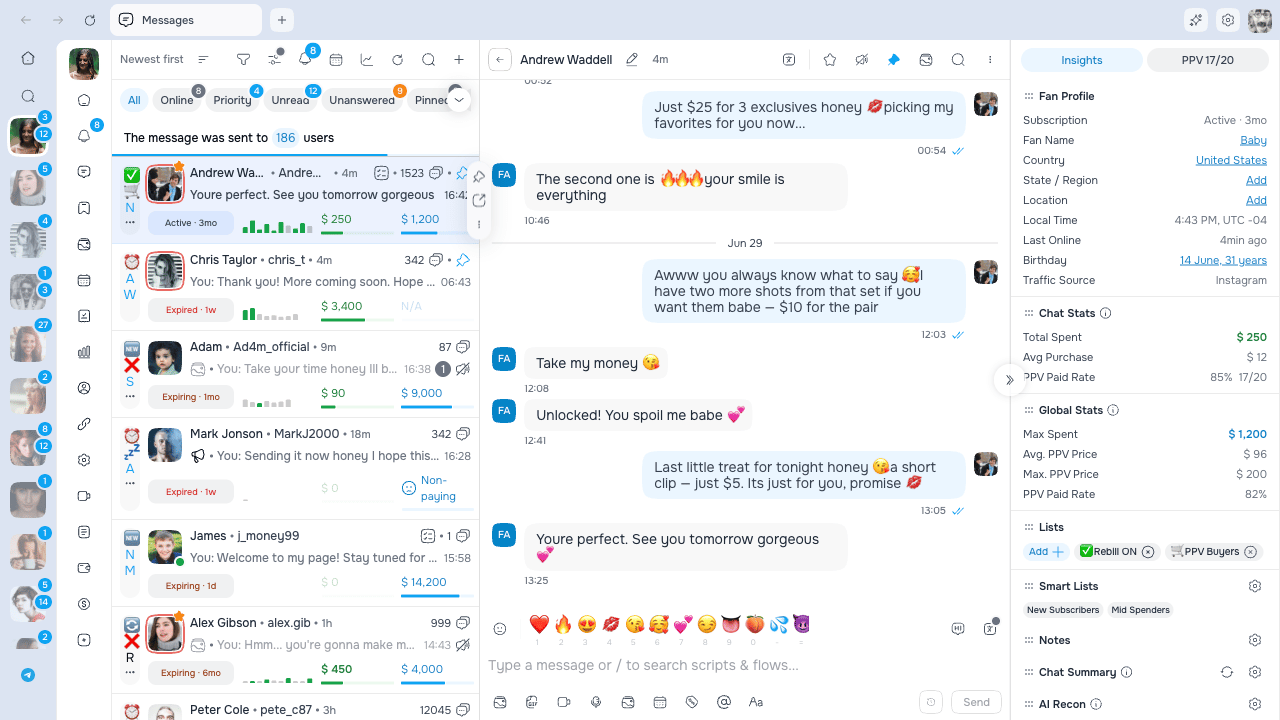
Composer basics
- Open the fan’s chat.
- Type in the composer.
- Add media, a GIF, price, reply, or release-form tags if needed.
- Review the draft.
- Click Send.
Clear a whole draft
Use Clear draft in the composer footer when you want to start over. After confirmation, AgencyKey removes the draft’s text, attachments and GIF, price and free preview, reply, tagged creators, and scheduling state. The action is available in a regular fan chat and while creating or repeating a Mass Message. The button is disabled for an empty draft. If a send, upload, recording, translation, or another composer operation is active, AgencyKey refuses the clear and leaves the draft untouched. Select Don’t ask again in the confirmation if you want future clears to happen immediately; the preference is shared across Desktop windows, while the same safety checks still run. If you see a partial-clear warning, inspect the text and attachments and retry before reloading the page.Confirm a Mass Message audience
When you send a Mass Message from the OnlyFans composer, AgencyKey checks the audience again before the final OnlyFans submission.- If the selection contains only individually selected fans and AgencyKey can verify every row, the confirmation shows Recipients: N and the send button includes the same number.
- Audiences based on lists, exclusions, or a mix of lists and individual fans can remain valid even when OnlyFans does not expose an exact count. The confirmation then asks you to check the selection without showing a number.
- An empty, unavailable, or changed audience is blocked. AgencyKey also blocks sending when the rows on screen do not match the current OnlyFans selection. Return to the selection, let OnlyFans finish loading, verify the rows and filters, then start the send again.
Text formatting
Open the formatting bar to use the controls available in the current stable version:- Bold
- Italic
- text color
- Clear Formatting
Media and the Vault
The toolbar can include actions for:
Buttons are hidden or disabled when the draft combination is unsupported or your role lacks the required permission.
Gallery from Vault
Add Media From Vault opens the shared AgencyKey Gallery for the current creator and fan. You can browse Vault lists; search Caption, Note, or Hashtag; filter by media type, date, post publication, or whether an item was sent to the current subscriber; and review sent or purchased markers before attaching anything. Existing attachments remain in the draft, already attached Vault items appear selected, and Gallery adds only new Vault items up to the total limit of 40 attachments. Select Done to commit the selection. Cancel or close Gallery to leave the draft unchanged. The composer stays locked while Gallery is open; during confirmation it waits for the full media details and required release-form tags instead of adding a partial set. Always open the picker from the correct model: each model has its own Vault and sent-media history. See Gallery picker for search, usage filters, previews, metadata permissions, and recovery steps. Attached-media cards show the content type before you send. Video and voice attachments also show their duration, while GIF attachments carry a clear GIF label.Start a post or Mass Message from the native Vault
In AgencyKey Desktop, the native OnlyFans Vault can hand a selected batch to another native composer:- Send to post in a new tab opens a new model tab with the post composer.
- Add to new message opens a new Mass Message draft and transfers the selected Vault files.
After sending audio or video
OnlyFans can keep a sent, forwarded, or received audio or video attachment in processing for several minutes. An already-sent message shows progress from 0%; with several attachments, each ready file raises the shown progress, and confirmed progress does not move backward when you change chats and return. The processing placeholder stays visible until every attachment is ready. Do not resend the message while processing continues; Resend remains unavailable until OnlyFans confirms the final state. If processing fails, the attachment shows OnlyFans could not process this media. Use the visible retry action after a playback error. Protected video and audio open through the OnlyFans viewer or player when playback is available. Until then, the attachment remains in processing; if OnlyFans cannot prepare it, the attachment shows an error.Paid messages (PPV)
- Add supported media or enable paid text.
- Click Message Price.
- Enter a price from 200 USD.
- Put any free preview media in FREE preview.
- Keep paid media in Price to View.
- Review the price and send.
Reuse content from OnlyFans
Repeat a Mass Message
Open OnlyFans Mass Message statistics and select New message on a previous send. While OnlyFans restores it, the composer shows a loading state and stays protected from editing. When the original is complete, the composer receives its text, attachments, price, paid caption, free previews, release-form tags, and GIF. Review everything before sending. If OnlyFans does not finish loading, your existing draft remains available and the status asks you to select the original message again.Copy a sent PPV as a draft
Open the PPV panel in a fan chat and choose Copy as draft on a sent PPV. AgencyKey reloads the latest message, waits until its media is ready, and copies the text, price, paid caption, paid and free attachments, release-form tags, and GIF into the composer. If the latest message cannot be loaded or its attachments are still processing after the automatic attempts, the current draft remains unchanged. Check the connection and message availability, or wait for the media to finish and try again. The result is a normal editable draft, so you can change the price or content. If the composer already contains work, scheduled content, a recording, upload, or open media picker, AgencyKey blocks the replacement or asks for confirmation rather than overwriting it silently.Two ways to send later
AgencyKey exposes two different systems. Choose based on where you want to manage the message.Delayed Message (AgencyKey)
Click the history/clock button next to Send and choose:- Send immediately (shown only when you can send regular messages);
- 30 sec;
- 1, 2, 3, 5, or 10 min;
- Custom future date and time.
- the chat shows a pending bubble with its send time;
- you can hover it and choose Send now if you have regular send access;
- you can cancel it after confirming;
- it remains scheduled if the desktop app is closed or restarted.
Failed or late cancellation
- A failed delayed message appears as an error bubble.
- There is no retry action on that bubble: delete it, check the draft, and create a new delayed message.
- If AgencyKey cannot confirm the delivery status, check the live OnlyFans chat first, then use Check again. Do not resend blindly because the original may already have been delivered.
- If cancellation fails because of a temporary connection error, try again.
- If AgencyKey reports that the message was already sent, check the live thread before composing a replacement.
Scheduled Messages (OnlyFans)
Use the calendar Scheduled Messages button to open the native OnlyFans scheduling flow.- Prepare the message.
- Open Scheduled Messages.
- Pick an exact future date/time, or choose Save for later.
- Confirm the send/save action.
A queued message does not appear as a sent bubble in the conversation. Open Scheduled Messages to find and manage it. AgencyKey opens the queue after a successful submission only when your role can view it.
Edit an item already in the OnlyFans queue
Open Scheduled Messages and choose Edit message on a dated item or a Save for later item.- Wait for AgencyKey to copy the existing item into the composer.
- Review the restored text, media, GIF, price, free previews, creator/release-form tags, and audience. A dated item also restores its sending date and delivery mode.
- Change the content, audience, or schedule as needed. A Save for later item remains without a delivery time unless you choose one.
- Save from the composer.
Scripts and Scenarios
Click Scripts & Scenarios, or type / in the composer, to search content available to your role.
A Script can include text, media, and a PPV price. The
{name} placeholder uses the available fan name when the Script is prepared.
If you selected a message to reply to before using direct Send, the Script or Scenario step keeps that reply relationship. AgencyKey captures the selected reply when you start the action and clears only that original selection after confirmed delivery. Cancelling during simulated typing returns the Script text and reply to an otherwise unchanged empty composer; a newer draft or reply is never overwritten.
Typing simulation
Open the creator’s chat settings and enable Simulate typing to show the fan the native “typing…” indicator before delivery. Choose Slow, Normal, or Fast for that creator. The setting is shared by every chatter working with the creator and applies to:- Manual messages
- Scripts and Scenarios
- AgencyKey delayed messages
- Quick replies from notifications
Changing typing simulation follows the creator chat-settings permission. A user who can send messages may still be unable to change this model-wide setting.
Restore an interrupted send
After a reload or restart, each send that ended before OnlyFans confirmed delivery appears as its own outgoing recovery bubble in the affected chat. It does not send again automatically because the message may already have reached OnlyFans.- Restore completely replaces the current draft with that attempt, including its text or reviewed translation, media, price, paid text, GIF, reply, and release-form tags. Finish any active composer operation first.
- Discard removes only that recovery attempt from AgencyKey.
- Before restoring or resending, check the live conversation. A restored Scenario message does not automatically advance the Scenario runner.
Translation
Click the translation icon in the chat header. The visible sections depend on your permissions.Chat translation
Enabled incoming/outgoing directions translate loaded chat messages and reply quotes; the preview toggle translates the currently loaded chat-list previews. Hide originals when a translation is available becomes available after incoming or sent-message auto-translation is enabled. It also applies to translated reply quotes; a message without a translation keeps its original text. Click an individual message’s translation control to switch that message manually when needed.
Before sending
AI content
AI content uses the language selected under Chat translation.
With Auto-detect, review the detected language shown below the selector. Short messages and names can be detected incorrectly.
Fix spelling before translating is off by default and becomes available only after Translate before sending is on. It applies to the main chat composer, not notification quick replies. Review the corrected and translated result before sending.
Translate and review in two fields
With Translate before sending enabled, keep composing in the original field. Typing and changing translation settings do not start a request. Click Translate, or press Enter in the original field, to create an editable Translation field. After a successful request, focus moves to the translation so you can review or change it before Send. Use Send original when you deliberately want the source text instead. The keyboard hint summarizes the protected actions: Enter translates or sends the active translation, Alt+Enter sends the original, Shift+Enter adds a new line, and Up/Down switches fields at their boundary. Press Option+S on macOS or Alt+S on Windows to start a missing translation or move focus and the caret to the ready lower field; it never sends. Editing the original invalidates its saved translation and requires a new translation. If Warn on language change detects that the actual outgoing text does not match the expected language, the confirmation names both languages. Choose Cancel to keep editing or Send as is to send the reviewed text. Short ambiguous Latin text may not be classified, so the warning does not replace a manual review. The reviewed translation stays with the current chat draft when you switch away and return. It is draft recovery, not permanent translation history: changing the source, target language, or related translation settings invalidates the old result. A cancelled send or confirmed send failure restores the reviewed draft; an unknown delivery outcome still requires checking the live chat before trying again. A standalone Script is inserted into whichever field is active. A Scenario step is inserted into the original field only; focus the original first when AgencyKey prompts you.The dialog names the model whose translation settings you are editing. These settings are saved for that model only.
If translation fails
AgencyKey keeps the original text and attachments and does not send the original automatically. The composer shows Retry translation and Send original so you can choose deliberately. While translation is failed, retrying, or pending, normal send shortcuts do not bypass this protection. After a successful retry, review the editable translation and send it with a new explicit action. If the model’s translation settings fail to load, the composer shows Retry and preserves Send original as an explicit recovery path. It does not silently guess the model settings or send the source text.Message and chat actions
Depending on OnlyFans state and your permissions, a message can expose actions such as reply, copy, like, pin/unpin, unsend, hide, or report.- A reply preview appears above the composer; close it to cancel the reply.
- A reply preview on a sent message includes View message when the original is available; use it to jump to the quoted message.
- Pinned messages are available from the chat header.
- Unpin all requires confirmation and must be rebuilt manually if used by mistake.
- Unsend availability can be time-limited by OnlyFans.
- Click an OnlyFans post or message link inside the conversation to open it in the current model tab. Cmd/Ctrl/Shift-click keeps separate-tab behavior; external links remain separate from the model workspace.
- A failed or unconfirmed CRM-side attempt can show Remove from chat. This removes only the local status bubble and does not unsend anything from OnlyFans, so it does not require the OnlyFans unsend permission. If delivery is not confirmed, check the live chat before trying again.
Permissions
Recovery checklist
- Pending delayed bubble missing after reopening — Reopen the same model and fan; pending and failed delayed items are loaded for that chat.
- Delayed message failed — Delete the failed bubble and recreate it; there is no one-click retry.
- Scheduled item not in chat — Check the OnlyFans Scheduled Messages queue.
- Queue submission failed — The composer draft should remain; correct the issue and retry.
- A queue item opens without its content — Select Edit message again and wait for OnlyFans to finish copying it before changing the composer.
- Delivery is not confirmed — Check the live conversation before sending again. Use Remove from chat only to clear the local warning bubble.
- Interrupted-send bubble after restart — Check the live chat first. Restore replaces the entire current draft; Discard removes only that local recovery attempt.
- Button missing — Check the selected model, draft compatibility, and your permission.
- Unsure whether it sent — Check the live conversation and the OnlyFans queue before sending a duplicate.