

Opening media details
Click any thumbnail in the Vault grid to open the Media Details modal. The modal shows a preview on one side and the editable metadata on the other.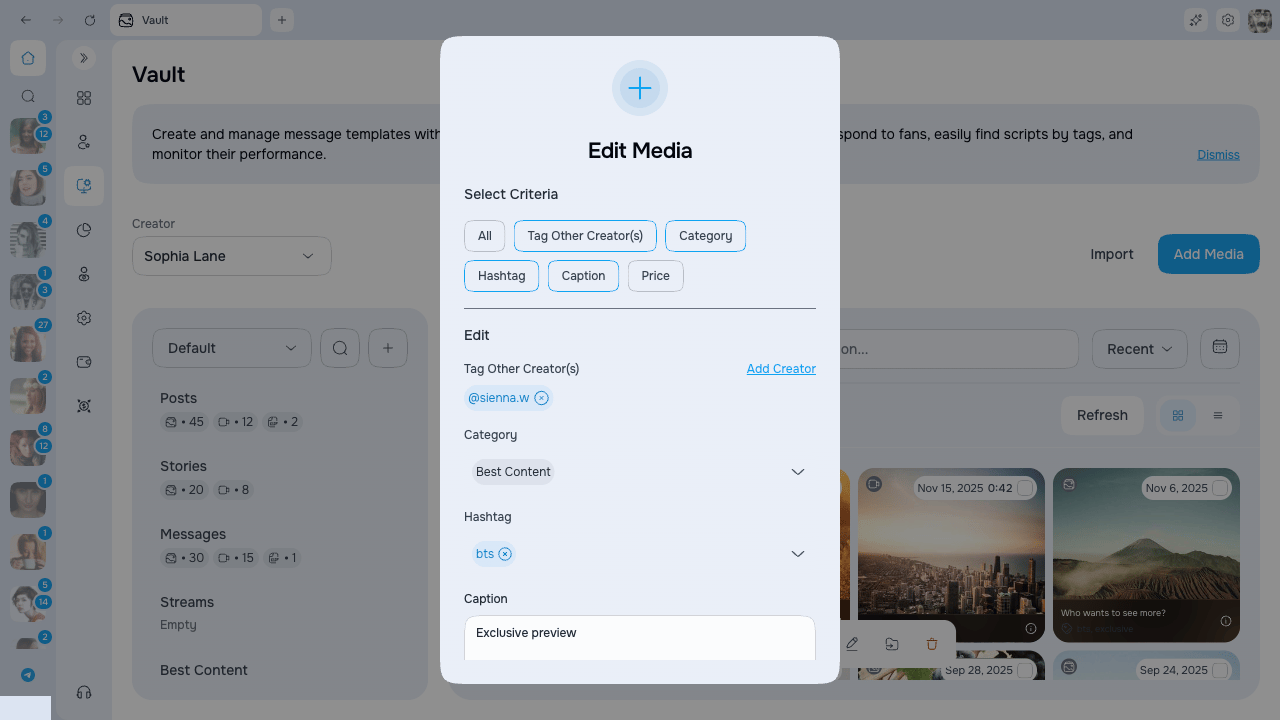
Fields
Captions (descriptions)
The description is visible in three places:- Vault grid tile — bottom overlay on every thumbnail
- Gallery picker — when attaching media to scripts, PPV, or mass messages
- OnlyFans chat — injected overlay on vault photos opened in the chat
Hashtags
Hashtags help you group related media (e.g.summer, lingerie, pov) and search across the library.
Adding tags to an item
In the Media Details modal, click Hashtags to open the tag popover. It shows every hashtag that exists for this creator.- Click a tag to attach or detach it from the current item
- Type in the input and press the + button to create a new tag — it is attached to the current item immediately
- The interface updates immediately; if saving fails, it restores the previous tag and shows the failure
Renaming a hashtag globally
Click the pencil icon next to any hashtag to rename it. The rename applies everywhere — every item that uses this hashtag is updated in one operation.Deleting a hashtag globally
Click the trash icon next to a hashtag to remove it from every item in the vault. A confirmation dialog appears first.Tagged creators (release forms)
Use Tag Other Creators to record every creator that appears in the media. This keeps release forms organized and makes it easier to filter collaborations later.Suggested price
The suggested price is set during the upload wizard and is a reference value — it is not sent to OnlyFans automatically. When you attach the media to a PPV message, you can copy this price or override it.Uploader information
The Uploaded By and Uploaded fields tell you who added the file to the vault and when. This is visible in the Media Details modal and in the list view of the main page.Next steps
- Bulk actions — Edit metadata for many items at once
- Gallery picker — How metadata appears when selecting media