

Introduction
The Vault is a central library of every photo, video, GIF, and audio file stored on a creator’s OnlyFans account. On top of the native OnlyFans vault, AgencyKey adds its own layer of metadata — captions, hashtags, suggested prices, tagged creators, and uploader history — so your team can find, re-use, and prepare media without ever re-typing the same descriptions. Navigate to Automation > Vault to open the page.What you can do
- Browse all media for a creator in one searchable library
- Attach captions and hashtags to any item and re-use them across chats, PPV, and mass messages
- Organize media into OnlyFans lists (categories), rename or reorder them
- Filter and search by caption, hashtag, type, date, category, and sorting preference
- Edit metadata for many items at once with bulk actions
- See which AgencyKey user uploaded each file and when
Page layout
After selecting a creator in the header, the Vault splits into two panes: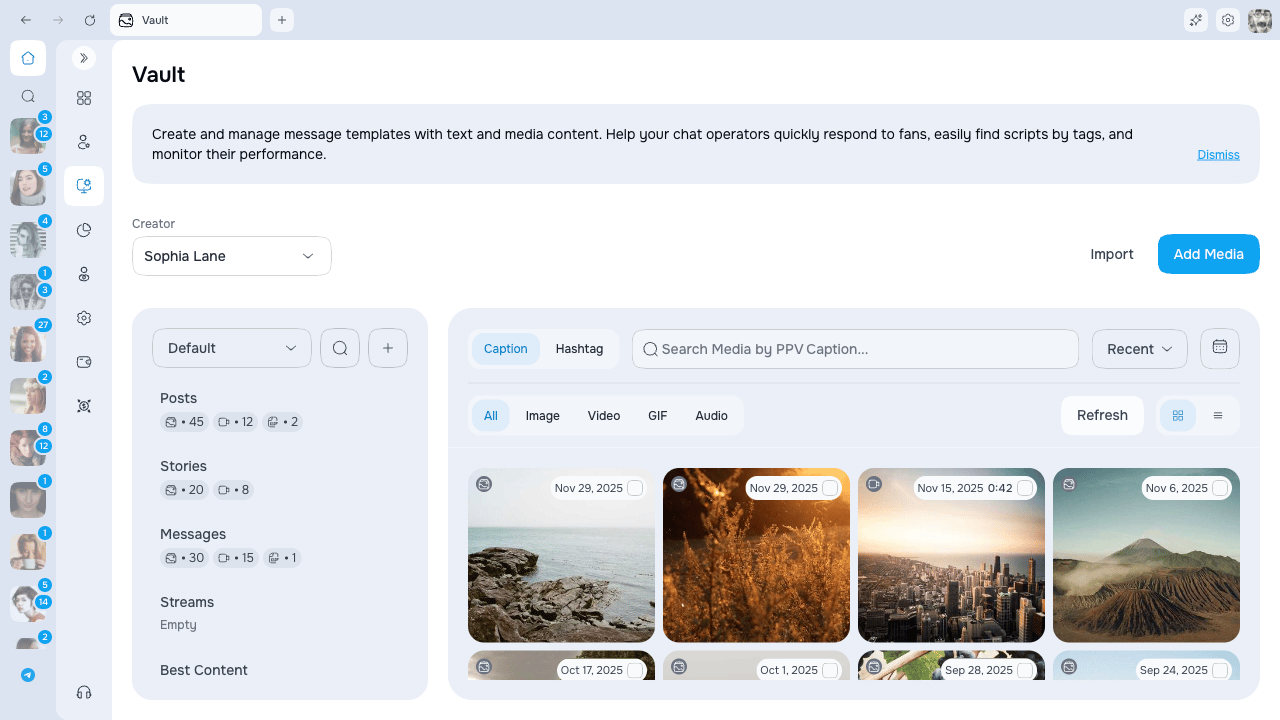
View modes
Toggle between:- Grid — compact thumbnails with overlays for caption, hashtag, likes, and tips
- List — row view that also shows the uploader and upload time
Categories sidebar
The sidebar shows All Media and every OnlyFans list connected to the account.- Click a category to scope the grid to just that list
- Each category shows small counters for photos, videos, GIFs, and audio
- Use the search field to filter the sidebar
- Open the three-dot menu on any category to Rename or Delete. It stays visible on touch screens and appears on hover when using a mouse
- Click Customize order to drag categories into the order you prefer — the order is saved per creator
Filters and search
Above the grid you have:- Search tabs — switch between Description (caption) and Hashtag search
- Type filter — All / Image / Video / GIF / Audio
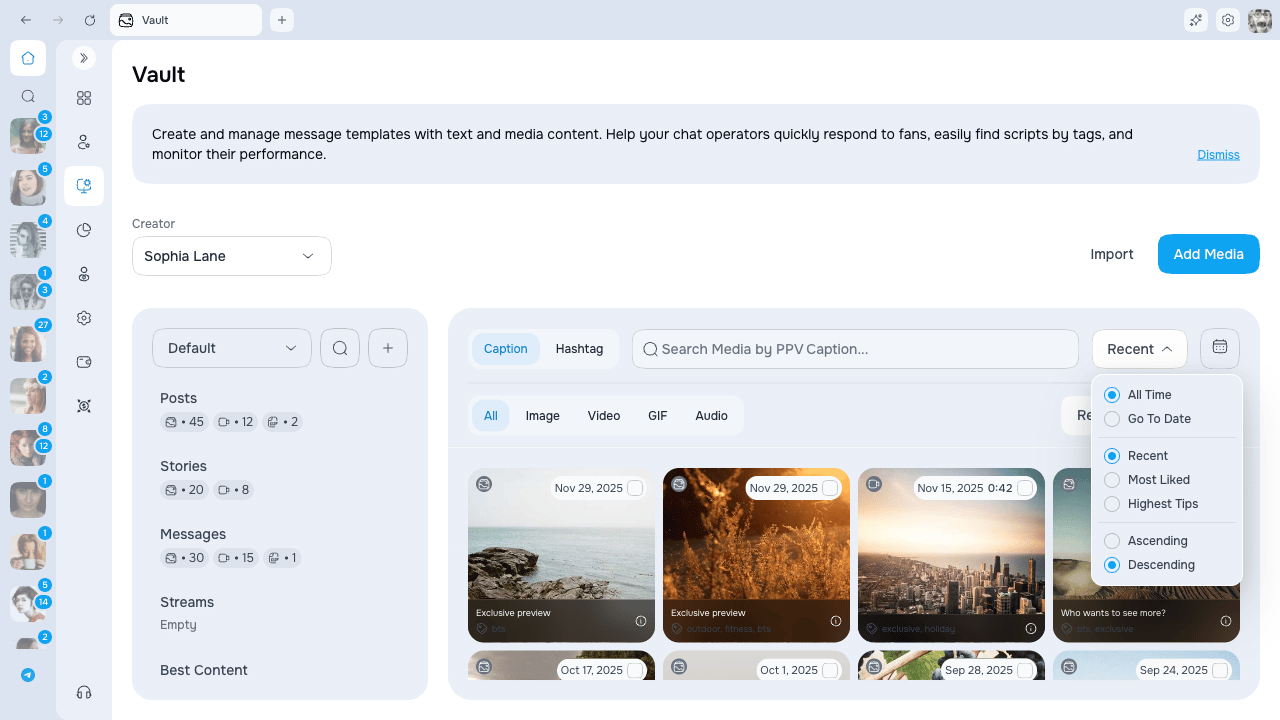
- Sort — Most Recent, Most Liked, Highest Tips, plus ascending or descending direction
- Date filter — All time, or pick a specific date with Go to date
Adding media
Click Add media to open the upload wizard. You can attach caption, hashtags, a suggested price, and tagged creators at the moment of upload — everything is saved alongside the file.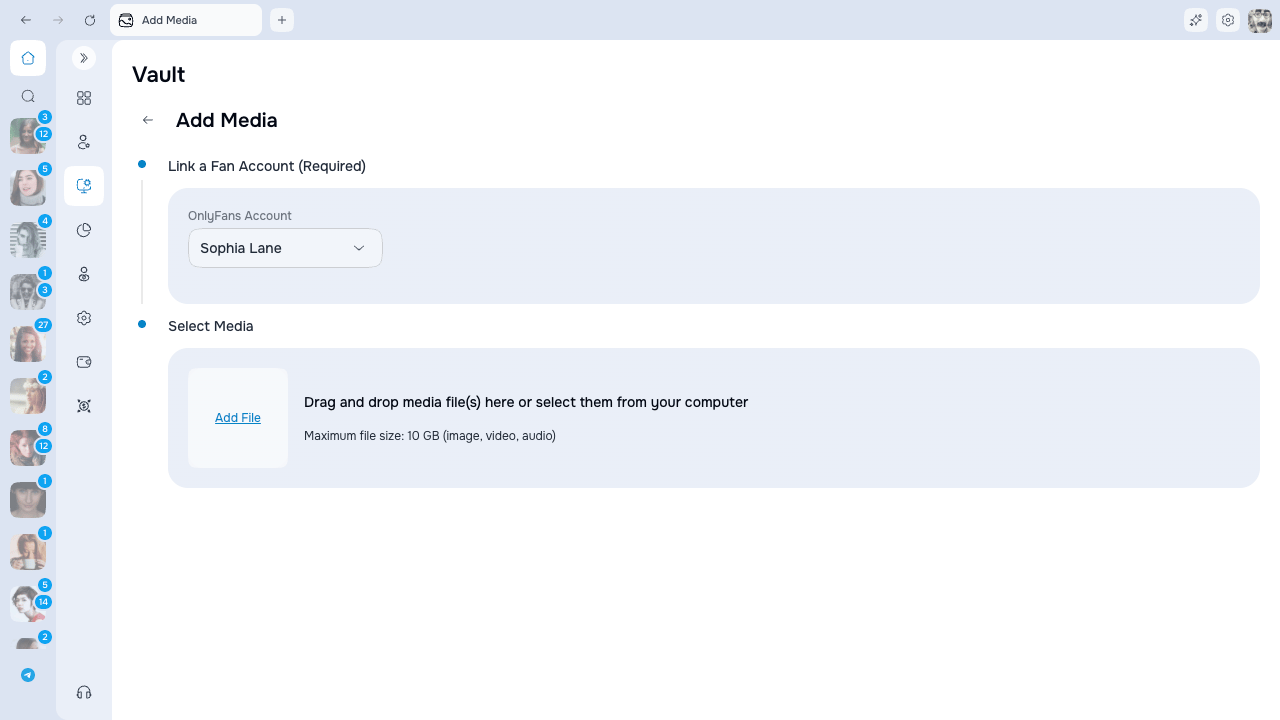
Where uploads land
Media you add through the wizard lands in the Messages folder — the same folder chatters pull from when sending DMs and PPV. This way a freshly uploaded file is ready to use in chats right away, without moving it first.Nothing is ever sent to fans during upload. Adding media to the Vault only stores it on the account — your fans see nothing until a chatter actually sends it.
While an upload is running
After you start the upload, a status panel in the top-right corner shows progress for every file. Open it to manage files one at a time:Duplicate files
Before transferring a file, AgencyKey checks whether the same media is already present in the selected creator’s Vault. A detected duplicate is skipped and shown separately as Already exists; it is not counted as a successful upload or a failure. The completion summary keeps uploaded, failed, and already in vault counts separate. If you recently deleted the original or know the match is incorrect, open the upload status panel and use Upload anyway on that duplicate row. This bypasses the duplicate check for that file only, so review the existing Vault item first to avoid an unnecessary copy.Daily upload limit
OnlyFans caps how much you can upload per day. When that cap is reached, the upload stops right away and shows a clear message:OnlyFans daily upload limit reached — try again later.You also get a single notification so you know immediately. Wait and try the rest of your media the next day.
Permissions
Access to the Vault is controlled by three permissions:
If you do not have the matching permission, the related button is hidden or disabled.
Next steps
- Captions, hashtags, and metadata — How per-item metadata works
- Bulk actions — Edit, move, or delete many items at once
- Gallery picker — Attaching vault media to chat, PPV, and mass messages
- Preview in OnlyFans chat — What you see on vault media inside the OnlyFans chat