

Where to find it
Open Employees → Team Members in the sidebar.What you can do
- Invite new employees
- Create groups and subgroups
- Assign roles and creators
- Activate or deactivate employees
- Remove employees and revoke their access
Page layout
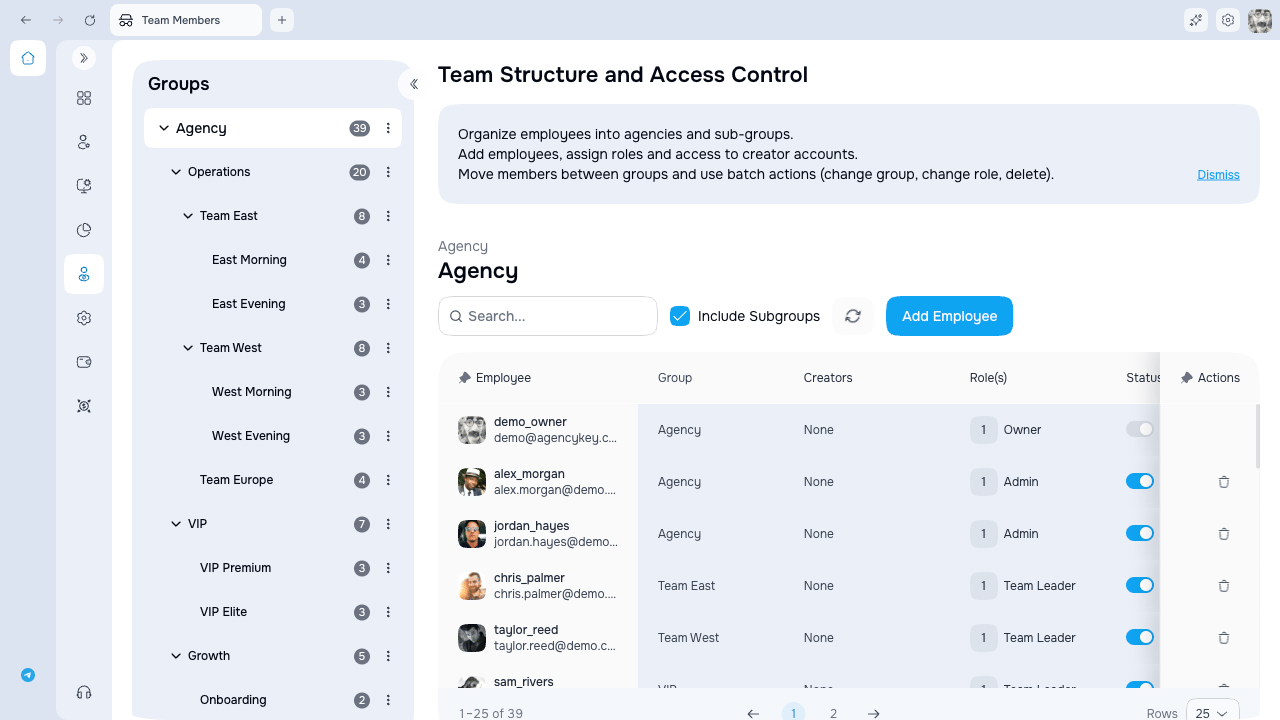
Table columns
Inactive is a reversible access pause: the employee cannot sign in, while roles, creator assignments, and settings remain for later reactivation. Remove is different: it revokes sessions, removes role and creator assignments, releases the email for a new invitation, and removes the row. Historical or audit records may still remain.
Access and availability
Opening the page requires Team Members view access. Your data scope determines whether you can see everyone in the agency, your group and its subgroups, or only yourself. Invitations, status changes, group management, assignments, and removal depend on separate permissions.Next steps
- Managing employees — invite employees, manage status, and edit settings
- Groups — organize employees into a hierarchy
- Assignments — assign creators, roles, and groups to employees