
Inviting an employee
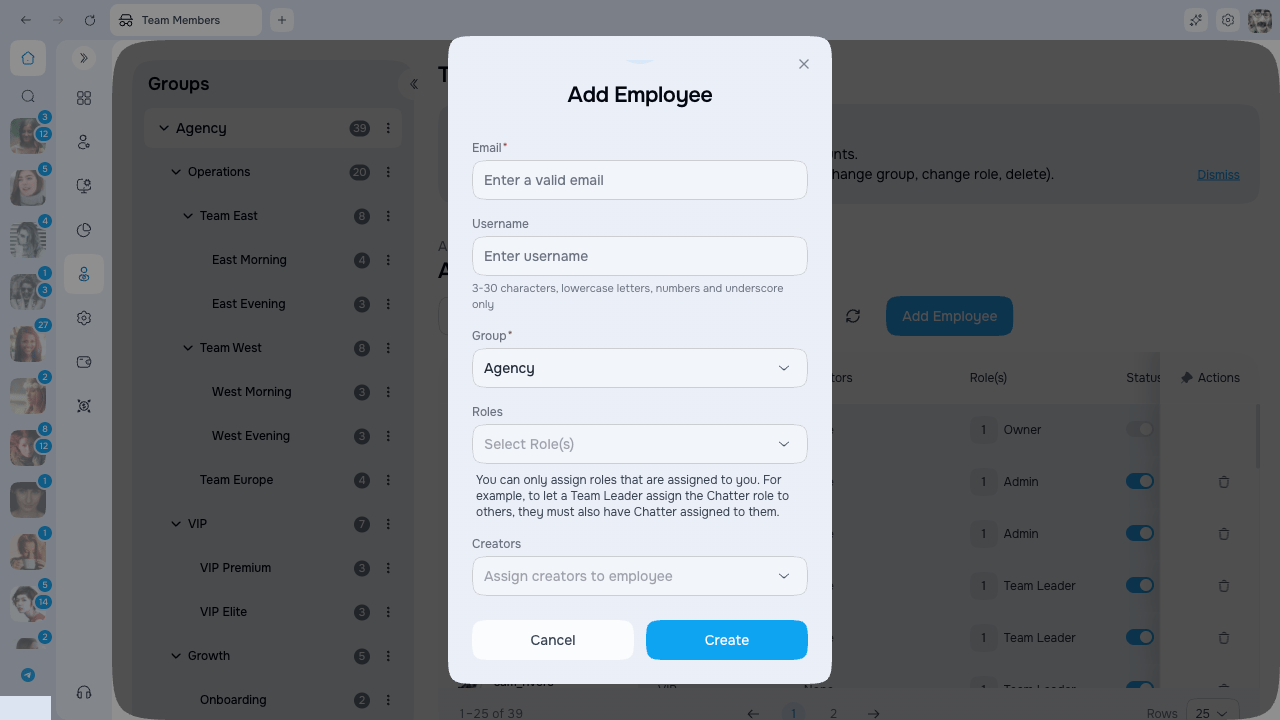
Add Employee form
  1. Click Add Employee
  2. Fill in the form:
  1. Click Create
The employee receives an invitation link and a 6-digit code. The link is the simplest route; the employee can also choose Join a team and enter the code. Invitations may expire, be revoked, or become unavailable after use. Ask the recipient to activate promptly. If it is rejected, cancel the pending invitation and create a new one rather than reusing an old code.

Employee statuses

Changing status

Use the toggle in the Status column:
  • On → Active
  • Off → Inactive
A confirmation dialog will appear explaining the consequences before deactivation takes effect. Inactive employees cannot sign in. Their group, roles, creator assignments, and settings remain and take effect again after reactivation.

Canceling an invite

For employees with Inviting status:
  1. Click the trash icon in the Status column
  2. Confirm cancellation
The invitation will be revoked.

Deleting an employee

You can remove an employee from the table entirely:
  1. Click the trash icon in the Actions column
  2. Confirm deletion in the dialog
The employee is removed from the table, all active sessions are revoked, role and creator assignments are removed, and the email becomes available for a new invitation.
There is no self-service restore action for a removed employee. Removal does not erase historical actions, reports, or audit records that the agency or service must retain. Invite the email again if the person should return.
The Owner is protected and cannot be removed, and you cannot remove yourself. Only the Owner can manage or remove a user who has the system Admin role.

Editing inline

Click on a cell to edit:
  • Group → Change group
  • Creators → Assign creators
  • Roles → Assign roles
The pencil icon appears on hover.

Role assignment restrictions

Which roles you can assign depends on your own role: Role assignment and employee-management scope are separate permissions. A person can see an employee but still be unable to assign a particular role.