

Where to find it
Open Analytics → By Employees for Employee Analytics. For the creator dashboard, open Analytics → By Creators.What you can do
- Compare employees or creators over a selected period
- Break employee results down by creator, or creator results down by employee
- Compare the current period with the previous one
- Choose visible columns and export a summary or detailed CSV report
- Review creator balances, revenue, subscriptions, cohorts, and fan funnel in Creator Analytics
Analytics areas
AgencyKey has two analytics areas with different purposes:
This page describes the Employee Analytics table. See Creator Analytics for the modern creator dashboard.
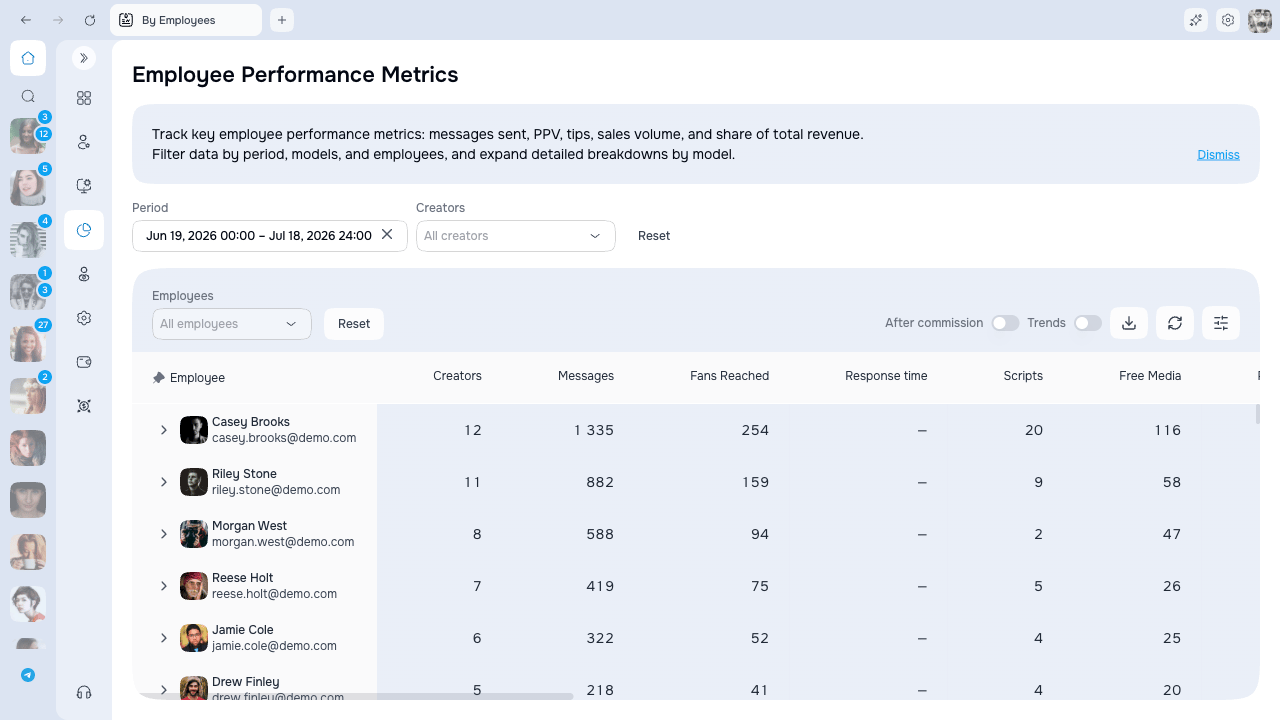
Two Employee Analytics views
Choose the view based on what you want to analyze:
- Who among employees sells the most? → By Employees
- Which creator generates more revenue? → By Creators
Filters
Available filters:- Period — select a date range (defaults to the current month)
- Trends — toggle to compare values with the previous period
- Creators — filter by specific creators
- Employees — filter by specific employees
Expandable rows
Click on a row to see details:- In “By Employees”: shows breakdown by creators
- In “By Creators”: shows breakdown by employees
Summary rows
At the bottom of the table:- Total adds count and money metrics. PPV Open % is recalculated as total sold divided by total sent, and non-additive metrics such as response-time median show a dash.
- Average divides count and money totals by the number of visible main rows. Percentage and median fields that should not be averaged show a dash.
Export to CSV
Click the Export button to download the data as a CSV file. You can export a summary table or a detailed report with expanded rows.Column visibility
Click the Columns button to show/hide columns. Settings are saved.Access and availability
Each analytics view requires its own permission:- Analytics → By Employees
- Analytics → By Creators
Employee rows contain activity and sales that can be attributed to a CRM employee. Creator-originated, automated, system, or otherwise unattributed activity does not appear under an employee. Because Creator Analytics measures creator results while Employee Analytics measures attributed employee work, their totals can legitimately differ. Attribution follows Sales Settings.
Next steps
- Metrics reference — detailed description of all available metrics
- Creator Analytics — balances, revenue, subscriptions, cohorts, funnel, and table