

How to open it
You can open the Claimed Fans view two ways:- Click the Details action in a trial link’s row.
- Click any funnel number in the row — Subs, 1+ Msg, 3+ Msgs, $1+, or $500+. The view opens already filtered to that stage.
Opening Claimed Fans requires the Trial Links View details permission.
Timeline chart
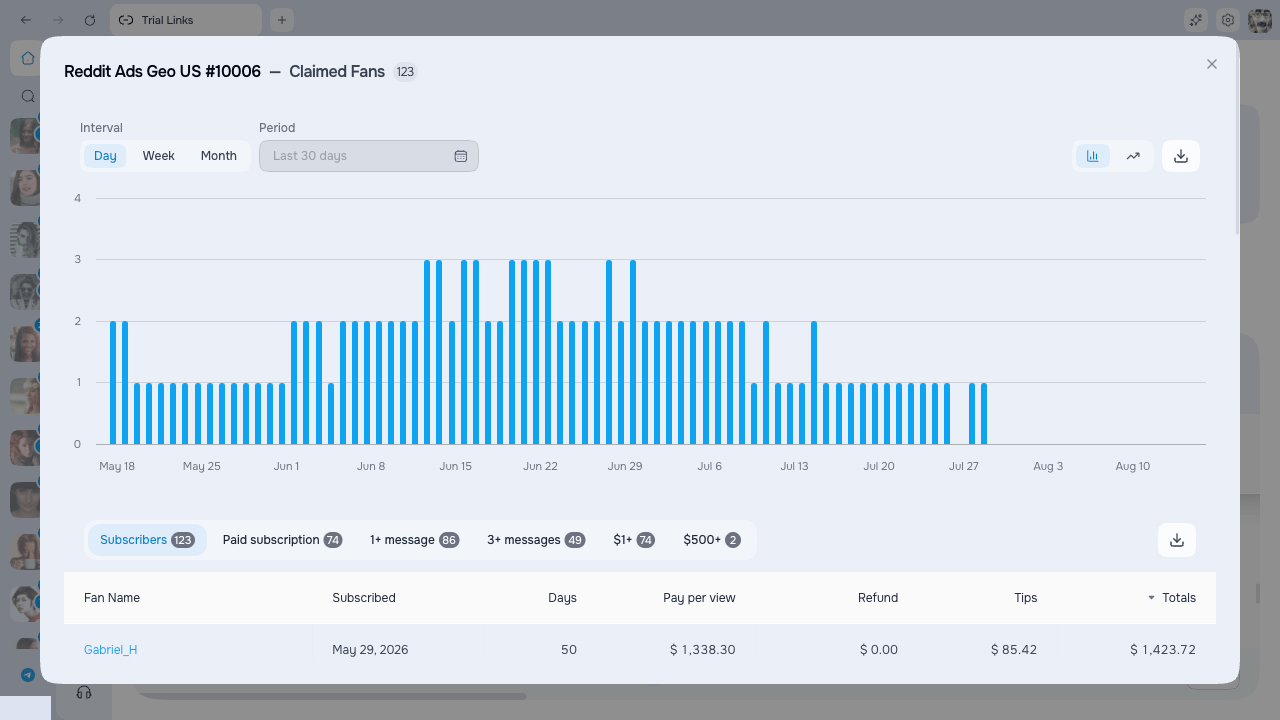
At the top, the chart plots new subscribers per selected interval. It contains one Subs series; it is not cumulative and does not show clicks. It shows whether a promo kept adding subscribers or fizzled out after the first day.The chart uses the period selected on the main Trial Links table. Without a main period filter, it covers the link creation date through today. The period control inside the detail view is currently read-only. You can group by day, week, or month, switch Area/Column, and export PNG or CSV.
Claimed fans table
Below the chart is the list of fans who claimed this trial link, with all of their spending shown next to each name.Stage filters
The row of tabs above the table lets you narrow the list to a single stage of the funnel. The number next to each tab shows how many fans are in it.Columns
A total row at the bottom sums each column, so you get an instant read of the per-fan economics for this trial link.
Opening the chat with a fan requires the “View chats” permission. Without it, the fan name is visible but not clickable.
Export
- Export CSV — download the current fan table as a spreadsheet, up to 10,000 rows.
Stop, review, or delete a trial
The Claimed Fans view keeps its numbers no matter what happens to the trial link itself. Here is how each lifecycle action affects the data.Stop a trial early
Use the Stop action to close a link to new claims before its own expiry date or fan limit is reached. The link turns Expired, but it stays in the list with all its numbers intact — the timeline and fan breakdown are kept. Fans who already claimed the link keep their configured Trial Duration; Stop does not shorten their individual trials.Stop only appears for trials that are still active. A link that has already reached its end date or fan limit is Expired already, so there is nothing to stop.
Review expired or deleted trials
The Include deleted links toggle on the trial links page controls whether completed or removed links join the current view:- Off (default) — links removed from the active view are hidden.
- On — current links and removed links are shown together. This includes trials that expired because of their date, fan limit, or the Stop action.