

Opening permissions page
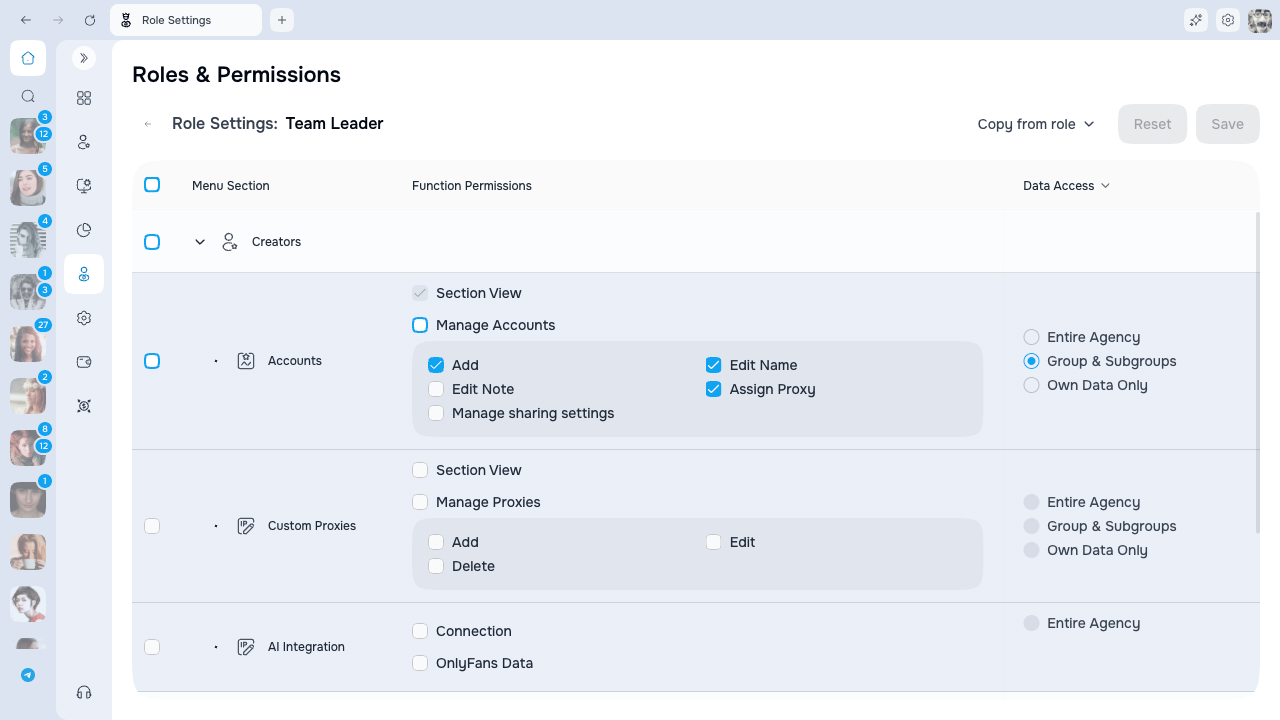
- Find the role in the table
- Click the gear icon in the Actions column
To review only your own effective access, open the account menu under your avatar and choose My access. This page is read-only and lists the sections and actions currently available to you; it does not show data scopes or let you edit a role.
Permission categories
Permissions are organized into categories:
Permissions are intentionally granular. Page visibility, individual actions, and data scope are separate controls. For example, a role may view Accounts without editing notes, changing proxies, changing sharing, deleting creators, or managing billing.
Click the arrow to expand a category and see individual permissions.
Setting permissions
- Checkbox — enable/disable a permission
- Section checkbox — select all permissions in the section
Some actions need a partner action. For example, editing OnlyFans notes needs the right to view them. When you enable such an action, the partner turns on by itself and stays on until you turn the action off.
Employee invitation and removal actions
Employee cleanup is split into two independent permissions under Employees → Team Members → Manage Employees:
Grant only the action the role needs. Both permissions follow their own employee data scope; Own Data Only does not make self-removal available. Owner, self, and system Admin protections still apply.
Fine-grained OnlyFans permissions
For accounts you manage through the built-in OnlyFans view, permissions break down into precise switches. You can grant exactly what a teammate needs — for example, let a chatter add fans to a list but not delete it.Statements and payout history
Payout history is separate from general statement visibility and from the authority to move money:
Use View payout requests when an employee needs to review history without requesting a withdrawal or changing its schedule. Turning this permission off does not hide history from a role that still has Request payout, because money authority includes the reconciliation view. Owner, Admin, and Team Leader roles receive the read-only history permission by default; Creator and Chatter do not.
Collections
The Collections section splits into four independent groups, each with its own action toggles:Queue
The Queue section splits by event type. Each group has Create, Edit, and Delete:
A role can be allowed to schedule posts but not mass messages. View opens the calendar in read-only mode.
OnlyFans Settings
The Settings section shows one group per OnlyFans settings page. Each group opens into View plus field-by-field toggles, so you can grant access to one page without unlocking the rest.Delayed Messages
The delayed-send clock next to the message box is its own permission under Messages, separate from Send Messages. This lets you allow a teammate to schedule a delayed message without letting them send right away — or the other way around.Inside an OnlyFans three-dot menu, forbidden actions simply don’t appear. You can permit one item (for example, Clear list) while hiding another (Delete list).
Copying permissions from another role
To quickly configure permissions by copying from an existing role:- Click Copy from role
- Select the source role from the dropdown
- All permissions and scopes from the selected role will be applied
Data access scope
Some permissions have an access scope that controls how much data the employee can see:How scope affects different features
Team Members
- All Data: See all employees in the agency
- Group & Subgroups: See employees in your group and subgroups
- Own Data Only: See only yourself
Accounts
- All Data: See all OnlyFans accounts
- Group & Subgroups: See accounts assigned to your group and subgroups
- Own Data Only: See only accounts assigned to you personally
Analytics
- All Data: View statistics for all accounts
- Group & Subgroups: View statistics for accounts in your group and subgroups
- Own Data Only: View only your personal performance
Shifts
- All Data: See all shifts for all employees
- Group & Subgroups: See shifts for employees in your group and subgroups
- Own Data Only: See only your own shifts
Scope and group hierarchy
The “Group & Subgroups” scope works with the group hierarchy:- Your own group
- All subgroups recursively (children, grandchildren, etc.)
- Parent groups (above you)
- Sibling groups (same level, different branch)
Practical example
Maria is in “Team Alpha” with “Group & Subgroups” access to Team Members:Saving changes
- Make your changes
- Click Save (button shows the number of changes)
Unsaved changes warning
When trying to leave the page with unsaved changes, a dialog appears:- Stay — return to editing
- Leave — leave without saving