

Where to find it
Open Employees → Roles & Permissions in the sidebar.What you can do
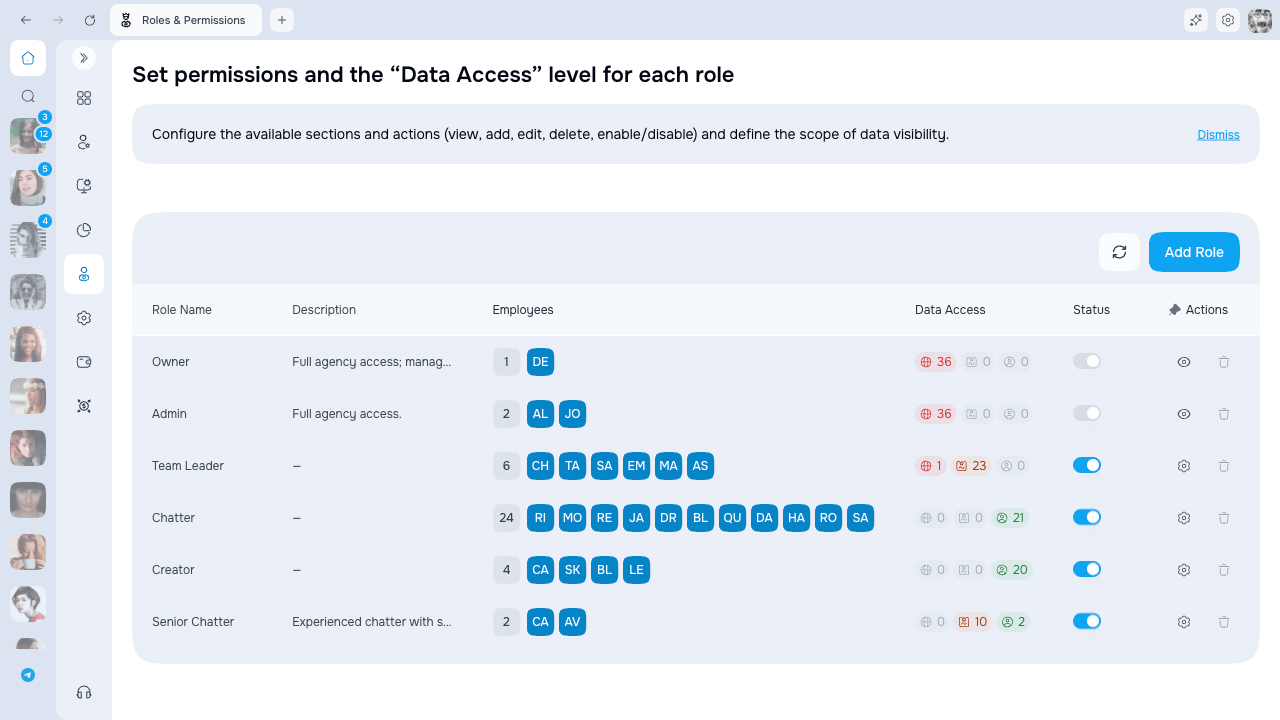
- Review system and starter roles
- Create custom roles for different jobs
- Choose which pages and actions each role can use
- Limit data to the whole agency, a group and its subgroups, or the employee’s own data
- Assign multiple roles when one job needs a combination of access
How roles work
- Create a role with a name and description
- Configure permissions (which features are available)
- Set data access scope (how much data is visible)
- Assign the role to employees in the Team section
System roles
System roles cannot be edited, deactivated, or deleted. Their status is locked:Owner vs Admin
Both roles have full access, but there are important differences:
Owner is created with the agency, cannot be assigned to another employee, and is protected from removal. Only the Owner can assign or remove Admin, manage an Admin user, and use Delete agency. Admin cannot grant these Owner-only powers, and its system-role status remains locked.
Default roles
AgencyKey creates starter roles for common jobs:When to use default roles
- Creator — assign to models who manage their own content
- Chatter — assign to employees who only chat with fans
- Team Leader — assign to supervisors who need to oversee their team
Custom roles
You can create custom roles with specific permissions for your team needs. Custom roles can be edited, deactivated, or deleted.Multiple roles
Employees can have multiple roles assigned. When this happens:Permission combining
All permissions from all roles are combined (union). The employee gets access to everything that any of their roles allows. Example: Employee has Role A (view accounts) and Role B (edit scripts):- Can view accounts (from Role A)
- Can edit scripts (from Role B)
Data access scope merging
When the same permission exists in multiple roles with different scopes, the broadest scope wins:
Example: Employee has:
- Role A: View accounts with “Own Data Only”
- Role B: View accounts with “Group & Subgroups”
- Result: Can view accounts with “Group & Subgroups” scope
Groups & hierarchy
Employees are organized into groups. Groups form a hierarchy:How groups work
- Each employee belongs to one group
- Groups can have up to six subgroup levels below the agency root
- Group hierarchy affects what data employees can see
Group restrictions
Data visibility by group
When a permission has “Group & Subgroups” access level:- Employee sees data from their own group
- Employee sees data from all subgroups below their group
- Employee does NOT see data from parent groups or sibling groups
- Sees Team Alpha data
- Sees Subteam A1 and A2 data
- Does not see Agency (root) data
- Does not see Team Beta data
Who can edit whom
Employees can only edit other employees who are:- In the same group as them, OR
- In a subgroup below their group
- Can edit employees in Team Alpha
- Can edit employees in Subteam A1 and A2
- Cannot edit employees in Agency (root)
- Cannot edit employees in Team Beta
Roles table
Role status
Use the toggle in the Status column to change the activity of a custom role. Every system role, including Admin, has a locked status and no active toggle.
Important warnings
Access denied behavior
When an employee doesn’t have permission for a feature, unavailable menu items and actions are hidden. Opening a restricted page directly does not grant access.Access and availability
Opening and changing this page follows role-management permissions. Users with access see the agency-wide roles list; data scopes do not filter it. Every system role remains view-only with a locked status, including Admin, and only the Owner can assign or remove Admin.Next steps
- Managing roles — create, edit, and delete roles
- Configuring permissions — set permissions and data access scopes