

Participation is reciprocal. Don’t share turns the shared feature off for that creator. Within agency uses eligible creators in the same agency. Entire CRM uses eligible creators that also participate at the Entire CRM level.
What you can do
- Set how much each model shares for AI Recon and for fan statistics — separately
- Choose one of three levels per field: share nothing, share within your agency, or share across the whole CRM
- Change the level for one model, for many selected models at once, or for the whole agency
- Pick a default level that new models follow automatically
- Apply changes that take effect right away
The three levels
Each field — AI Recon and Platform Stats — has its own level. The two are independent: changing one never touches the other.What each field controls
What enters the shared pool
AgencyKey matches the same OnlyFans fan across eligible participating creator accounts. The two fields use different inputs and outputs:
The source model and source agency are not shown, and another agency does not receive a direct view of your CRM, OnlyFans account, or source transcript. The fan is still identifiable in the chat where the result appears, and AI Recon may repeat personal details the fan stated. Treat both results as sensitive, source-deidentified information — not as proof that the fan cannot be identified.
Only users who already have access to the selected creator and the corresponding AI Recon or statistics permission can see the result. Ordinary role permissions and creator assignments remain separate from the sharing level.
Retention and turning sharing off
Changing a field to Don’t share stops that creator from contributing to or using that shared feature for new calculations. It does not promise immediate deletion of service data or of an AI Recon briefing that was already generated; an existing briefing picks up the new scope when it is generated again. AgencyKey does not state a separate retention period on this page. Storage, deletion requests, and applicable retention are governed by the current Privacy Policy. Until a more specific retention matrix is published, do not treat the sharing switch as a data-erasure control.Page layout
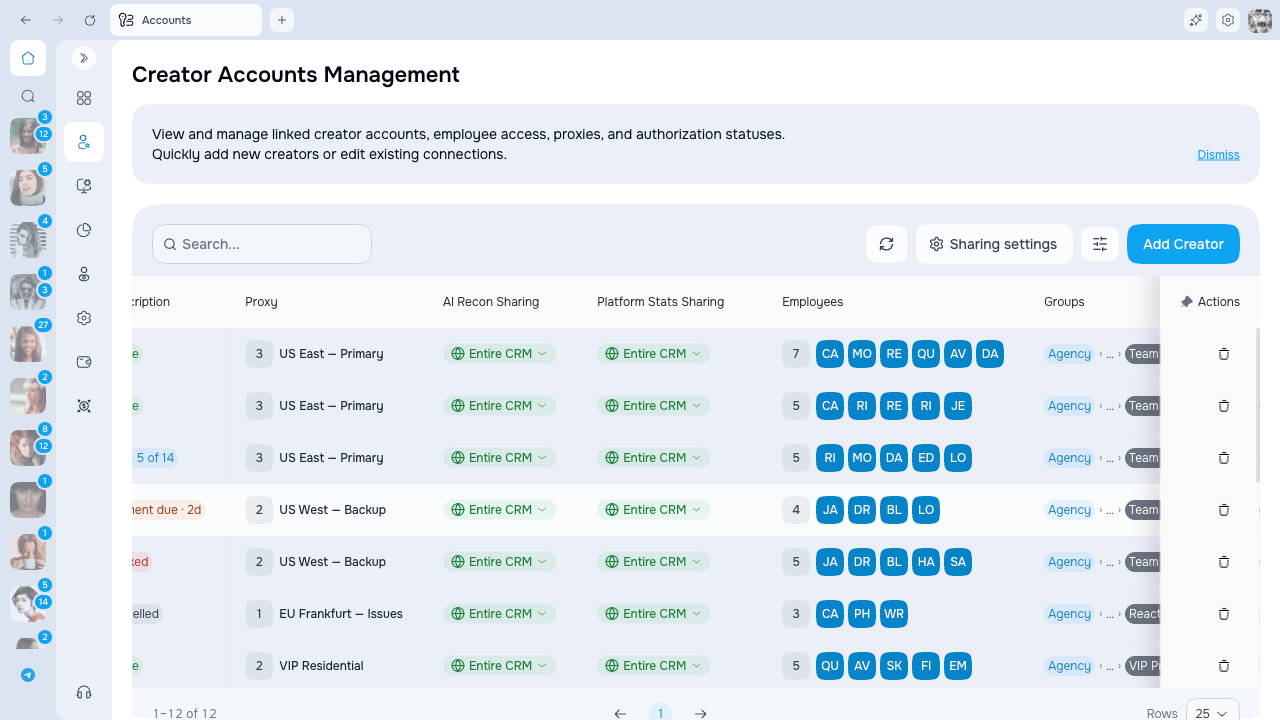
On the Accounts page, two columns show the current level for each model:- AI Recon Sharing — the level for AI Recon
- Platform Stats Sharing — the level for combined statistics
Set the level for one model
- Find the model on the Accounts page.
- Click a non-interactive part of its row, or click the eye button in Actions.
- In Model account details, pick a new AI Recon Sharing or Platform Stats Sharing level.
- Click Save changes and confirm the sharing change.
A new level applies right away. After you confirm the change, an active OnlyFans view for that creator updates without a manual reload. Existing AI Recon reports aren’t lost — they pick up the new level the next time they’re generated.
Apply to many models at once
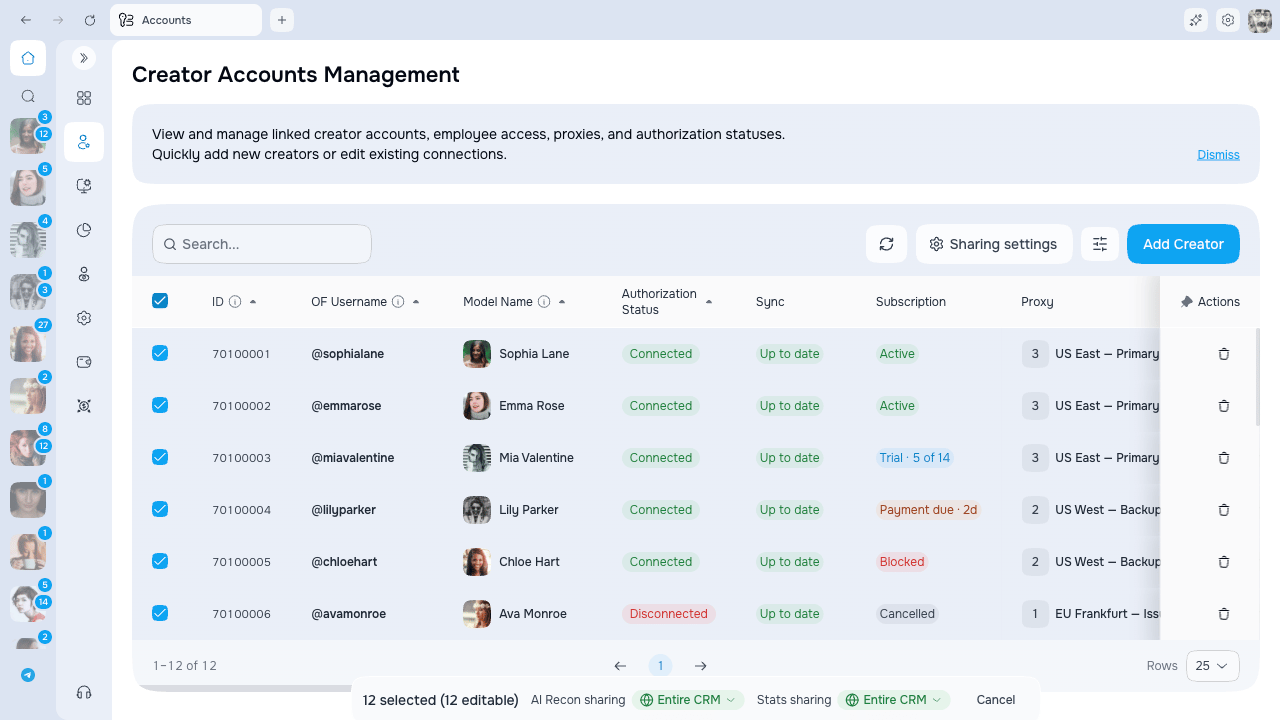
- Select the rows you want with the checkboxes on the left.
- A bar appears at the bottom with AI Recon sharing and Stats sharing dropdowns.
- Pick a level and confirm to apply it to every selected model in one step.
Set the default for the whole agency
- Click Sharing settings in the toolbar to open Sharing defaults.
- Set a level for AI Recon and Platform Stats. The initial value for both is Entire CRM.
- Choose whether to apply the default to existing creators that do not have their own override.
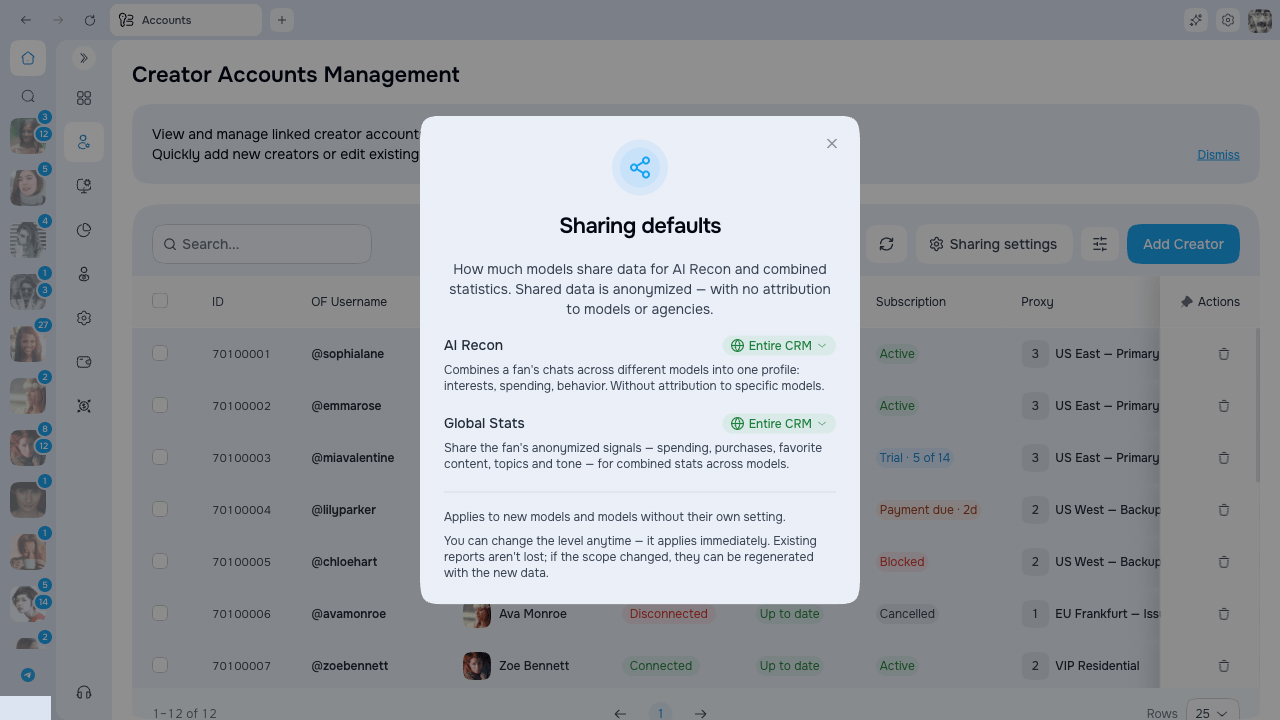
The agency default only changes models that don’t have their own level. Models with their own level set keep it.
How the level shows up in chats
The level you set here drives what chatters see inside OnlyFans chats:
See AI Recon for how the briefing reads inside a chat.
Permissions
Your admin configures these in the Roles section.