> ## Documentation Index
> Fetch the complete documentation index at: https://agencykey.com/docs/llms.txt
> Use this file to discover all available pages before exploring further.
# Vault
> Central media library for everything a creator has stored on OnlyFans
## Introduction
The Vault is a central library of every photo, video, GIF, and audio file stored on a creator's OnlyFans account. On top of the native OnlyFans vault, AgencyKey adds its own layer of metadata — captions, hashtags, suggested prices, tagged creators, and uploader history — so your team can find, re-use, and prepare media without ever re-typing the same descriptions.
Navigate to **Automation > Vault** to open the page.
## What you can do
* Browse all media for a creator in one searchable library
* Attach captions and hashtags to any item and re-use them across chats, PPV, and mass messages
* Organize media into OnlyFans lists (categories), rename or reorder them
* Filter and search by caption, hashtag, type, date, category, and sorting preference
* Edit metadata for many items at once with bulk actions
* See which AgencyKey user uploaded each file and when
## Page layout
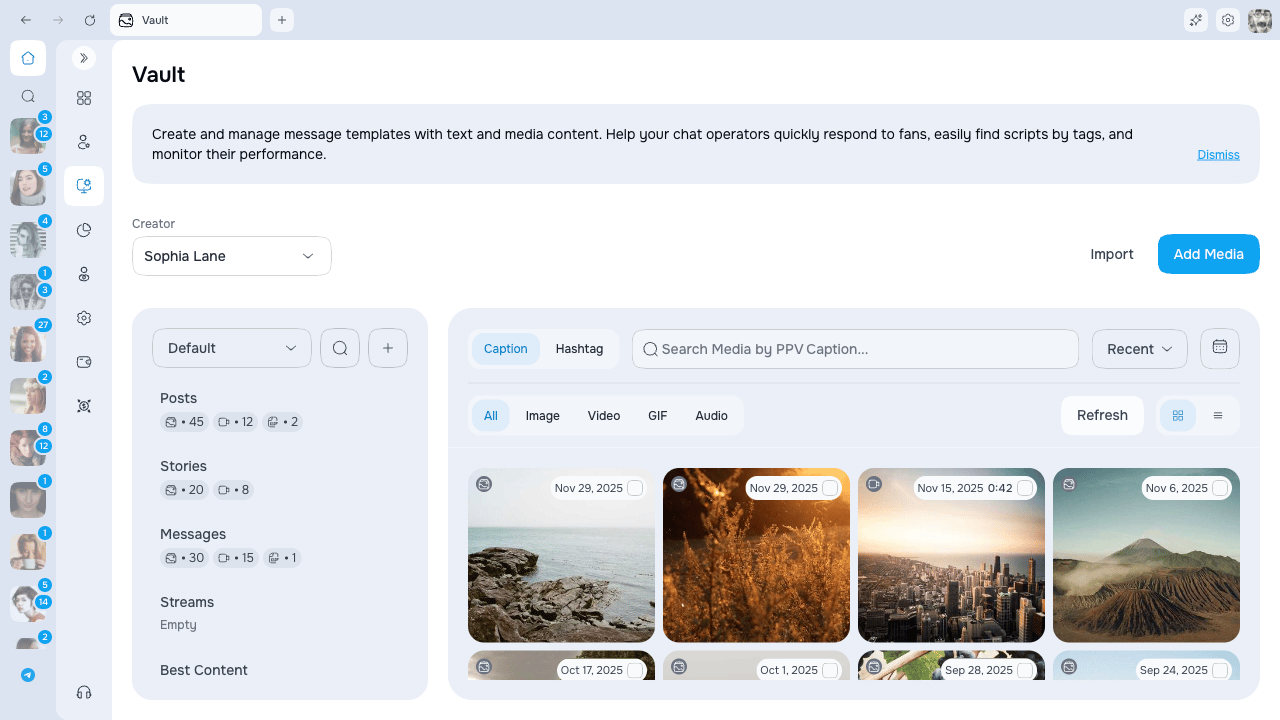
After selecting a creator in the header, the Vault splits into two panes:
| Area | Contents |
| ------------ | -------------------------------------------------------------------------------------- |
| Left sidebar | OnlyFans lists (categories) with per-type counters for photos, videos, GIFs, and audio |
| Main area | Media grid or list view with thumbnails, captions, hashtags, and status overlays |
 ### View modes
Toggle between:
* **Grid** — compact thumbnails with overlays for caption, hashtag, likes, and tips
* **List** — row view that also shows the uploader and upload time
### Categories sidebar
The sidebar shows **All Media** and every OnlyFans list connected to the account.
* Click a category to scope the grid to just that list
* Each category shows small counters for photos, videos, GIFs, and audio
* Use the search field to filter the sidebar
* Click the three-dot menu on any category to **Rename** or **Delete**
* Click **Customize order** to drag categories into the order you prefer — the order is saved per creator
Renaming or deleting a category here updates the list directly on OnlyFans.
### Filters and search
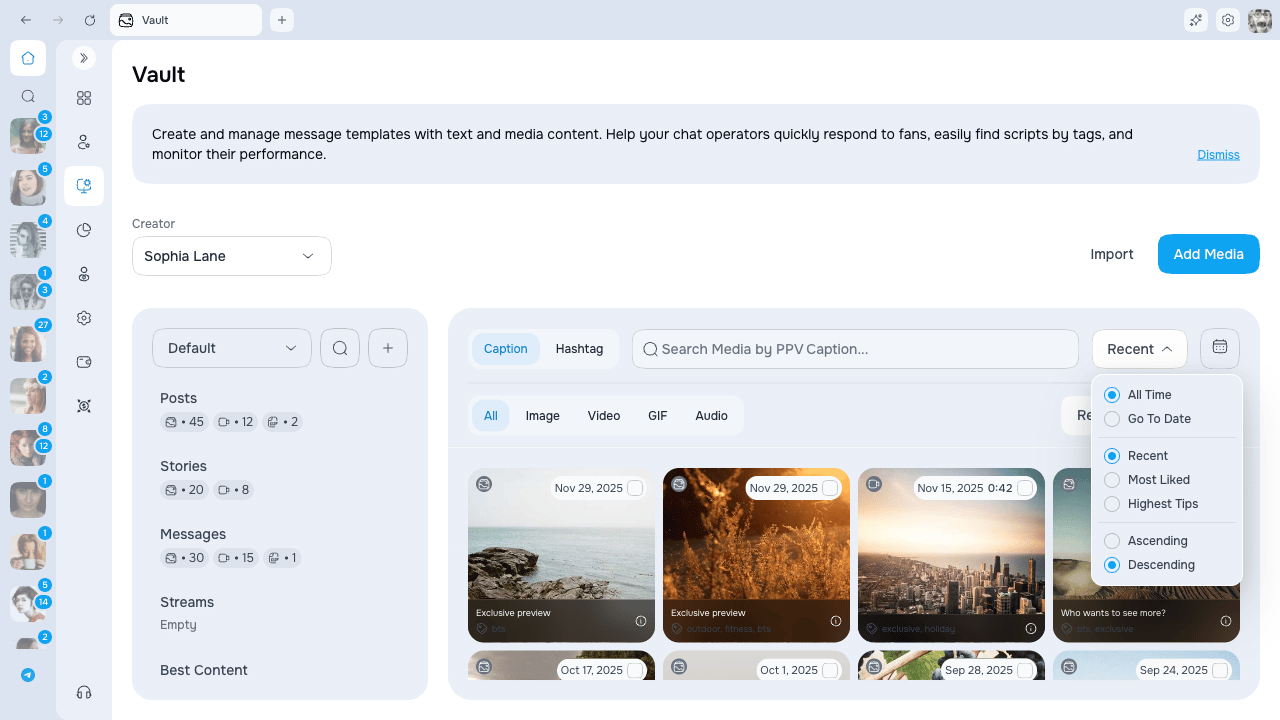
Above the grid you have:
* **Search tabs** — switch between Description (caption) and Hashtag search
* **Type filter** — All / Image / Video / GIF / Audio
* **Sort** — Most Recent, Most Liked, Highest Tips, plus ascending or descending direction
* **Date filter** — All time, or pick a specific date with **Go to date**
### View modes
Toggle between:
* **Grid** — compact thumbnails with overlays for caption, hashtag, likes, and tips
* **List** — row view that also shows the uploader and upload time
### Categories sidebar
The sidebar shows **All Media** and every OnlyFans list connected to the account.
* Click a category to scope the grid to just that list
* Each category shows small counters for photos, videos, GIFs, and audio
* Use the search field to filter the sidebar
* Click the three-dot menu on any category to **Rename** or **Delete**
* Click **Customize order** to drag categories into the order you prefer — the order is saved per creator
Renaming or deleting a category here updates the list directly on OnlyFans.
### Filters and search
Above the grid you have:
* **Search tabs** — switch between Description (caption) and Hashtag search
* **Type filter** — All / Image / Video / GIF / Audio
* **Sort** — Most Recent, Most Liked, Highest Tips, plus ascending or descending direction
* **Date filter** — All time, or pick a specific date with **Go to date**
 ## Adding media
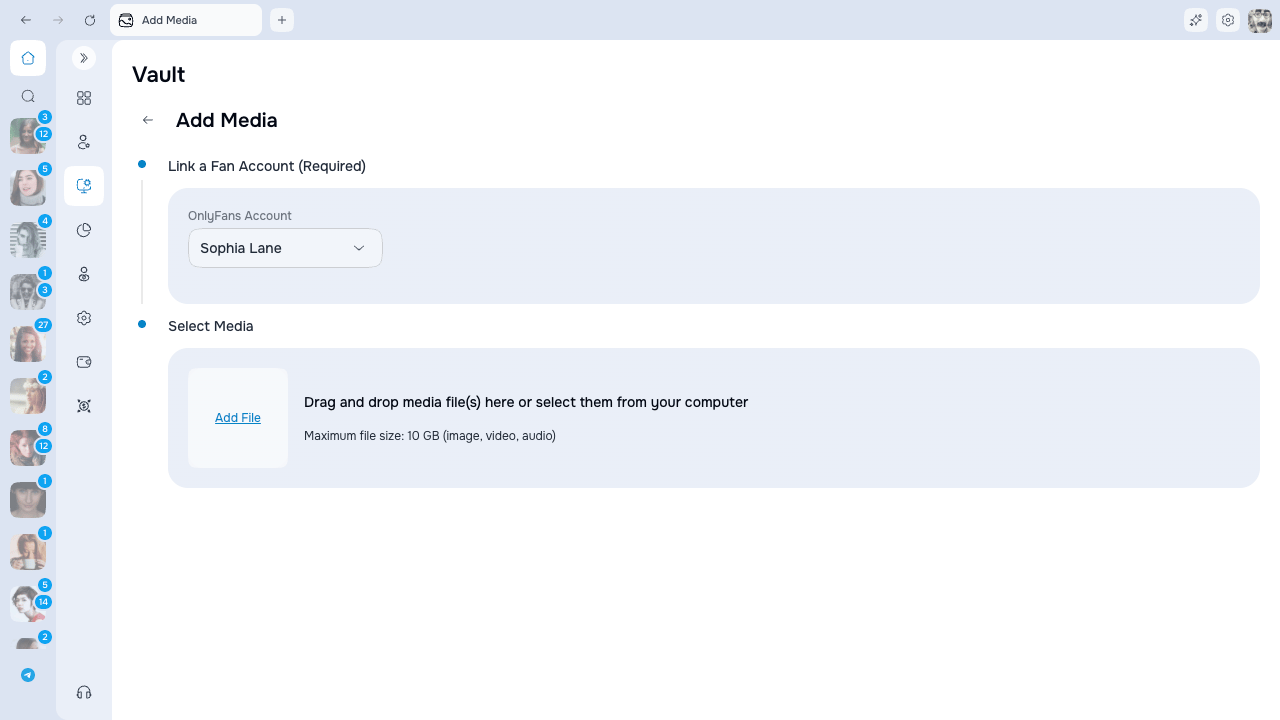
Click **Add media** to open the upload wizard. You can attach caption, hashtags, a suggested price, and tagged creators at the moment of upload — everything is saved alongside the file.
## Adding media
Click **Add media** to open the upload wizard. You can attach caption, hashtags, a suggested price, and tagged creators at the moment of upload — everything is saved alongside the file.
 ### Where uploads land
Media you add through the wizard lands in the **Messages** folder — the same folder chatters pull from when sending DMs and PPV. This way a freshly uploaded file is ready to use in chats right away, without moving it first.
Nothing is ever sent to fans during upload. Adding media to the Vault only stores it on the account — your fans see nothing until a chatter actually sends it.
To file media under your own categories, use **Move to category** after the upload finishes. The category picker lists only your own custom lists — the folders you can actually assign media to. The left sidebar still shows every folder, including system ones, for browsing.
### While an upload is running
After you start the upload, a status panel in the top-right corner shows progress for every file. Open it to manage files one at a time:
| Action | What it does |
| ---------- | ----------------------------------------------------------------------------------------------------------------------------------------------------------------------------------- |
| **Cancel** | Stops a file right away, even one still waiting on OnlyFans. The rest of the line keeps going. |
| **Pause** | Holds a file in place without losing progress. A paused file shows a countdown before it auto-cancels; when little time is left you can click **Extend** to keep it waiting longer. |
| **Resume** | Picks a paused file back up from where it stopped. |
| **Retry** | Re-runs a file that failed. |
### Duplicate files
Before transferring a file, AgencyKey checks whether the same media is already present in the selected creator's Vault. A detected duplicate is skipped and shown separately as **Already exists**; it is not counted as a successful upload or a failure. The completion summary keeps **uploaded**, **failed**, and **already in vault** counts separate.
If you recently deleted the original or know the match is incorrect, open the upload status panel and use **Upload anyway** on that duplicate row. This bypasses the duplicate check for that file only, so review the existing Vault item first to avoid an unnecessary copy.
Large batches with big videos keep moving even if one file is slow — a stuck file does not hold up the rest of the line.
Leaving the page while an upload is running cancels the active files. The app asks you to confirm before you go.
### Daily upload limit
OnlyFans caps how much you can upload per day. When that cap is reached, the upload stops right away and shows a clear message:
> OnlyFans daily upload limit reached — try again later.
You also get a single notification so you know immediately. Wait and try the rest of your media the next day.
## Permissions
Access to the Vault is controlled by three permissions:
| Permission | What it unlocks |
| ---------------- | ------------------------------------------------------------------------ |
| **View Vault** | Open the page, browse media, read metadata |
| **Edit Vault** | Add media, edit metadata, use bulk Edit and Move to category |
| **Delete Vault** | Delete media (the item is removed from OnlyFans and its metadata purged) |
If you do not have the matching permission, the related button is hidden or disabled.
## Next steps
* [Captions, hashtags, and metadata](./metadata) — How per-item metadata works
* [Bulk actions](./bulk-actions) — Edit, move, or delete many items at once
* [Gallery picker](./gallery-picker) — Attaching vault media to chat, PPV, and mass messages
* [Preview in OnlyFans chat](./in-chat-preview) — What you see on vault media inside the OnlyFans chat
### Where uploads land
Media you add through the wizard lands in the **Messages** folder — the same folder chatters pull from when sending DMs and PPV. This way a freshly uploaded file is ready to use in chats right away, without moving it first.
Nothing is ever sent to fans during upload. Adding media to the Vault only stores it on the account — your fans see nothing until a chatter actually sends it.
To file media under your own categories, use **Move to category** after the upload finishes. The category picker lists only your own custom lists — the folders you can actually assign media to. The left sidebar still shows every folder, including system ones, for browsing.
### While an upload is running
After you start the upload, a status panel in the top-right corner shows progress for every file. Open it to manage files one at a time:
| Action | What it does |
| ---------- | ----------------------------------------------------------------------------------------------------------------------------------------------------------------------------------- |
| **Cancel** | Stops a file right away, even one still waiting on OnlyFans. The rest of the line keeps going. |
| **Pause** | Holds a file in place without losing progress. A paused file shows a countdown before it auto-cancels; when little time is left you can click **Extend** to keep it waiting longer. |
| **Resume** | Picks a paused file back up from where it stopped. |
| **Retry** | Re-runs a file that failed. |
### Duplicate files
Before transferring a file, AgencyKey checks whether the same media is already present in the selected creator's Vault. A detected duplicate is skipped and shown separately as **Already exists**; it is not counted as a successful upload or a failure. The completion summary keeps **uploaded**, **failed**, and **already in vault** counts separate.
If you recently deleted the original or know the match is incorrect, open the upload status panel and use **Upload anyway** on that duplicate row. This bypasses the duplicate check for that file only, so review the existing Vault item first to avoid an unnecessary copy.
Large batches with big videos keep moving even if one file is slow — a stuck file does not hold up the rest of the line.
Leaving the page while an upload is running cancels the active files. The app asks you to confirm before you go.
### Daily upload limit
OnlyFans caps how much you can upload per day. When that cap is reached, the upload stops right away and shows a clear message:
> OnlyFans daily upload limit reached — try again later.
You also get a single notification so you know immediately. Wait and try the rest of your media the next day.
## Permissions
Access to the Vault is controlled by three permissions:
| Permission | What it unlocks |
| ---------------- | ------------------------------------------------------------------------ |
| **View Vault** | Open the page, browse media, read metadata |
| **Edit Vault** | Add media, edit metadata, use bulk Edit and Move to category |
| **Delete Vault** | Delete media (the item is removed from OnlyFans and its metadata purged) |
If you do not have the matching permission, the related button is hidden or disabled.
## Next steps
* [Captions, hashtags, and metadata](./metadata) — How per-item metadata works
* [Bulk actions](./bulk-actions) — Edit, move, or delete many items at once
* [Gallery picker](./gallery-picker) — Attaching vault media to chat, PPV, and mass messages
* [Preview in OnlyFans chat](./in-chat-preview) — What you see on vault media inside the OnlyFans chat