> ## Documentation Index
> Fetch the complete documentation index at: https://agencykey.com/docs/llms.txt
> Use this file to discover all available pages before exploring further.
# Gallery picker
> Attach vault media to chat messages, PPV, mass messages, and scripts
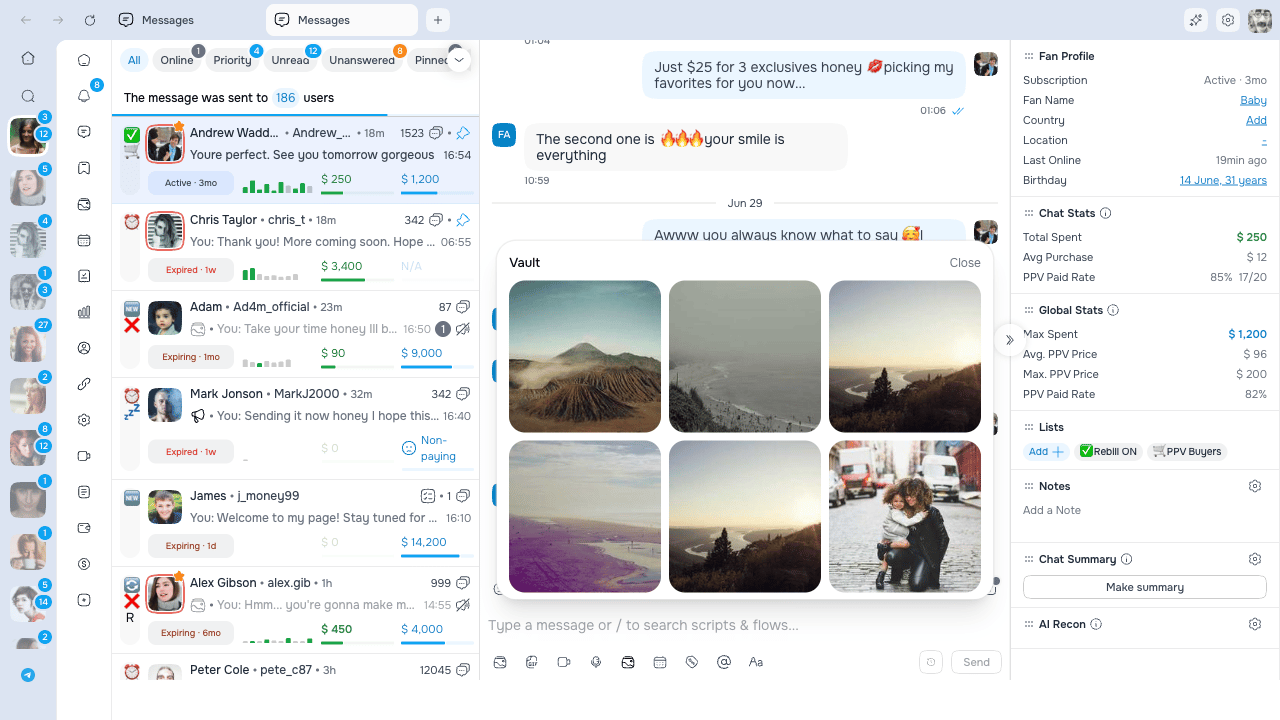
The Gallery picker is the modal that opens whenever you attach media to a message — in the fan chat, when creating a PPV, setting up a mass message campaign, or editing a script. It now carries the same search and metadata features as the main Vault page, so you never have to leave the picker to find the right file.
## Opening the picker
The picker opens automatically when you click the **paperclip** or **Add media** button in any of these places:
* Fan chat message composer
* Mass message campaign creator
* Script creator or editor
* PPV setup inside a flow
 ## Layout
The modal has a two-column layout that mirrors the Vault page:
| Area | Contents |
| ----- | ------------------------------------------------------------- |
| Left | OnlyFans lists (categories) with counters and a sort dropdown |
| Right | Media grid with thumbnails, caption and hashtag overlays |
## Searching for media
Use the **three-way search toggle** above the grid to pick what you're searching through:
* **Caption** — matches the description you set in the vault
* **Note** — matches internal notes stored on the media
* **Hashtag** — matches any of the hashtags attached to the media
Type your query in the search box and the grid updates as you type.
A media item matches if any of its hashtags start with your query — so typing "summer" finds items tagged `#summer2024`, `#summertime`, and so on.
## Filtering
Above the grid:
| Filter | Options |
| -------- | --------------------------------------------------------------- |
| **Type** | All / Image / Video / GIF / Audio |
| **Sort** | Most Recent, Most Liked, Highest Tips — ascending or descending |
| **Date** | All time, or **Go to date** to jump to a specific day |
The left column also has a **list-sort dropdown** so you can order categories by Default, Name, or Media count.
## Metadata overlays on thumbnails
Every thumbnail in the picker shows the same overlay you see on the main Vault page:
* **Caption** on the top line
* **Hashtags** on the bottom line, prefixed with `#`
* **Info icon** on hover — reveals the full text in a tooltip when it is truncated
This means you can confirm you've selected the right photo without opening a details view.
## Selecting media
Click a thumbnail to select or deselect it — multiple selections are supported. The selected items appear in the form as thumbnail previews once you close the picker.
Use the **Refresh** button in the toolbar if media was just uploaded and does not appear yet.
## Next steps
* [Preview in OnlyFans chat](./in-chat-preview) — Metadata shown on vault media while you work in OnlyFans
* [Captions, hashtags and metadata](./metadata) — Making sure each item is labelled for fast search
## Layout
The modal has a two-column layout that mirrors the Vault page:
| Area | Contents |
| ----- | ------------------------------------------------------------- |
| Left | OnlyFans lists (categories) with counters and a sort dropdown |
| Right | Media grid with thumbnails, caption and hashtag overlays |
## Searching for media
Use the **three-way search toggle** above the grid to pick what you're searching through:
* **Caption** — matches the description you set in the vault
* **Note** — matches internal notes stored on the media
* **Hashtag** — matches any of the hashtags attached to the media
Type your query in the search box and the grid updates as you type.
A media item matches if any of its hashtags start with your query — so typing "summer" finds items tagged `#summer2024`, `#summertime`, and so on.
## Filtering
Above the grid:
| Filter | Options |
| -------- | --------------------------------------------------------------- |
| **Type** | All / Image / Video / GIF / Audio |
| **Sort** | Most Recent, Most Liked, Highest Tips — ascending or descending |
| **Date** | All time, or **Go to date** to jump to a specific day |
The left column also has a **list-sort dropdown** so you can order categories by Default, Name, or Media count.
## Metadata overlays on thumbnails
Every thumbnail in the picker shows the same overlay you see on the main Vault page:
* **Caption** on the top line
* **Hashtags** on the bottom line, prefixed with `#`
* **Info icon** on hover — reveals the full text in a tooltip when it is truncated
This means you can confirm you've selected the right photo without opening a details view.
## Selecting media
Click a thumbnail to select or deselect it — multiple selections are supported. The selected items appear in the form as thumbnail previews once you close the picker.
Use the **Refresh** button in the toolbar if media was just uploaded and does not appear yet.
## Next steps
* [Preview in OnlyFans chat](./in-chat-preview) — Metadata shown on vault media while you work in OnlyFans
* [Captions, hashtags and metadata](./metadata) — Making sure each item is labelled for fast search