> ## Documentation Index
> Fetch the complete documentation index at: https://agencykey.com/docs/llms.txt
> Use this file to discover all available pages before exploring further.
# Bulk actions
> Edit, move, or delete many vault items in a single operation
When you need to update many items at once — tag a whole photoshoot, move files to a new category, or clean up obsolete media — the Vault's bulk action bar lets you do it without opening each item.
## Selecting items
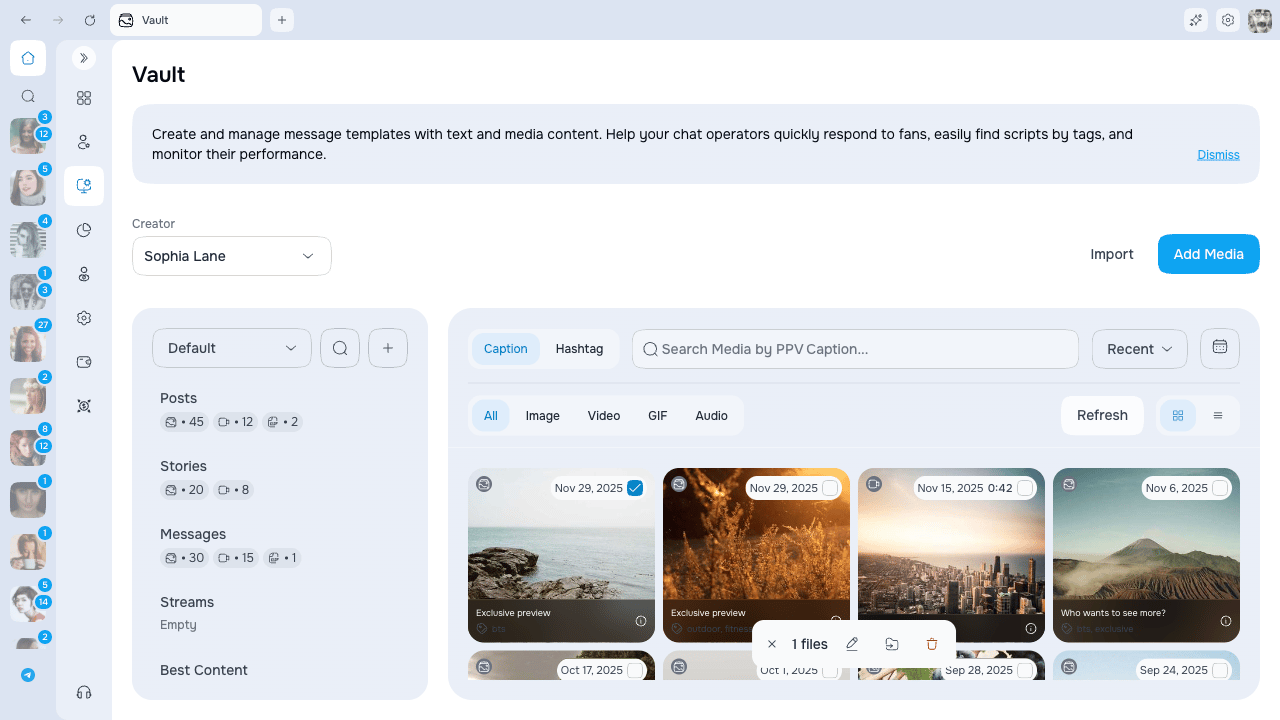
Hover a thumbnail and click the checkbox in the corner to select it. You can also:
* Click multiple thumbnails to add them to the selection
* Use **Select all** to select every visible item
As soon as **two or more** items are selected, the **Bulk Action Bar** appears at the bottom of the page with the total count.
 ## Bulk Edit
Click **Edit** in the action bar to open the **Batch Edit** modal.
This modal gives you a field picker — check only the fields you want to apply, leave the rest untouched.
| Field | Effect |
| ---------------------- | ---------------------------------------------------- |
| **Tag Other Creators** | Replaces the tagged creators on all selected items |
| **Category** | Adds the selected items to the chosen OnlyFans lists |
| **Hashtag** | Replaces the hashtag set on all selected items |
| **Description** | Replaces the caption on all selected items |
| **Price** | Replaces the suggested price on all selected items |
Fields you enable in the picker **replace** the existing values on every selected item. Fields you leave unchecked are not touched.
If you selected exactly one item, the modal pre-fills the fields with that item's current values — handy for copying metadata from one item to a new set.
### Saving
Click **Save**. All selected items are updated in one operation. A success notification confirms the update and the grid refreshes.
## Move to category
Click **Move to category** in the action bar to add every selected item to one or more OnlyFans lists.
* Pick an existing category, or create a new one inline
* Items keep their current categories — the picker **adds**, it does not replace
## Bulk delete
Click **Delete** to remove the selected items.
Delete is permanent. Every selected item is removed from OnlyFans and its AgencyKey metadata is purged. This action cannot be undone.
A confirmation dialog shows the number of items before the operation runs.
## Limits
| Limit | Value |
| ------------------------ | --------------------- |
| Items per bulk operation | Up to 100 per request |
If you selected more than 100 items, the operation is split automatically and you see progress feedback.
## Next steps
* [Captions, hashtags and metadata](./metadata) — Per-item metadata fields
* [Gallery picker](./gallery-picker) — Using vault media in chat, PPV, and mass messages
## Bulk Edit
Click **Edit** in the action bar to open the **Batch Edit** modal.
This modal gives you a field picker — check only the fields you want to apply, leave the rest untouched.
| Field | Effect |
| ---------------------- | ---------------------------------------------------- |
| **Tag Other Creators** | Replaces the tagged creators on all selected items |
| **Category** | Adds the selected items to the chosen OnlyFans lists |
| **Hashtag** | Replaces the hashtag set on all selected items |
| **Description** | Replaces the caption on all selected items |
| **Price** | Replaces the suggested price on all selected items |
Fields you enable in the picker **replace** the existing values on every selected item. Fields you leave unchecked are not touched.
If you selected exactly one item, the modal pre-fills the fields with that item's current values — handy for copying metadata from one item to a new set.
### Saving
Click **Save**. All selected items are updated in one operation. A success notification confirms the update and the grid refreshes.
## Move to category
Click **Move to category** in the action bar to add every selected item to one or more OnlyFans lists.
* Pick an existing category, or create a new one inline
* Items keep their current categories — the picker **adds**, it does not replace
## Bulk delete
Click **Delete** to remove the selected items.
Delete is permanent. Every selected item is removed from OnlyFans and its AgencyKey metadata is purged. This action cannot be undone.
A confirmation dialog shows the number of items before the operation runs.
## Limits
| Limit | Value |
| ------------------------ | --------------------- |
| Items per bulk operation | Up to 100 per request |
If you selected more than 100 items, the operation is split automatically and you see progress feedback.
## Next steps
* [Captions, hashtags and metadata](./metadata) — Per-item metadata fields
* [Gallery picker](./gallery-picker) — Using vault media in chat, PPV, and mass messages