> ## Documentation Index
> Fetch the complete documentation index at: https://agencykey.com/docs/llms.txt
> Use this file to discover all available pages before exploring further.
# Claimed Fans Detail View
> Per-trial timeline of new subscribers plus a per-fan spending breakdown
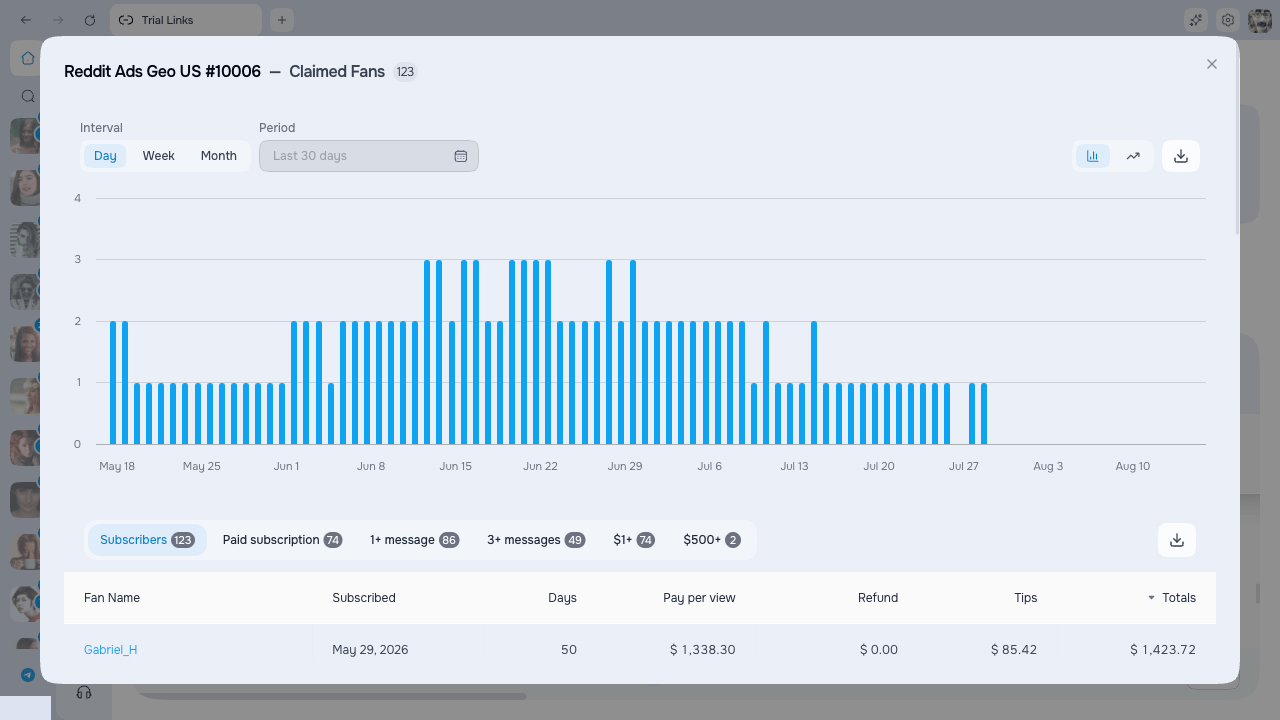
Every trial link in the table has a detail view called **Claimed Fans**. It shows new attributed subscribers over time plus a per-fan table of recorded spend.
## How to open it
You can open the Claimed Fans view two ways:
* Click the **Details** action in a trial link's row.
* Click any funnel number in the row — Subs, 1+ Msg, 3+ Msgs, \$1+, or \$500+. The view opens already filtered to that stage.
 Opening Claimed Fans requires the Trial Links **View details** permission.
## Timeline chart
At the top, the chart plots **new subscribers per selected interval**. It contains one **Subs** series; it is not cumulative and does not show clicks.
It shows whether a promo kept adding subscribers or fizzled out after the first day.
The chart uses the period selected on the main Trial Links table. Without a main period filter, it covers the link creation date through today. The period control inside the detail view is currently read-only. You can group by day, week, or month, switch Area/Column, and export PNG or CSV.
## Claimed fans table
Below the chart is the list of fans who claimed this trial link, with all of their spending shown next to each name.
### Stage filters
The row of tabs above the table lets you narrow the list to a single stage of the funnel. The number next to each tab shows how many fans are in it.
| Filter | Shows |
| --------------------- | ------------------------------------------------ |
| **Subscribers** | Every fan who claimed the trial |
| **Paid subscription** | Fans who moved on to a paid subscription |
| **1+ message** | Fans who sent at least one message |
| **3+ messages** | Fans who sent at least three messages |
| **\$1+** | Fans who spent at least \$1 |
| **\$500+** | Your top spenders — fans who spent \$500 or more |
### Columns
| Column | Meaning |
| ---------------- | ------------------------------------------------------ |
| **Fan Name** | Display name — click it to open the chat with this fan |
| **Subscribed** | Date the fan claimed the trial |
| **Days** | Days since the fan subscribed |
| **Pay per view** | Total the fan spent on paid messages |
| **Refund** | Total refunded to the fan |
| **Tips** | Total tips the fan sent |
| **Totals** | The fan's total spend |
A total row at the bottom sums each column, so you get an instant read of the per-fan economics for this trial link.
Opening the chat with a fan requires the "View chats" permission. Without it, the fan name is visible but not clickable.
### Export
* **Export CSV** — download the current fan table as a spreadsheet, up to 10,000 rows.
Filter by a stage first — for example **\$500+** — then export, and you get a clean list of just your top spenders from that promo.
## Stop, hide, or delete a trial
The Claimed Fans view keeps its numbers no matter what happens to the trial link itself. Here is how each lifecycle action affects the data.
### Stop a trial early
Use the **Stop** action to close a link to new claims before its own expiry date or fan limit is reached. The link turns **Expired**, but it stays in the list with all its numbers intact — the timeline and fan breakdown are kept. Fans who already claimed the link keep their configured **Trial Duration**; Stop does not shorten their individual trials.
Stop only appears for trials that are still active. A link that has already reached its end date or fan limit is Expired already, so there is nothing to stop.
### Show or hide expired trials
The **Show Expired** toggle on the trial links page controls which links you see:
* **Off** (default) — active trials only, so you focus on what's still running.
* **On** — expired trials instead of active ones, so you can revisit a finished promo and open its Claimed Fans view.
Historical numbers for an expired trial stay available whenever you turn the toggle on.
### Delete a trial
**Delete** permanently removes the trial link from normal management. This cannot be undone. Export any report you need first; do not use Delete as a reporting-retention workflow.
If you might need the history, use **Stop** instead. It makes the link Expired and keeps its historical metrics available through **Show Expired**.
Opening Claimed Fans requires the Trial Links **View details** permission.
## Timeline chart
At the top, the chart plots **new subscribers per selected interval**. It contains one **Subs** series; it is not cumulative and does not show clicks.
It shows whether a promo kept adding subscribers or fizzled out after the first day.
The chart uses the period selected on the main Trial Links table. Without a main period filter, it covers the link creation date through today. The period control inside the detail view is currently read-only. You can group by day, week, or month, switch Area/Column, and export PNG or CSV.
## Claimed fans table
Below the chart is the list of fans who claimed this trial link, with all of their spending shown next to each name.
### Stage filters
The row of tabs above the table lets you narrow the list to a single stage of the funnel. The number next to each tab shows how many fans are in it.
| Filter | Shows |
| --------------------- | ------------------------------------------------ |
| **Subscribers** | Every fan who claimed the trial |
| **Paid subscription** | Fans who moved on to a paid subscription |
| **1+ message** | Fans who sent at least one message |
| **3+ messages** | Fans who sent at least three messages |
| **\$1+** | Fans who spent at least \$1 |
| **\$500+** | Your top spenders — fans who spent \$500 or more |
### Columns
| Column | Meaning |
| ---------------- | ------------------------------------------------------ |
| **Fan Name** | Display name — click it to open the chat with this fan |
| **Subscribed** | Date the fan claimed the trial |
| **Days** | Days since the fan subscribed |
| **Pay per view** | Total the fan spent on paid messages |
| **Refund** | Total refunded to the fan |
| **Tips** | Total tips the fan sent |
| **Totals** | The fan's total spend |
A total row at the bottom sums each column, so you get an instant read of the per-fan economics for this trial link.
Opening the chat with a fan requires the "View chats" permission. Without it, the fan name is visible but not clickable.
### Export
* **Export CSV** — download the current fan table as a spreadsheet, up to 10,000 rows.
Filter by a stage first — for example **\$500+** — then export, and you get a clean list of just your top spenders from that promo.
## Stop, hide, or delete a trial
The Claimed Fans view keeps its numbers no matter what happens to the trial link itself. Here is how each lifecycle action affects the data.
### Stop a trial early
Use the **Stop** action to close a link to new claims before its own expiry date or fan limit is reached. The link turns **Expired**, but it stays in the list with all its numbers intact — the timeline and fan breakdown are kept. Fans who already claimed the link keep their configured **Trial Duration**; Stop does not shorten their individual trials.
Stop only appears for trials that are still active. A link that has already reached its end date or fan limit is Expired already, so there is nothing to stop.
### Show or hide expired trials
The **Show Expired** toggle on the trial links page controls which links you see:
* **Off** (default) — active trials only, so you focus on what's still running.
* **On** — expired trials instead of active ones, so you can revisit a finished promo and open its Claimed Fans view.
Historical numbers for an expired trial stay available whenever you turn the toggle on.
### Delete a trial
**Delete** permanently removes the trial link from normal management. This cannot be undone. Export any report you need first; do not use Delete as a reporting-retention workflow.
If you might need the history, use **Stop** instead. It makes the link Expired and keeps its historical metrics available through **Show Expired**.