> ## Documentation Index
> Fetch the complete documentation index at: https://agencykey.com/docs/llms.txt
> Use this file to discover all available pages before exploring further.
# Tracking Links
> Track advertising clicks, subscribers, revenue, profit, and ROI for each creator
Tracking Links is a per-creator marketing analytics tool. For each advertising campaign you generate a unique OnlyFans tracking URL, attach a traffic source and promo cost, and AgencyKey shows clicks, subscriptions, engagement, revenue, profit, and return on investment (ROI). It also shows cross-model activity: subscriptions and spending from the same acquired fans on other creators in your agency.
## Where to find it
Navigate to **Analytics → Tracking Links** to open the page.
## What you can do
* Create a unique tracking link for every ad campaign or traffic source
* See the full acquisition funnel: clicks → subscriptions → engaged fans → \$1+ spenders → high-value fans with \$500+ recorded spend
* Compare direct revenue, promo cost, profit, and ROI (profit relative to promo cost) per campaign
* Measure cross-model activity — how fans from a campaign spend on other creators in your agency
* Open a per-campaign detail page with a timeline chart and a per-fan breakdown
* Export everything to CSV
## Page layout
At the top of the page you will see:
* **Creator selector** — choose which creator's campaigns to view. The last-used creator is remembered.
* **Filter** — the funnel button lets you show or hide each filter in the bar (Search, Period, Source, Show Expired). A small colored dot appears on it when a filter is active.
* **Refresh** — reload the table on demand.
* **Export CSV** — download the current table.
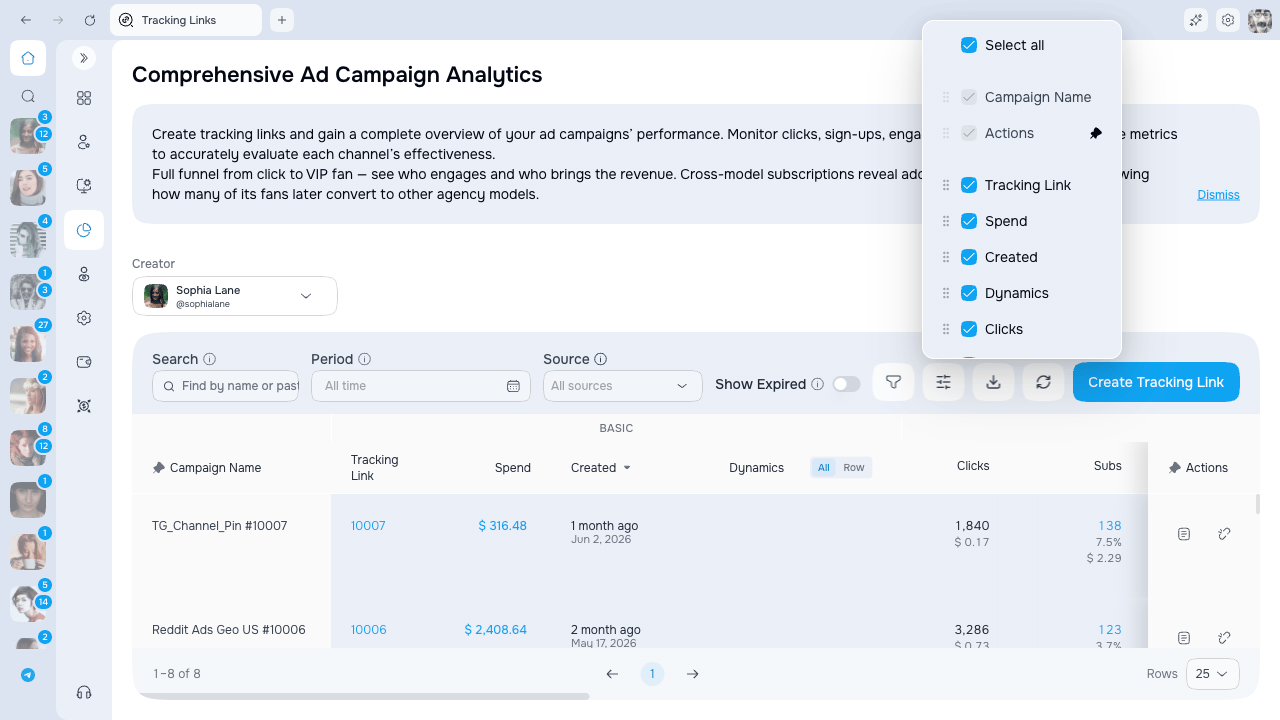
* **Columns** — toggle which columns are visible. Some columns can be pinned to the left or the right.
* **Create tracking link** — opens the create dialog.
Below the toolbar, a filter bar sits right above the campaign table, then the table itself.
## Search and filters
The filter bar lives directly above the campaign table. By default all four filters are shown there — you do not have to open the **Filter** menu first. Use the **Filter** button to hide any filter you don't use; the bar keeps showing a filter while it still holds a value, so an active filter is never lost.
| Filter | What it does |
| ---------------- | ----------------------------------------------------------------------------------------------------------- |
| **Search** | Find a campaign by name, or paste a full tracking link to jump straight to it |
| **Period** | Show only campaigns created within a date range. Row **Dynamics** still shows its fixed last-30-days trend. |
| **Source** | Show campaigns assigned to the selected cost source. Choose **No source** to find campaigns without one. |
| **Show Expired** | Include tracking links that have already reached their end date |
A **Reset** button appears at the end of the bar whenever any filter holds a value. One click clears search, period, and the rest.
### Two ways to search
The **Search** box works in two ways, and AgencyKey picks the right one automatically based on what you type:
* **Type a name** — find every campaign whose name contains your text.
* **Paste a tracking link** — paste a full OnlyFans tracking link and the table jumps straight to that exact campaign. Both the regular link (`https://onlyfans.com/{creator}/c{code}`) and the trial link work.
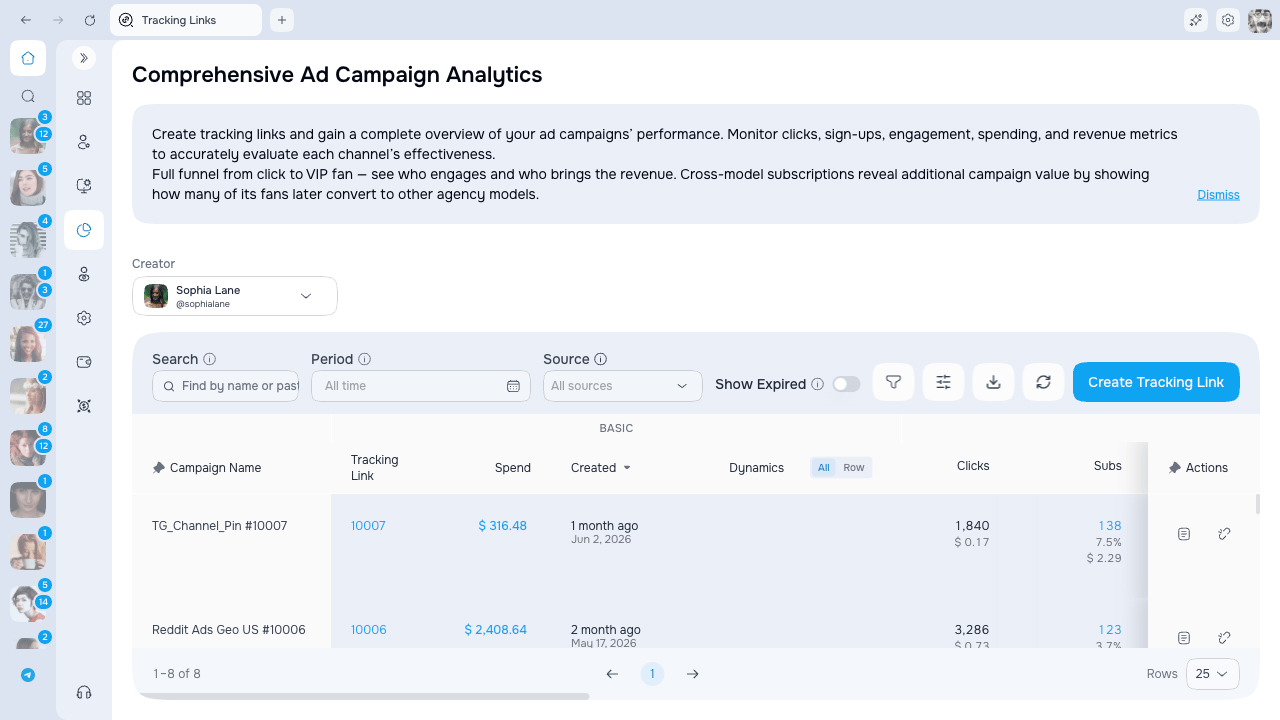 Got a link from an ad, a chat, or a teammate and want to find its campaign? Just paste the whole link into **Search** — no need to remember the campaign name.
On narrow windows the filter bar stretches to full width, so search and the date range stay easy to use.
## Campaign table at a glance
Columns are grouped into five logical blocks — you can read the next page for the full funnel, financial and efficiency story.
| Group | Example columns |
| ------------------ | ------------------------------------------------------------------------- |
| Identity | Campaign Name, Tracking Link, Date, Source |
| Acquisition funnel | Clicks, Subs, Paid Subs, 1+ Msg, 3+ Msgs, \$1+, \$500+ |
| Money | Revenue, Promo Cost, Profit, ROI |
| Efficiency | CPC, CPS, RPC, ARPS |
| Cross-model | Cross Subs, Cross Revenue, Cross Rate, Cross/Fan, Cross/Direct, Total ROI |
The **Tracking Link** cell displays the link code. Use the copy action in the row to copy the full OnlyFans URL.
Hover any column header to see a plain-English description and the formula behind the metric.
A **summary row** is pinned to the bottom of the table and follows the current filters. Read the filter and pagination labels together with it; do not calculate campaign percentages by adding row percentages.
Got a link from an ad, a chat, or a teammate and want to find its campaign? Just paste the whole link into **Search** — no need to remember the campaign name.
On narrow windows the filter bar stretches to full width, so search and the date range stay easy to use.
## Campaign table at a glance
Columns are grouped into five logical blocks — you can read the next page for the full funnel, financial and efficiency story.
| Group | Example columns |
| ------------------ | ------------------------------------------------------------------------- |
| Identity | Campaign Name, Tracking Link, Date, Source |
| Acquisition funnel | Clicks, Subs, Paid Subs, 1+ Msg, 3+ Msgs, \$1+, \$500+ |
| Money | Revenue, Promo Cost, Profit, ROI |
| Efficiency | CPC, CPS, RPC, ARPS |
| Cross-model | Cross Subs, Cross Revenue, Cross Rate, Cross/Fan, Cross/Direct, Total ROI |
The **Tracking Link** cell displays the link code. Use the copy action in the row to copy the full OnlyFans URL.
Hover any column header to see a plain-English description and the formula behind the metric.
A **summary row** is pinned to the bottom of the table and follows the current filters. Read the filter and pagination labels together with it; do not calculate campaign percentages by adding row percentages.
 Tracking attribution identifies the fan cohort that OnlyFans associated with a link. **Revenue** is the synchronized net earnings recorded for those attributed fans; it does not prove that every later purchase was caused by the ad. Metrics can lag until the next data sync, and changing Source, List, or Spend does not retroactively change which link acquired a fan.
## Access and availability
| Action | Who can do it |
| --------------------------- | ---------------------------------------------------- |
| View the page and campaigns | **Tracking Links → View list**, within creator scope |
| Create a tracking link | **Create link** |
| Change Source | **Manage source** |
| Change List or Spend | **Manage cost** |
| Delete a tracking link | **Delete link** |
| Open campaign details | **View details** |
Data visibility follows your creator access scope. You will only see campaigns for creators you are assigned to.
## Next steps
* [Creating a campaign](./creating-campaigns) — how to generate a tracking link and attach a list
* [Campaign metrics](./metrics) — how the funnel and financial columns are calculated
* [Cross-subscriptions](./cross-subscriptions) — measuring activity across other creators
* [Campaign detail page](./campaign-details) — timeline chart and per-fan breakdown
Tracking attribution identifies the fan cohort that OnlyFans associated with a link. **Revenue** is the synchronized net earnings recorded for those attributed fans; it does not prove that every later purchase was caused by the ad. Metrics can lag until the next data sync, and changing Source, List, or Spend does not retroactively change which link acquired a fan.
## Access and availability
| Action | Who can do it |
| --------------------------- | ---------------------------------------------------- |
| View the page and campaigns | **Tracking Links → View list**, within creator scope |
| Create a tracking link | **Create link** |
| Change Source | **Manage source** |
| Change List or Spend | **Manage cost** |
| Delete a tracking link | **Delete link** |
| Open campaign details | **View details** |
Data visibility follows your creator access scope. You will only see campaigns for creators you are assigned to.
## Next steps
* [Creating a campaign](./creating-campaigns) — how to generate a tracking link and attach a list
* [Campaign metrics](./metrics) — how the funnel and financial columns are calculated
* [Cross-subscriptions](./cross-subscriptions) — measuring activity across other creators
* [Campaign detail page](./campaign-details) — timeline chart and per-fan breakdown