> ## Documentation Index
> Fetch the complete documentation index at: https://agencykey.com/docs/llms.txt
> Use this file to discover all available pages before exploring further.
# Creating Campaigns
> Create, edit, and auto-add fans to a list for each tracking link
Every advertising channel should have its own tracking link — that is how AgencyKey knows which fan came from which ad, and later attributes their spend back to the campaign.
## Requirements
* **Tracking Links → View list** and **Create link** permissions
* The creator you want to run the campaign for is connected and visible in your access scope
## 1. Open the create dialog
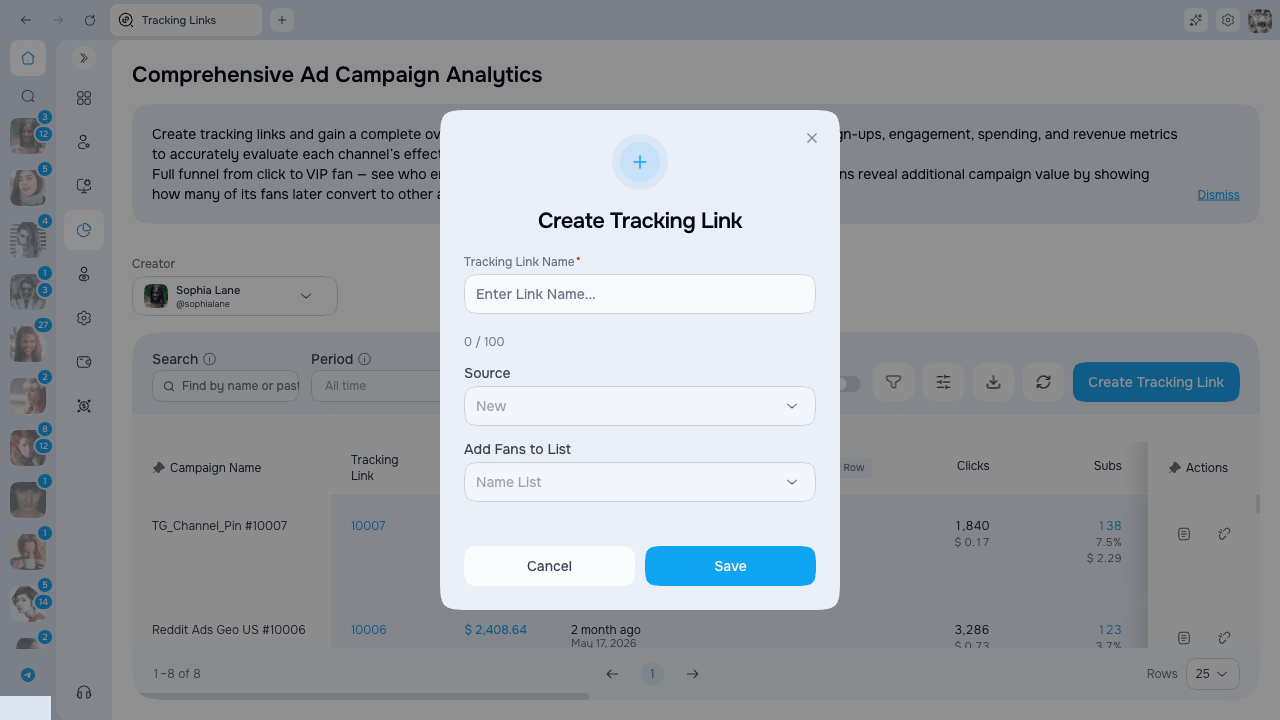
Navigate to **Analytics → Tracking Links**, pick the creator in the top-left selector, then click **Create tracking link**.
 ## 2. Fill in the form
The create dialog has three fields.
| Field | Required | Limits | Notes |
| -------------------- | -------- | --------------------------------- | -------------------------------------------------------------------------------- |
| **Link name** | Yes | Up to 100 characters | Shown as the Campaign Name in the table |
| **Source** | No | Existing source or blank | Lets chatters see in the chat where the fan came from |
| **Add fans to list** | No | Any OnlyFans list of this creator | Every fan who subscribes via this link is added to the chosen list automatically |
### Link name
Use a short, descriptive name such as `Reddit_r4r_April` or `TikTok_bio_link_2`. The character counter below the field shows how much space is left.
### Source
The source dropdown lets you select one of the existing traffic sources or leave the field blank. It does not create a new source from typed text. You can select an available source later from the table cell.
The source is visible to chatters next to the fan's chat. Setting it correctly helps them adapt the tone of the first message.
### Add fans to list
If you select a list, AgencyKey will automatically add every fan who subscribes via this tracking link to that list on OnlyFans. This is useful for:
* Segmenting fans from a specific ad for later mass messages
* Giving a specific cohort access to a private folder or bundle
* Running tailored flows or scripts for fans from that source
Auto-add happens in the background right after the fan subscribes. If you change the list later, only new fans are added — existing subscribers stay where they are.
## 3. Save and copy the link
Click **Save**. The dialog closes and the new campaign appears at the top of the table.
The **Tracking Link** cell shows the link code. Use the copy action in the row to copy the full URL in the format `https://onlyfans.com/{creator}/c{code}`, then paste it into your ad, bio, or Linktree.
## Editing a campaign
Most fields in the table are editable inline:
| Action | How |
| --------------- | --------------------------------------------------------------- |
| Change source | Click the Source cell and pick a value |
| Change list | Click the List cell and pick a list |
| Edit Promo Cost | Click the Promo Cost cell — a dialog opens with Set / Add modes |
| Delete | Use the action menu on the right side of the row |
Deleting a tracking link is permanent. The link will stop working, but the fans already acquired through it keep their attribution in analytics.
### Editing Promo Cost
## 2. Fill in the form
The create dialog has three fields.
| Field | Required | Limits | Notes |
| -------------------- | -------- | --------------------------------- | -------------------------------------------------------------------------------- |
| **Link name** | Yes | Up to 100 characters | Shown as the Campaign Name in the table |
| **Source** | No | Existing source or blank | Lets chatters see in the chat where the fan came from |
| **Add fans to list** | No | Any OnlyFans list of this creator | Every fan who subscribes via this link is added to the chosen list automatically |
### Link name
Use a short, descriptive name such as `Reddit_r4r_April` or `TikTok_bio_link_2`. The character counter below the field shows how much space is left.
### Source
The source dropdown lets you select one of the existing traffic sources or leave the field blank. It does not create a new source from typed text. You can select an available source later from the table cell.
The source is visible to chatters next to the fan's chat. Setting it correctly helps them adapt the tone of the first message.
### Add fans to list
If you select a list, AgencyKey will automatically add every fan who subscribes via this tracking link to that list on OnlyFans. This is useful for:
* Segmenting fans from a specific ad for later mass messages
* Giving a specific cohort access to a private folder or bundle
* Running tailored flows or scripts for fans from that source
Auto-add happens in the background right after the fan subscribes. If you change the list later, only new fans are added — existing subscribers stay where they are.
## 3. Save and copy the link
Click **Save**. The dialog closes and the new campaign appears at the top of the table.
The **Tracking Link** cell shows the link code. Use the copy action in the row to copy the full URL in the format `https://onlyfans.com/{creator}/c{code}`, then paste it into your ad, bio, or Linktree.
## Editing a campaign
Most fields in the table are editable inline:
| Action | How |
| --------------- | --------------------------------------------------------------- |
| Change source | Click the Source cell and pick a value |
| Change list | Click the List cell and pick a list |
| Edit Promo Cost | Click the Promo Cost cell — a dialog opens with Set / Add modes |
| Delete | Use the action menu on the right side of the row |
Deleting a tracking link is permanent. The link will stop working, but the fans already acquired through it keep their attribution in analytics.
### Editing Promo Cost
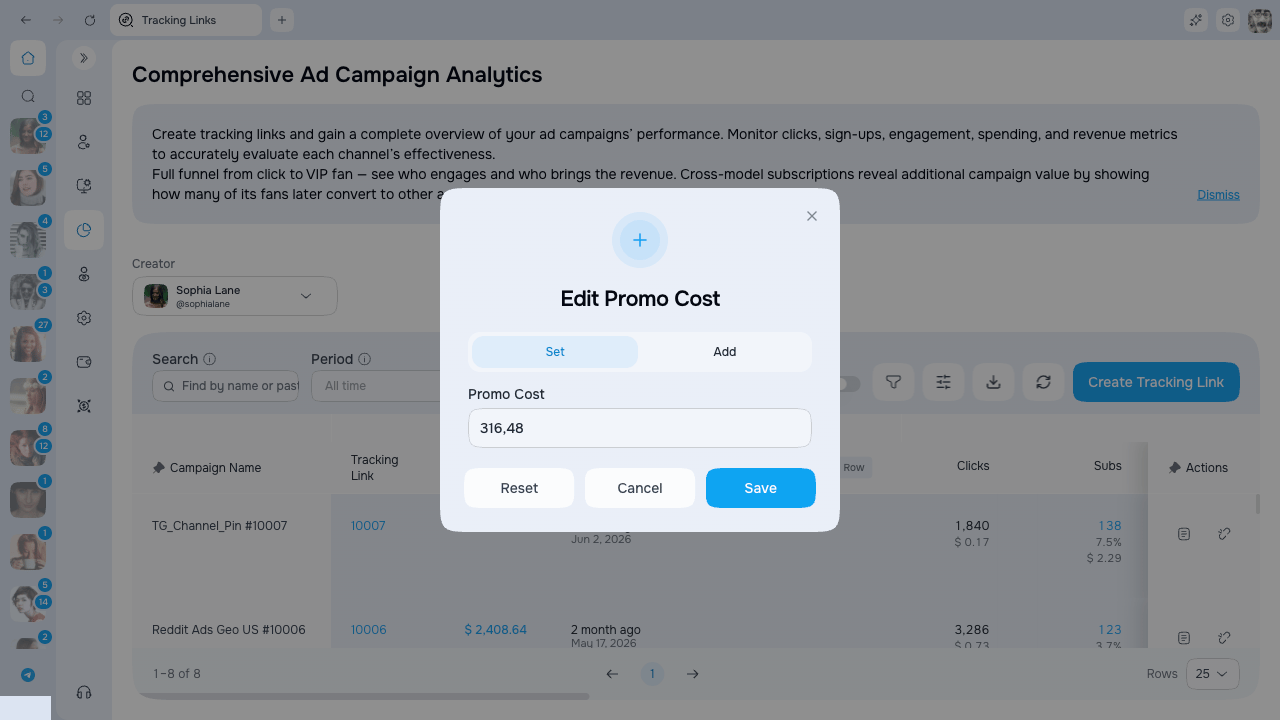 The Promo Cost dialog has two modes:
* **Set** — replace the current value with the one you enter.
* **Add** — add the entered amount to the current value (useful when you spend across several days and want to keep adding to the same campaign).
Negative values and non-numeric input are rejected with a validation message.
Changing the List or Promo Cost requires the dedicated **Manage cost** permission. Without it, both cells are read-only for you.
Changing Source requires **Manage source**, changing List or Spend requires **Manage cost**, and deletion requires **Delete link**. The corresponding field or action is hidden or read-only without that permission.
## Common issues
| Issue | What to check |
| ------------------------------------------- | ------------------------------------------------------------------------ |
| New fans are not added to the selected list | The list still exists on OnlyFans and the creator's account is connected |
| The Source dropdown is empty | No existing sources are available; leave the field blank |
| Link name is rejected in the create dialog | The name must be 100 characters or fewer |
| List or Promo Cost cell is greyed out | Your role does not include the **Manage cost** permission |
The Promo Cost dialog has two modes:
* **Set** — replace the current value with the one you enter.
* **Add** — add the entered amount to the current value (useful when you spend across several days and want to keep adding to the same campaign).
Negative values and non-numeric input are rejected with a validation message.
Changing the List or Promo Cost requires the dedicated **Manage cost** permission. Without it, both cells are read-only for you.
Changing Source requires **Manage source**, changing List or Spend requires **Manage cost**, and deletion requires **Delete link**. The corresponding field or action is hidden or read-only without that permission.
## Common issues
| Issue | What to check |
| ------------------------------------------- | ------------------------------------------------------------------------ |
| New fans are not added to the selected list | The list still exists on OnlyFans and the creator's account is connected |
| The Source dropdown is empty | No existing sources are available; leave the field blank |
| Link name is rejected in the create dialog | The name must be 100 characters or fewer |
| List or Promo Cost cell is greyed out | Your role does not include the **Manage cost** permission |