> ## Documentation Index
> Fetch the complete documentation index at: https://agencykey.com/docs/llms.txt
> Use this file to discover all available pages before exploring further.
# Shift History
> Review past shifts, see who earned each sale, and move sales to the right person
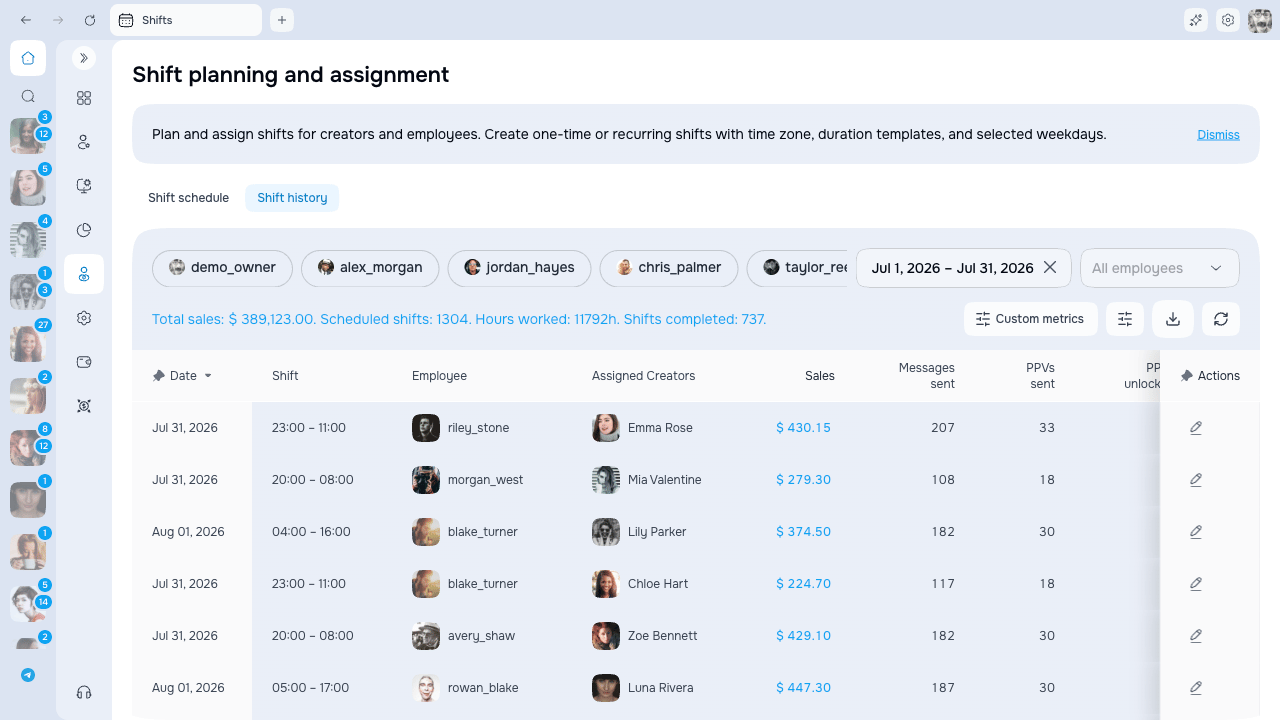
**Shift History** shows every past shift and the sales that happened during it. Open it from the **Shift history** tab on the **Shifts** page. From here you can review who worked when, see how much each shift earned, and move sales to the right team member.
 ## What you can do
* See past shifts with hours worked, sales, and message stats
* See who each sale belongs to in the **Employee** column
* Open **View sales** to inspect every sale behind a number
* Move (reassign) sales to the right team member
* Sort sales by date or earnings across the whole list
* Export the history from the toolbar
## Page layout
* **Filters** — pick the date range, the team member, and which metrics to count
* **Export** — starts a filtered XLSX export in the background
* **History table** — one row per shift, plus rows for sales that don't line up with a shift
* **Edit pencil** — opens the shift editor
The default date range is the current month. The on-screen history table can show up to 90 days at a time. You can select a longer range for an XLSX export.
## Time zones
Dates and times in the history table use the time zone saved on each shift. This can differ from your current Preferences if the default zone changed after the shift was created. Sales dates in **View sales** should be interpreted together with the displayed shift zone when checking whether a sale falls inside or outside a shift.
## Export history
1. Set the date range, employee, and custom sales-source metrics you need.
2. Click **Export** in the toolbar.
3. AgencyKey prepares an **XLSX** file in the background.
4. Use the notification or ready download action when preparation finishes.
The export follows the selected filters and can cover a date range longer than the 90-day on-screen table limit. Do not repeatedly start the same export while it is preparing.
## History table columns
| Column | What it shows |
| --------------------------------------------------------------------- | ------------------------------------------------------ |
| **Date** | When the shift happened |
| **Shift** | Start and end time |
| **Employee** | Avatar and name of the team member the row belongs to |
| **Assigned Creators** | Which creators were covered |
| **Sales** | Total earned — click the amount to open **View sales** |
| **Messages sent**, **PPVs sent**, **PPVs unlocked**, **Fans chatted** | Message stats for the shift |
| **Actions** | The **Edit** pencil to open the shift |
## Rows for sales without a shift
Some sales don't line up with a shift. Instead of lumping them together, the table splits them into two clearly labeled rows so you always know why:
| Row | What it means |
| ---------------------------- | --------------------------------------------------------------------------------------------------------------------------------------------------------------------- |
| **Unassigned (no employee)** | Sales no team member is linked to. This row sits at the bottom of the table no matter how you sort. The **Employee** column shows a muted **Unassigned** label. |
| **Outside shifts** | A team member's sales that happened outside their shifts. There's one of these rows per team member, each with their avatar and name. These rows sort like any other. |
Both rows open **View sales** the same way — click the amount in the **Sales** column to see and reassign the sales behind them.
## Viewing and reassigning sales
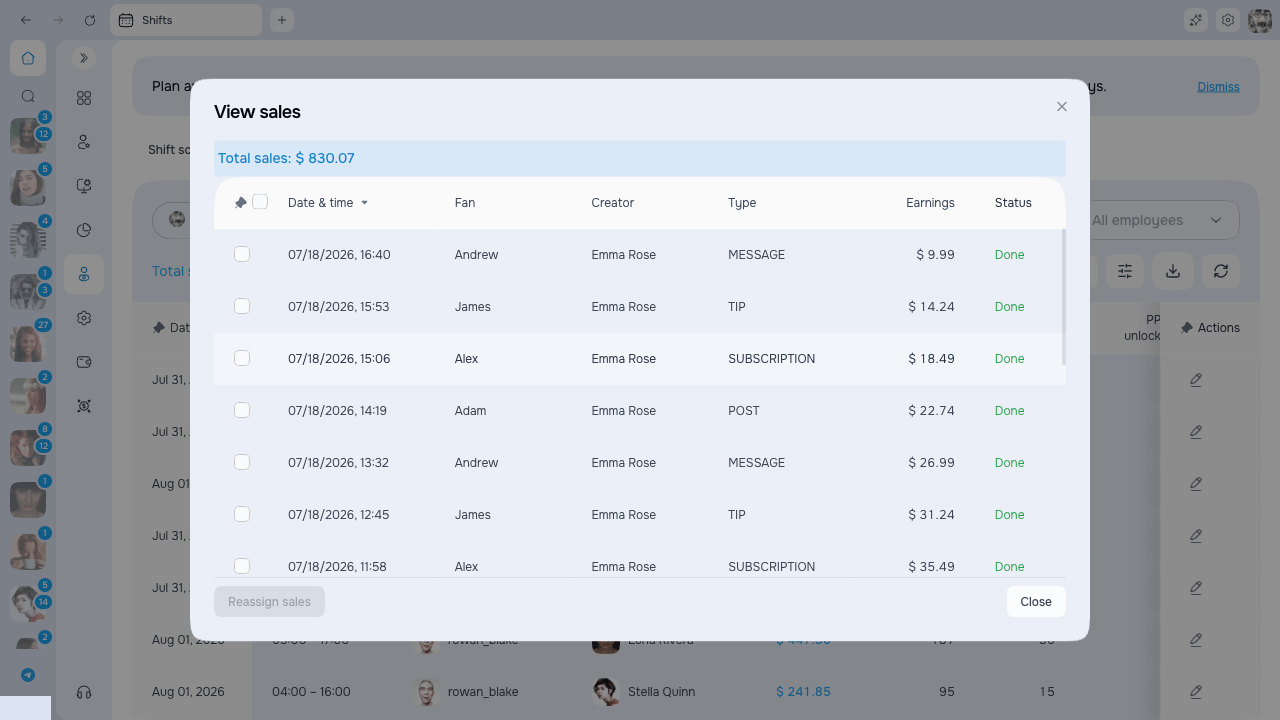
Click the amount in the **Sales** column to open **View sales** — a list of every sale behind that number, with the fan, creator, type, status, date, and earnings.
## What you can do
* See past shifts with hours worked, sales, and message stats
* See who each sale belongs to in the **Employee** column
* Open **View sales** to inspect every sale behind a number
* Move (reassign) sales to the right team member
* Sort sales by date or earnings across the whole list
* Export the history from the toolbar
## Page layout
* **Filters** — pick the date range, the team member, and which metrics to count
* **Export** — starts a filtered XLSX export in the background
* **History table** — one row per shift, plus rows for sales that don't line up with a shift
* **Edit pencil** — opens the shift editor
The default date range is the current month. The on-screen history table can show up to 90 days at a time. You can select a longer range for an XLSX export.
## Time zones
Dates and times in the history table use the time zone saved on each shift. This can differ from your current Preferences if the default zone changed after the shift was created. Sales dates in **View sales** should be interpreted together with the displayed shift zone when checking whether a sale falls inside or outside a shift.
## Export history
1. Set the date range, employee, and custom sales-source metrics you need.
2. Click **Export** in the toolbar.
3. AgencyKey prepares an **XLSX** file in the background.
4. Use the notification or ready download action when preparation finishes.
The export follows the selected filters and can cover a date range longer than the 90-day on-screen table limit. Do not repeatedly start the same export while it is preparing.
## History table columns
| Column | What it shows |
| --------------------------------------------------------------------- | ------------------------------------------------------ |
| **Date** | When the shift happened |
| **Shift** | Start and end time |
| **Employee** | Avatar and name of the team member the row belongs to |
| **Assigned Creators** | Which creators were covered |
| **Sales** | Total earned — click the amount to open **View sales** |
| **Messages sent**, **PPVs sent**, **PPVs unlocked**, **Fans chatted** | Message stats for the shift |
| **Actions** | The **Edit** pencil to open the shift |
## Rows for sales without a shift
Some sales don't line up with a shift. Instead of lumping them together, the table splits them into two clearly labeled rows so you always know why:
| Row | What it means |
| ---------------------------- | --------------------------------------------------------------------------------------------------------------------------------------------------------------------- |
| **Unassigned (no employee)** | Sales no team member is linked to. This row sits at the bottom of the table no matter how you sort. The **Employee** column shows a muted **Unassigned** label. |
| **Outside shifts** | A team member's sales that happened outside their shifts. There's one of these rows per team member, each with their avatar and name. These rows sort like any other. |
Both rows open **View sales** the same way — click the amount in the **Sales** column to see and reassign the sales behind them.
## Viewing and reassigning sales
Click the amount in the **Sales** column to open **View sales** — a list of every sale behind that number, with the fan, creator, type, status, date, and earnings.
 ### Reassign sales
If a sale ended up with the wrong person, you can move it. The flow is the same for every kind of row:
### 1. Select the sales
Use the checkbox on each sale, or the **select all** checkbox in the header.
### 2. Choose a team member
Click **Reassign sales**, then pick any team member you can access from the searchable list. You can move a sale to anyone — even sales from the **Outside shifts** or **Unassigned (no employee)** rows.
### 3. Confirm
Confirm the change. The app works out the matching shift for each sale, so it lands in the right place. The list and the history table refresh on their own.
You can reassign up to 500 sales at a time. **Select all** covers the first 500 sales in the current order.
### Sorting that spans every page
Sort **View sales** by **Date & time** or **Earnings**, and the order covers the whole list — not just the rows already on screen. The top of the list is the real top.
Changing the sort clears your current selection, so pick your sort first, then select the sales you want to move.
## Permissions
| Access | What it allows |
| ------------------------ | ------------------------------------------------------------------------------------------------------------------------------------------------------------------------------------------------------------------------------------------------------------- |
| **View history** | See the **Shift history** tab and open **View sales**. Separate from managing the schedule, so you can let someone read past shifts without giving them control over anything else. Set it to **Entire Agency**, **Group & Subgroups**, or **Own Data Only**. |
| **Manage shifts → Edit** | Reassign sales and use the **Edit** pencil. Without it, **Shift history** is read-only. |
**View history** and the ability to reassign are separate. A team member can have read-only history access without being able to move sales.
## Common issues
| Issue | What to do |
| ------------------------------------------------- | ------------------------------------------------------------------------------------------------ |
| **Shift history** tab is missing | You need **View history** access. Ask the Owner or someone who can manage shift permissions. |
| No checkboxes or **Reassign sales** button | Reassigning needs **Edit** rights for shifts. Read-only access lets you view but not move sales. |
| "Too many sales to load — showing a partial list" | Narrow the date range so the full list fits. |
| Everything shows 0 | Open the **Custom metrics** filter and turn on at least one source (Messages, Tips, and so on). |
| "Reassigned 8 of 10 (2 skipped)" | Some sales were outside your access and were left in place. The rest moved. |
## Next steps
* [Managing shifts](./managing) — create and edit shifts
* [Calendar view](./calendar) — visual shift overview
* [Recurring shifts](./recurring) — set up repeating schedules
### Reassign sales
If a sale ended up with the wrong person, you can move it. The flow is the same for every kind of row:
### 1. Select the sales
Use the checkbox on each sale, or the **select all** checkbox in the header.
### 2. Choose a team member
Click **Reassign sales**, then pick any team member you can access from the searchable list. You can move a sale to anyone — even sales from the **Outside shifts** or **Unassigned (no employee)** rows.
### 3. Confirm
Confirm the change. The app works out the matching shift for each sale, so it lands in the right place. The list and the history table refresh on their own.
You can reassign up to 500 sales at a time. **Select all** covers the first 500 sales in the current order.
### Sorting that spans every page
Sort **View sales** by **Date & time** or **Earnings**, and the order covers the whole list — not just the rows already on screen. The top of the list is the real top.
Changing the sort clears your current selection, so pick your sort first, then select the sales you want to move.
## Permissions
| Access | What it allows |
| ------------------------ | ------------------------------------------------------------------------------------------------------------------------------------------------------------------------------------------------------------------------------------------------------------- |
| **View history** | See the **Shift history** tab and open **View sales**. Separate from managing the schedule, so you can let someone read past shifts without giving them control over anything else. Set it to **Entire Agency**, **Group & Subgroups**, or **Own Data Only**. |
| **Manage shifts → Edit** | Reassign sales and use the **Edit** pencil. Without it, **Shift history** is read-only. |
**View history** and the ability to reassign are separate. A team member can have read-only history access without being able to move sales.
## Common issues
| Issue | What to do |
| ------------------------------------------------- | ------------------------------------------------------------------------------------------------ |
| **Shift history** tab is missing | You need **View history** access. Ask the Owner or someone who can manage shift permissions. |
| No checkboxes or **Reassign sales** button | Reassigning needs **Edit** rights for shifts. Read-only access lets you view but not move sales. |
| "Too many sales to load — showing a partial list" | Narrow the date range so the full list fits. |
| Everything shows 0 | Open the **Custom metrics** filter and turn on at least one source (Messages, Tips, and so on). |
| "Reassigned 8 of 10 (2 skipped)" | Some sales were outside your access and were left in place. The rest moved. |
## Next steps
* [Managing shifts](./managing) — create and edit shifts
* [Calendar view](./calendar) — visual shift overview
* [Recurring shifts](./recurring) — set up repeating schedules