> ## Documentation Index
> Fetch the complete documentation index at: https://agencykey.com/docs/llms.txt
> Use this file to discover all available pages before exploring further.
# Scripts
> Pre-written message templates for quick fan communication
## Introduction
Scripts are pre-written messages that you can quickly send to fans with a single click. They help maintain a consistent communication style across your team and save significant time when responding to common questions or sending promotional content.
Each script can include:
* **Text** — the message body with support for personalization tags
* **Media** — photos, videos, GIFs, and audio from the creator's gallery
* **Price** — optional PPV (pay-per-view) pricing for premium content
* **Notes** — internal comments visible only to your team
## Scripts library
Access the scripts library through the sidebar menu by clicking **Scripts**, or directly from any chat using the **Manage** button in the scripts panel.
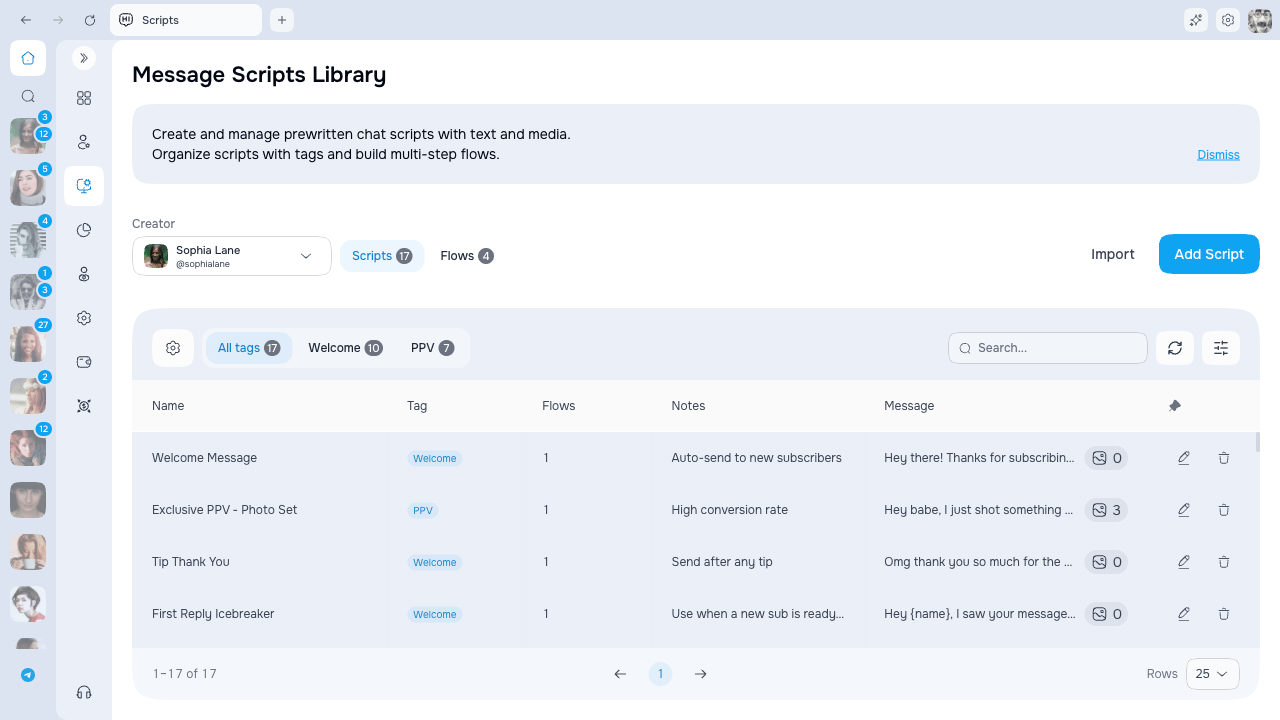
The library displays all scripts in a table with the following columns:
 | Column | Description |
| ------- | ------------------------------------ |
| Name | Script name for quick identification |
| Tag | The assigned tag, if any |
| Notes | Internal notes preview |
| Message | Preview of the message text |
Use the search bar to find scripts by name or text content. Filter by creator to see only scripts associated with a specific account.
**Add Script**, **Edit**, and **Delete** actions appear only for creators inside your access scope. If you do not see these buttons on a row, the script belongs to a creator you are not allowed to manage.
## Organizing with tags
Tags help you categorize scripts by topic, purpose, or campaign. A tag bar appears above the scripts table when a creator is selected.
### Tag bar
* Click a tag to filter the scripts list
* **All tags** shows the unfiltered list with a total count
* Each tag shows a badge with the number of assigned scripts
* Click **+** to create a new tag inline
* Click the **gear icon** to open the Manage Tags modal
### Managing tags
In the Manage Tags modal you can:
* **Create** -- type a name and confirm
* **Rename** -- click the pencil icon, edit inline, press Enter
* **Reorder** -- drag tags by the grip handle
* **Delete** -- click the trash icon (scripts become uncategorized)
### Assigning a tag to a script
When creating or editing a script, use the **Tag** dropdown to assign it to a tag. Tagging your scripts makes them easier to find, both in the library and when using scripts in chat.
## Creating a script
Click **Add Script** to open the creation modal. Fill in the following fields:
| Column | Description |
| ------- | ------------------------------------ |
| Name | Script name for quick identification |
| Tag | The assigned tag, if any |
| Notes | Internal notes preview |
| Message | Preview of the message text |
Use the search bar to find scripts by name or text content. Filter by creator to see only scripts associated with a specific account.
**Add Script**, **Edit**, and **Delete** actions appear only for creators inside your access scope. If you do not see these buttons on a row, the script belongs to a creator you are not allowed to manage.
## Organizing with tags
Tags help you categorize scripts by topic, purpose, or campaign. A tag bar appears above the scripts table when a creator is selected.
### Tag bar
* Click a tag to filter the scripts list
* **All tags** shows the unfiltered list with a total count
* Each tag shows a badge with the number of assigned scripts
* Click **+** to create a new tag inline
* Click the **gear icon** to open the Manage Tags modal
### Managing tags
In the Manage Tags modal you can:
* **Create** -- type a name and confirm
* **Rename** -- click the pencil icon, edit inline, press Enter
* **Reorder** -- drag tags by the grip handle
* **Delete** -- click the trash icon (scripts become uncategorized)
### Assigning a tag to a script
When creating or editing a script, use the **Tag** dropdown to assign it to a tag. Tagging your scripts makes them easier to find, both in the library and when using scripts in chat.
## Creating a script
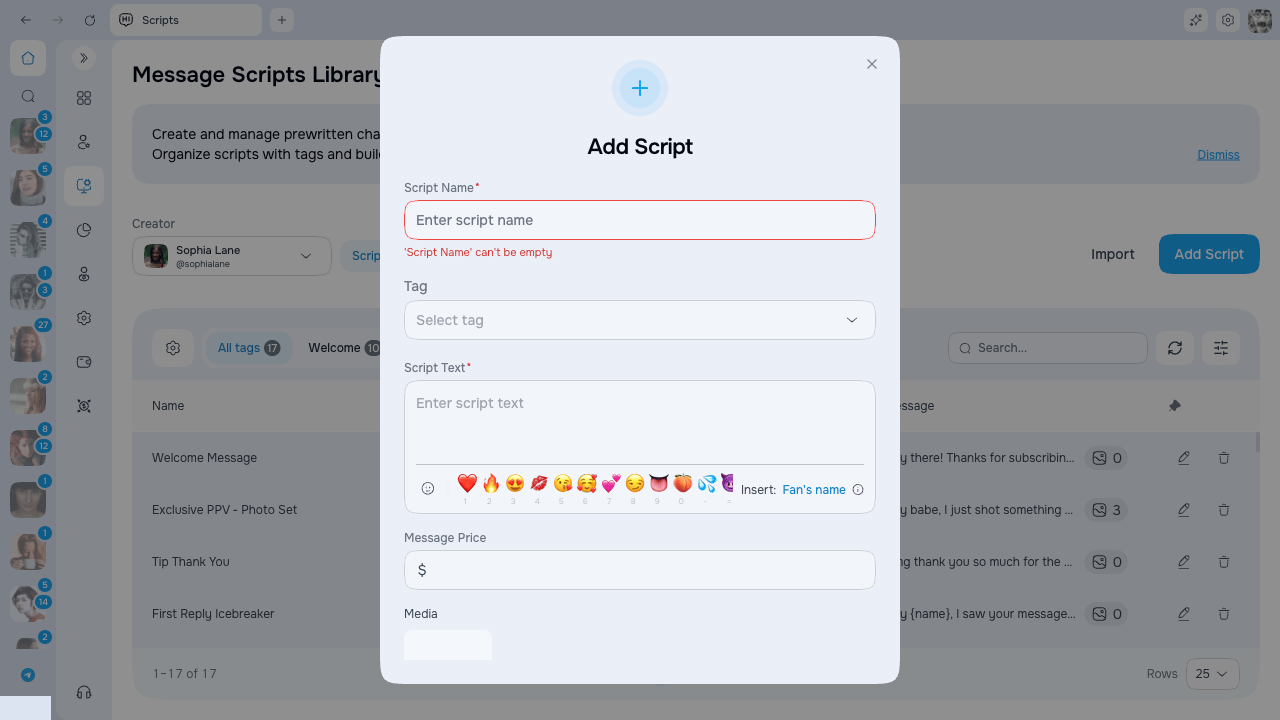
Click **Add Script** to open the creation modal. Fill in the following fields:
 | Field | Description |
| ------------- | --------------------------------------------------------------- |
| Script Name | Internal name for identification (required) |
| Script Text | The message content that will be sent (required) |
| Tag | Assign the script to a tag for easier organization |
| Message Price | PPV price in dollars -- leave empty for free messages |
| Media | Attach photos, videos, GIFs, and audio from the creator's vault |
| Notes | Internal notes visible only to your team |
## The \{name} tag
Personalize your scripts by inserting the `{name}` tag anywhere in your text. When the script is sent, this tag is automatically replaced with the fan's display name.
**Example:**
* Script text: `Hi, {name}! Thanks for subscribing!`
* Sent message: `Hi, John! Thanks for subscribing!`
This simple personalization significantly increases engagement and makes messages feel more genuine.
## Attaching media
To add media to your script:
1. Click the **Add file** button in the script form
2. Browse the creator's gallery (Vault) to select files
3. Click on files to attach them — multiple selections are supported
4. Attached files appear as thumbnails in the script form
Each attached file has a **Paid** checkbox. Check it to lock that specific file behind the PPV paywall. You can mix free and paid files in the same priced script — this is the official OnlyFans preview-and-paywall behavior, for example a free preview photo beside a paid video.
### Paid scripts and media
The **Paid** checkbox on media follows the script's price:
| Script price | Paid checkbox behavior |
| -------------- | --------------------------------------------------------------------------- |
| Empty or 0 | Checkbox disabled. Tooltip: "Set a price first" |
| Greater than 0 | Checkbox available. Every attached media item is marked **Paid** by default |
When you set a price, all attached media items start as **Paid** automatically, and newly attached items also start as **Paid**. Clear **Paid** on the specific items that should remain visible as free previews. Lowering the price back to 0 leaves the stored per-item choices untouched, but there is no paywall without a price.
Before saving, review the price and every media checkbox. The price makes a paywall available; the per-item **Paid** choice decides which attachments are locked behind it.
## Edit and delete
Manage existing scripts using the action icons in the library table:
* **Pencil icon** — opens the edit modal to modify the script
* **Trash icon** — permanently deletes the script
Script deletion is irreversible. Make sure you no longer need a script before deleting it.
## Next steps
* [Using Scripts in Chat](./using-in-chat) -- How to use scripts directly in the fan chat
* [Script Flows](./flows) -- How to chain scripts into multi-step conversation sequences
| Field | Description |
| ------------- | --------------------------------------------------------------- |
| Script Name | Internal name for identification (required) |
| Script Text | The message content that will be sent (required) |
| Tag | Assign the script to a tag for easier organization |
| Message Price | PPV price in dollars -- leave empty for free messages |
| Media | Attach photos, videos, GIFs, and audio from the creator's vault |
| Notes | Internal notes visible only to your team |
## The \{name} tag
Personalize your scripts by inserting the `{name}` tag anywhere in your text. When the script is sent, this tag is automatically replaced with the fan's display name.
**Example:**
* Script text: `Hi, {name}! Thanks for subscribing!`
* Sent message: `Hi, John! Thanks for subscribing!`
This simple personalization significantly increases engagement and makes messages feel more genuine.
## Attaching media
To add media to your script:
1. Click the **Add file** button in the script form
2. Browse the creator's gallery (Vault) to select files
3. Click on files to attach them — multiple selections are supported
4. Attached files appear as thumbnails in the script form
Each attached file has a **Paid** checkbox. Check it to lock that specific file behind the PPV paywall. You can mix free and paid files in the same priced script — this is the official OnlyFans preview-and-paywall behavior, for example a free preview photo beside a paid video.
### Paid scripts and media
The **Paid** checkbox on media follows the script's price:
| Script price | Paid checkbox behavior |
| -------------- | --------------------------------------------------------------------------- |
| Empty or 0 | Checkbox disabled. Tooltip: "Set a price first" |
| Greater than 0 | Checkbox available. Every attached media item is marked **Paid** by default |
When you set a price, all attached media items start as **Paid** automatically, and newly attached items also start as **Paid**. Clear **Paid** on the specific items that should remain visible as free previews. Lowering the price back to 0 leaves the stored per-item choices untouched, but there is no paywall without a price.
Before saving, review the price and every media checkbox. The price makes a paywall available; the per-item **Paid** choice decides which attachments are locked behind it.
## Edit and delete
Manage existing scripts using the action icons in the library table:
* **Pencil icon** — opens the edit modal to modify the script
* **Trash icon** — permanently deletes the script
Script deletion is irreversible. Make sure you no longer need a script before deleting it.
## Next steps
* [Using Scripts in Chat](./using-in-chat) -- How to use scripts directly in the fan chat
* [Script Flows](./flows) -- How to chain scripts into multi-step conversation sequences