> ## Documentation Index
> Fetch the complete documentation index at: https://agencykey.com/docs/llms.txt
> Use this file to discover all available pages before exploring further.
# Sales Settings
> Choose how sales are attributed to employees in AgencyKey reports
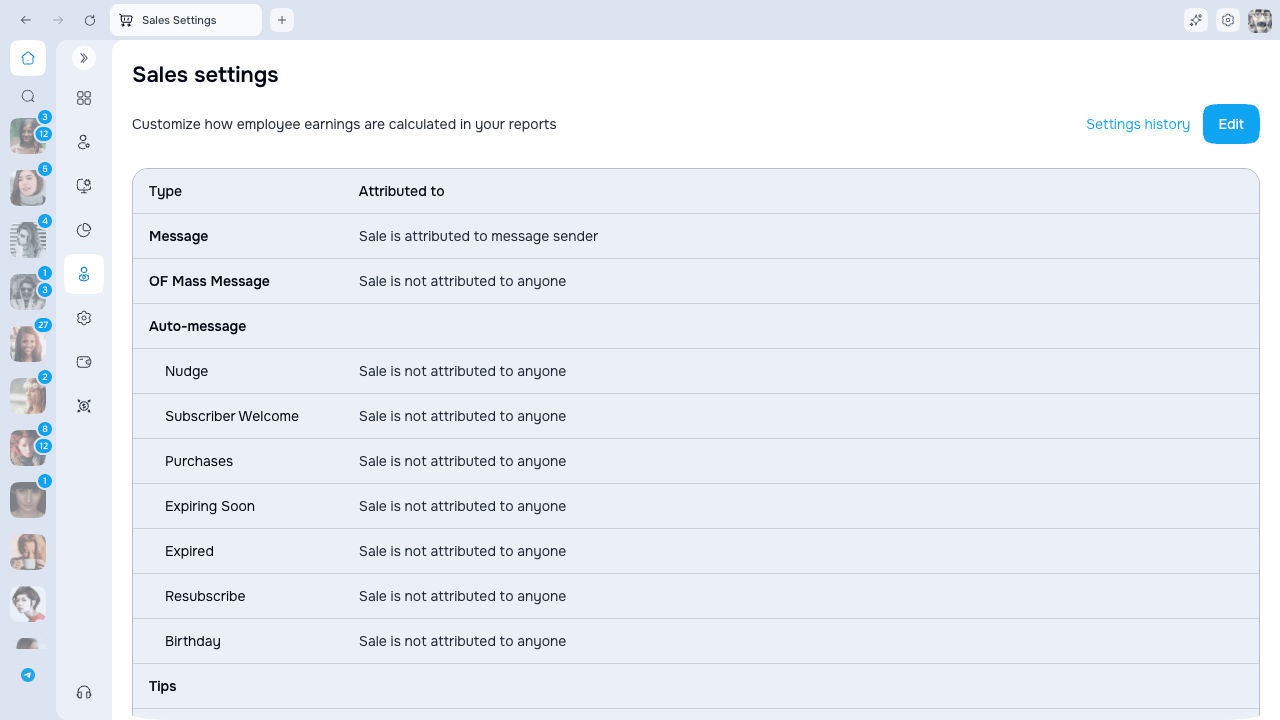
Sales Settings defines which employee receives credit for supported sales in AgencyKey reports. Open **Employees → Sales Settings** to review the active rules, exclusions, last update, and version history.
These settings change reporting attribution; they do not move money, change the buyer's charge, or change the creator's OnlyFans payout.
 ## Supported sale types
Rules are configured for:
* Messages and OnlyFans mass messages
* Auto-message triggers, including subscriber and purchase lifecycle events
* Tips from messages, profile, posts, OnlyFans live streams, and stories
* Posts
* Subscriptions
* OnlyFans live-stream sales
* OnlyFans referral earnings present in synchronized sales data
These rows describe sale sources reported by OnlyFans. They do not describe an AgencyKey broadcast scheduler or the AgencyKey referral-link program.
An enabled rule uses one of the attribution methods available for that sale type. Turning a row off means the sale is **not attributed to an employee**.
## Attribution methods
| Method | Meaning |
| ----------------------- | -------------------------------------------------------------------------------- |
| **Message sender** | Credit the employee who sent the related message |
| **Employee on shift** | Credit the employee whose shift covered the purchase time |
| **Last chatter within** | Credit the most recent chatter who messaged the fan within the configured window |
| **Not attributed** | Leave the sale out of employee attribution |
Not every method is available for every sale type. The editor only displays valid choices for the selected row. If no enabled condition can identify an employee, the sale remains unattributed.
### Last chatter window
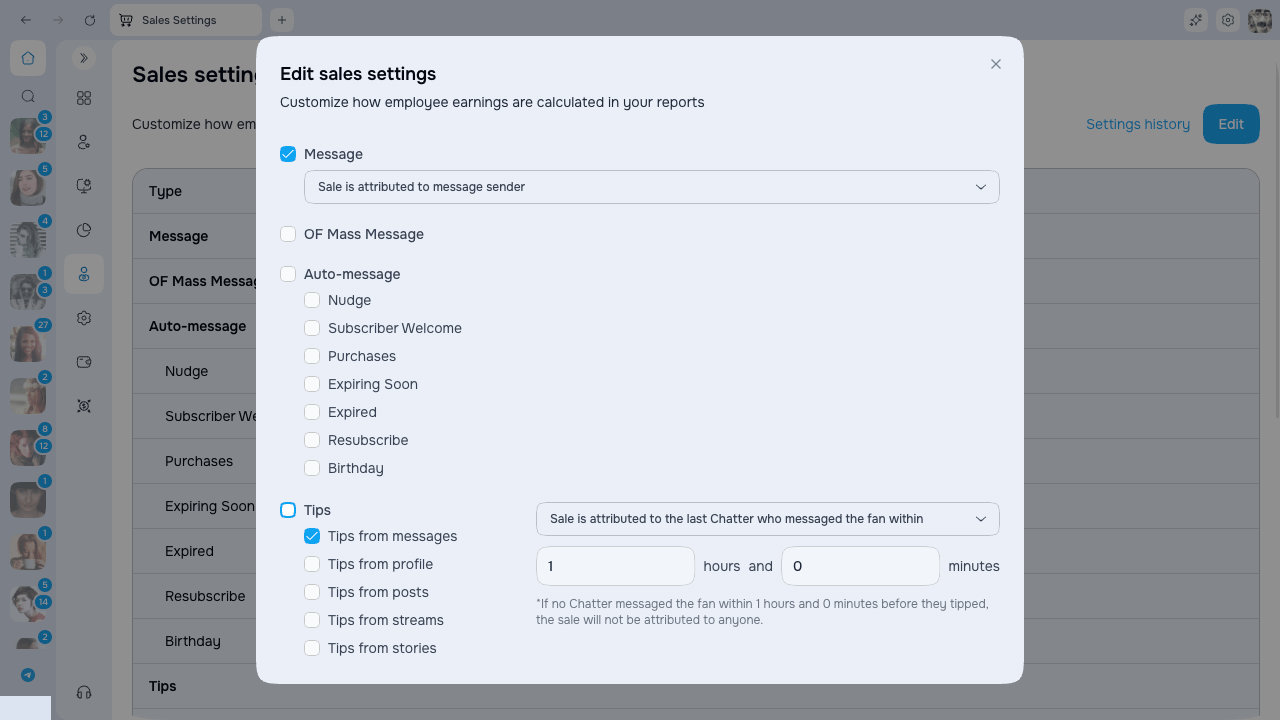
Set the window in hours and minutes. The editor accepts **0–23 hours** and **0–59 minutes**. If no chatter messaged the fan inside that period, the sale is not attributed by this rule.
## Amount exclusions
* **Exclude OnlyFans Service Fee (20%)** — employee reports use the amount after the platform fee for attributed sales.
* **Exclude refunds** — refunded amounts are excluded according to the report's sales calculation.
Review both switches together with the table rules: they affect reported employee earnings, not the creator's actual payment flow.
## Edit and schedule a version
1. Click **Edit**.
2. Enable only the sale types that should contribute to employee reporting.
3. Choose an available attribution method for each enabled type.
4. Configure the last-chatter window where used.
5. Review the service-fee and refund switches.
6. Save and choose the date and time when the version should take effect.
## Supported sale types
Rules are configured for:
* Messages and OnlyFans mass messages
* Auto-message triggers, including subscriber and purchase lifecycle events
* Tips from messages, profile, posts, OnlyFans live streams, and stories
* Posts
* Subscriptions
* OnlyFans live-stream sales
* OnlyFans referral earnings present in synchronized sales data
These rows describe sale sources reported by OnlyFans. They do not describe an AgencyKey broadcast scheduler or the AgencyKey referral-link program.
An enabled rule uses one of the attribution methods available for that sale type. Turning a row off means the sale is **not attributed to an employee**.
## Attribution methods
| Method | Meaning |
| ----------------------- | -------------------------------------------------------------------------------- |
| **Message sender** | Credit the employee who sent the related message |
| **Employee on shift** | Credit the employee whose shift covered the purchase time |
| **Last chatter within** | Credit the most recent chatter who messaged the fan within the configured window |
| **Not attributed** | Leave the sale out of employee attribution |
Not every method is available for every sale type. The editor only displays valid choices for the selected row. If no enabled condition can identify an employee, the sale remains unattributed.
### Last chatter window
Set the window in hours and minutes. The editor accepts **0–23 hours** and **0–59 minutes**. If no chatter messaged the fan inside that period, the sale is not attributed by this rule.
## Amount exclusions
* **Exclude OnlyFans Service Fee (20%)** — employee reports use the amount after the platform fee for attributed sales.
* **Exclude refunds** — refunded amounts are excluded according to the report's sales calculation.
Review both switches together with the table rules: they affect reported employee earnings, not the creator's actual payment flow.
## Edit and schedule a version
1. Click **Edit**.
2. Enable only the sale types that should contribute to employee reporting.
3. Choose an available attribution method for each enabled type.
4. Configure the last-chatter window where used.
5. Review the service-fee and refund switches.
6. Save and choose the date and time when the version should take effect.
 The effective date cannot be earlier than today. The modal shows the time zone from your current AgencyKey Preferences; confirm it before scheduling. Future-dated versions appear in **Settings history** and take effect at their configured time.
Analytics follows the settings version effective at the time being reported. A new version is not a promise to retroactively reassign every historical sale.
## History
Open **Settings history** to review previous and scheduled versions, their start dates, exclusions, and attribution table. Use the history when explaining why an employee report changed across periods.
## Permissions
* **Sales Settings → View list** opens the active settings and history.
* **Sales Settings → Edit** allows a user to create a new effective version.
## Related pages
* [Employee Analytics](../analytics/index) — attributed team performance
* [Creator Analytics](../analytics/creator-analytics) — creator results, including activity not assigned to an employee
* [Shift Management](../shifts/index) — schedules used by **Employee on shift** attribution
The effective date cannot be earlier than today. The modal shows the time zone from your current AgencyKey Preferences; confirm it before scheduling. Future-dated versions appear in **Settings history** and take effect at their configured time.
Analytics follows the settings version effective at the time being reported. A new version is not a promise to retroactively reassign every historical sale.
## History
Open **Settings history** to review previous and scheduled versions, their start dates, exclusions, and attribution table. Use the history when explaining why an employee report changed across periods.
## Permissions
* **Sales Settings → View list** opens the active settings and history.
* **Sales Settings → Edit** allows a user to create a new effective version.
## Related pages
* [Employee Analytics](../analytics/index) — attributed team performance
* [Creator Analytics](../analytics/creator-analytics) — creator results, including activity not assigned to an employee
* [Shift Management](../shifts/index) — schedules used by **Employee on shift** attribution