> ## Documentation Index
> Fetch the complete documentation index at: https://agencykey.com/docs/llms.txt
> Use this file to discover all available pages before exploring further.
# Configuring Permissions
> How to set permissions and data access scopes for roles
## Opening permissions page
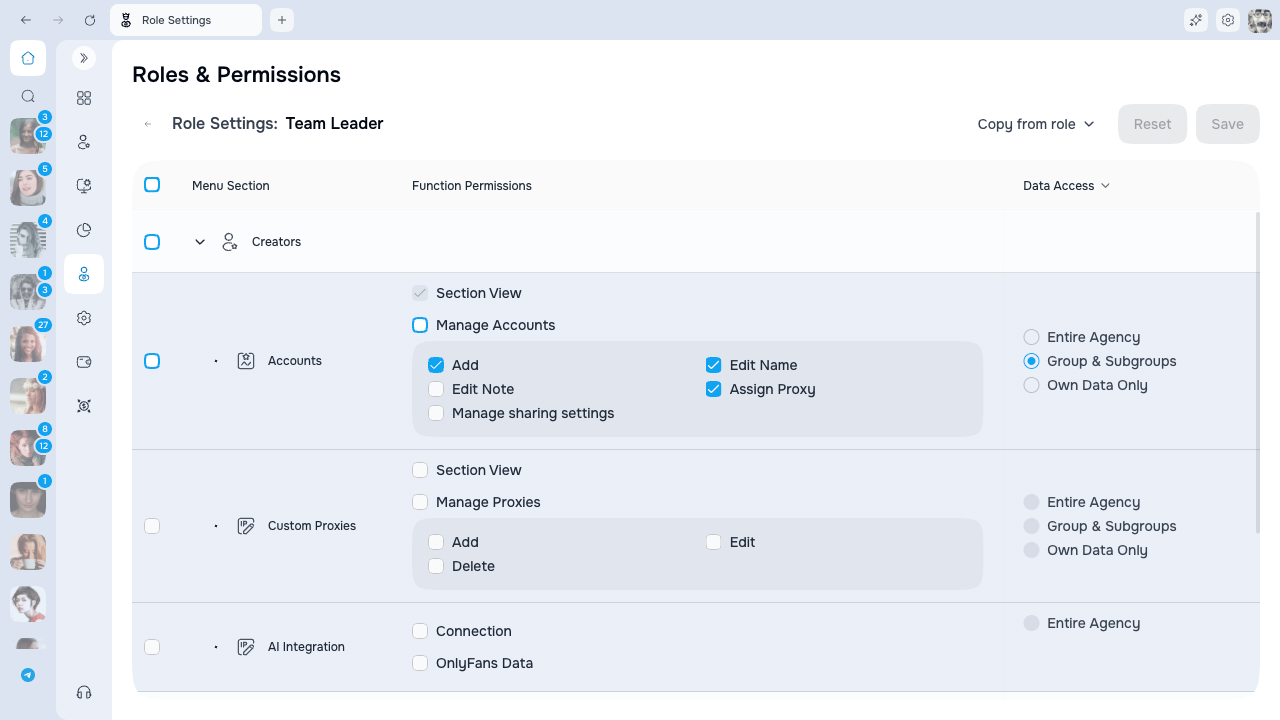 1. Find the role in the table
2. Click the gear icon in the Actions column
For system roles, an eye icon is shown (view only).
## Permission categories
Permissions are organized into categories:
| Category | What it controls |
| -------------- | ----------------------------------------------------------------------------------------------- |
| **Creators** | Creator accounts, custom proxies, and the OnlyFans data and settings available inside AgencyKey |
| **Billing** | Billing visibility, balance top-ups, and creator subscription management |
| **Automation** | Message Campaigns, fan lists, scripts, and other automated workflows |
| **Analytics** | Analytics, reports, and Tracking Links |
| **Employees** | Team members, roles, shifts, and groups |
Permissions are intentionally granular. Page visibility, individual actions, and data scope are separate controls. For example, a role may view Accounts without editing notes, changing proxies, changing sharing, deleting creators, or managing billing.
Click the arrow to expand a category and see individual permissions.
## Setting permissions
* **Checkbox** — enable/disable a permission
* **Section checkbox** — select all permissions in the section
Ticking any action inside a section turns on its **View** automatically, so the page stays reachable. The section checkbox shows one of three states: checked (all actions on), empty (none on), or a dash (some on).
Some actions need a partner action. For example, editing OnlyFans notes needs the right to view them. When you enable such an action, the partner turns on by itself and stays on until you turn the action off.
## Fine-grained OnlyFans permissions
For accounts you manage through the built-in OnlyFans view, permissions break down into precise switches. You can grant exactly what a teammate needs — for example, let a chatter add fans to a list but not delete it.
### Collections
The **Collections** section splits into four independent groups, each with its own action toggles:
| Group | Actions you can grant |
| ---------------------- | ------------------------------------------------------------------------------------------------------ |
| **Manage User Lists** | Create list, Rename list, Delete list, Clear list, Pin list, Pin fan, Add/remove fans, Customize order |
| **Manage Bookmarks** | Add, Edit, Delete, Clear |
| **Manage Post Labels** | Add, Edit, Delete, Clear |
| **Manage Archive** | Private archive |
**Delete** removes the list itself. **Clear** removes all fans from the list but keeps the list. You can allow one without the other.
### Queue
The **Queue** section splits by event type. Each group has **Create**, **Edit**, and **Delete**:
| Group | What it controls |
| --------------------------- | ----------------------------------- |
| **Scheduled Posts** | Posts saved for later |
| **Scheduled Messages** | Messages scheduled in a single chat |
| **Scheduled Mass Messages** | Mass messages scheduled for later |
A role can be allowed to schedule posts but not mass messages. **View** opens the calendar in read-only mode.
### OnlyFans Settings
The **Settings** section shows one group per OnlyFans settings page. Each group opens into **View** plus field-by-field toggles, so you can grant access to one page without unlocking the rest.
| Page group | Example field toggles |
| ------------------------------- | ------------------------------------------------------------------------------------- |
| **Profile** | Avatar, Header, Username, Display name, Bio, Location, Website, and more |
| **Account** | Email, Phone, Password, Sessions, Two-factor authentication, Delete account, and more |
| **Privacy and safety** | Profile privacy, Discoverability, Posts privacy, Watermarks, and more |
| **Subscription** | Price, Promotion campaign, Bundle, Trial links, and more |
| **Fans and following** | Auto follow back, Unfollow on expire, and more |
| **Notifications** | View, Edit |
| **Chats** | Accept free fans, Welcome message |
| **Story** | View, Edit |
| **OnlyFans Streaming settings** | View stream key, Co-stream, Reset stream key, and more |
| **QR code** | Download QR, and more |
### Delayed Messages
The delayed-send clock next to the message box is its own permission under **Messages**, separate from **Send Messages**. This lets you allow a teammate to schedule a delayed message without letting them send right away — or the other way around.
Inside an OnlyFans three-dot menu, forbidden actions simply don't appear. You can permit one item (for example, **Clear list**) while hiding another (**Delete list**).
## Copying permissions from another role
To quickly configure permissions by copying from an existing role:
1. Click **Copy from role**
2. Select the source role from the dropdown
3. All permissions and scopes from the selected role will be applied
This is useful when creating a similar role -- copy permissions first, then adjust individual settings.
## Data access scope
Some permissions have an access scope that controls how much data the employee can see:
| Scope | Name in UI | Description |
| ---------------- | ----------------- | --------------------------------------- |
| **ALL** | All Data | Access to all data in the agency |
| **SUBORDINATES** | Group & Subgroups | Access to own group + all subgroups |
| **SELF** | Own Data Only | Access only to personally assigned data |
### How scope affects different features
#### Team Members
* **All Data**: See all employees in the agency
* **Group & Subgroups**: See employees in your group and subgroups
* **Own Data Only**: See only yourself
#### Accounts
* **All Data**: See all OnlyFans accounts
* **Group & Subgroups**: See accounts assigned to your group and subgroups
* **Own Data Only**: See only accounts assigned to you personally
#### Analytics
* **All Data**: View statistics for all accounts
* **Group & Subgroups**: View statistics for accounts in your group and subgroups
* **Own Data Only**: View only your personal performance
#### Shifts
* **All Data**: See all shifts for all employees
* **Group & Subgroups**: See shifts for employees in your group and subgroups
* **Own Data Only**: See only your own shifts
### Scope and group hierarchy
The "Group & Subgroups" scope works with the group hierarchy:
```
Agency (root) ← All Data sees everything
├── Team Alpha ← Group & Subgroups here sees Alpha + A1 + A2
│ ├── Subteam A1 ← Group & Subgroups here sees only A1
│ └── Subteam A2 ← Group & Subgroups here sees only A2
└── Team Beta ← Group & Subgroups here sees Beta + B1
└── Subteam B1 ← Group & Subgroups here sees only B1
```
**Important:** "Group & Subgroups" includes:
* Your own group
* All subgroups recursively (children, grandchildren, etc.)
It does **NOT** include:
* Parent groups (above you)
* Sibling groups (same level, different branch)
### Practical example
Maria is in "Team Alpha" with "Group & Subgroups" access to Team Members:
| Employee | Group | Can Maria see? |
| -------- | ------------- | --------------------- |
| Alex | Agency (root) | No (parent group) |
| Maria | Team Alpha | Yes (own group) |
| Ivan | Team Alpha | Yes (same group) |
| Anna | Subteam A1 | Yes (subgroup) |
| Boris | Subteam A2 | Yes (subgroup) |
| Kate | Team Beta | No (sibling group) |
| Max | Subteam B1 | No (different branch) |
## Saving changes
1. Make your changes
2. Click **Save** (button shows the number of changes)
Or click **Reset** to discard changes.
### Unsaved changes warning
When trying to leave the page with unsaved changes, a dialog appears:
* **Stay** — return to editing
* **Leave** — leave without saving
## System roles
For system roles, the page opens in read-only mode. Permissions cannot be changed.
Owner and Admin receive the complete system permission set, but Owner-only governance actions such as managing Admin users and deleting the agency remain protected.
1. Find the role in the table
2. Click the gear icon in the Actions column
For system roles, an eye icon is shown (view only).
## Permission categories
Permissions are organized into categories:
| Category | What it controls |
| -------------- | ----------------------------------------------------------------------------------------------- |
| **Creators** | Creator accounts, custom proxies, and the OnlyFans data and settings available inside AgencyKey |
| **Billing** | Billing visibility, balance top-ups, and creator subscription management |
| **Automation** | Message Campaigns, fan lists, scripts, and other automated workflows |
| **Analytics** | Analytics, reports, and Tracking Links |
| **Employees** | Team members, roles, shifts, and groups |
Permissions are intentionally granular. Page visibility, individual actions, and data scope are separate controls. For example, a role may view Accounts without editing notes, changing proxies, changing sharing, deleting creators, or managing billing.
Click the arrow to expand a category and see individual permissions.
## Setting permissions
* **Checkbox** — enable/disable a permission
* **Section checkbox** — select all permissions in the section
Ticking any action inside a section turns on its **View** automatically, so the page stays reachable. The section checkbox shows one of three states: checked (all actions on), empty (none on), or a dash (some on).
Some actions need a partner action. For example, editing OnlyFans notes needs the right to view them. When you enable such an action, the partner turns on by itself and stays on until you turn the action off.
## Fine-grained OnlyFans permissions
For accounts you manage through the built-in OnlyFans view, permissions break down into precise switches. You can grant exactly what a teammate needs — for example, let a chatter add fans to a list but not delete it.
### Collections
The **Collections** section splits into four independent groups, each with its own action toggles:
| Group | Actions you can grant |
| ---------------------- | ------------------------------------------------------------------------------------------------------ |
| **Manage User Lists** | Create list, Rename list, Delete list, Clear list, Pin list, Pin fan, Add/remove fans, Customize order |
| **Manage Bookmarks** | Add, Edit, Delete, Clear |
| **Manage Post Labels** | Add, Edit, Delete, Clear |
| **Manage Archive** | Private archive |
**Delete** removes the list itself. **Clear** removes all fans from the list but keeps the list. You can allow one without the other.
### Queue
The **Queue** section splits by event type. Each group has **Create**, **Edit**, and **Delete**:
| Group | What it controls |
| --------------------------- | ----------------------------------- |
| **Scheduled Posts** | Posts saved for later |
| **Scheduled Messages** | Messages scheduled in a single chat |
| **Scheduled Mass Messages** | Mass messages scheduled for later |
A role can be allowed to schedule posts but not mass messages. **View** opens the calendar in read-only mode.
### OnlyFans Settings
The **Settings** section shows one group per OnlyFans settings page. Each group opens into **View** plus field-by-field toggles, so you can grant access to one page without unlocking the rest.
| Page group | Example field toggles |
| ------------------------------- | ------------------------------------------------------------------------------------- |
| **Profile** | Avatar, Header, Username, Display name, Bio, Location, Website, and more |
| **Account** | Email, Phone, Password, Sessions, Two-factor authentication, Delete account, and more |
| **Privacy and safety** | Profile privacy, Discoverability, Posts privacy, Watermarks, and more |
| **Subscription** | Price, Promotion campaign, Bundle, Trial links, and more |
| **Fans and following** | Auto follow back, Unfollow on expire, and more |
| **Notifications** | View, Edit |
| **Chats** | Accept free fans, Welcome message |
| **Story** | View, Edit |
| **OnlyFans Streaming settings** | View stream key, Co-stream, Reset stream key, and more |
| **QR code** | Download QR, and more |
### Delayed Messages
The delayed-send clock next to the message box is its own permission under **Messages**, separate from **Send Messages**. This lets you allow a teammate to schedule a delayed message without letting them send right away — or the other way around.
Inside an OnlyFans three-dot menu, forbidden actions simply don't appear. You can permit one item (for example, **Clear list**) while hiding another (**Delete list**).
## Copying permissions from another role
To quickly configure permissions by copying from an existing role:
1. Click **Copy from role**
2. Select the source role from the dropdown
3. All permissions and scopes from the selected role will be applied
This is useful when creating a similar role -- copy permissions first, then adjust individual settings.
## Data access scope
Some permissions have an access scope that controls how much data the employee can see:
| Scope | Name in UI | Description |
| ---------------- | ----------------- | --------------------------------------- |
| **ALL** | All Data | Access to all data in the agency |
| **SUBORDINATES** | Group & Subgroups | Access to own group + all subgroups |
| **SELF** | Own Data Only | Access only to personally assigned data |
### How scope affects different features
#### Team Members
* **All Data**: See all employees in the agency
* **Group & Subgroups**: See employees in your group and subgroups
* **Own Data Only**: See only yourself
#### Accounts
* **All Data**: See all OnlyFans accounts
* **Group & Subgroups**: See accounts assigned to your group and subgroups
* **Own Data Only**: See only accounts assigned to you personally
#### Analytics
* **All Data**: View statistics for all accounts
* **Group & Subgroups**: View statistics for accounts in your group and subgroups
* **Own Data Only**: View only your personal performance
#### Shifts
* **All Data**: See all shifts for all employees
* **Group & Subgroups**: See shifts for employees in your group and subgroups
* **Own Data Only**: See only your own shifts
### Scope and group hierarchy
The "Group & Subgroups" scope works with the group hierarchy:
```
Agency (root) ← All Data sees everything
├── Team Alpha ← Group & Subgroups here sees Alpha + A1 + A2
│ ├── Subteam A1 ← Group & Subgroups here sees only A1
│ └── Subteam A2 ← Group & Subgroups here sees only A2
└── Team Beta ← Group & Subgroups here sees Beta + B1
└── Subteam B1 ← Group & Subgroups here sees only B1
```
**Important:** "Group & Subgroups" includes:
* Your own group
* All subgroups recursively (children, grandchildren, etc.)
It does **NOT** include:
* Parent groups (above you)
* Sibling groups (same level, different branch)
### Practical example
Maria is in "Team Alpha" with "Group & Subgroups" access to Team Members:
| Employee | Group | Can Maria see? |
| -------- | ------------- | --------------------- |
| Alex | Agency (root) | No (parent group) |
| Maria | Team Alpha | Yes (own group) |
| Ivan | Team Alpha | Yes (same group) |
| Anna | Subteam A1 | Yes (subgroup) |
| Boris | Subteam A2 | Yes (subgroup) |
| Kate | Team Beta | No (sibling group) |
| Max | Subteam B1 | No (different branch) |
## Saving changes
1. Make your changes
2. Click **Save** (button shows the number of changes)
Or click **Reset** to discard changes.
### Unsaved changes warning
When trying to leave the page with unsaved changes, a dialog appears:
* **Stay** — return to editing
* **Leave** — leave without saving
## System roles
For system roles, the page opens in read-only mode. Permissions cannot be changed.
Owner and Admin receive the complete system permission set, but Owner-only governance actions such as managing Admin users and deleting the agency remain protected.