> ## Documentation Index
> Fetch the complete documentation index at: https://agencykey.com/docs/llms.txt
> Use this file to discover all available pages before exploring further.
# Roles & Permissions
> Roles define which features and data are available to employees
Use roles to give each employee the CRM features and data they need while keeping everything else out of reach. Combine permissions with a data scope, then assign the role from Team Members.
## Where to find it
Open **Employees → Roles & Permissions** in the sidebar.
## What you can do
* Review system and starter roles
* Create custom roles for different jobs
* Choose which pages and actions each role can use
* Limit data to the whole agency, a group and its subgroups, or the employee's own data
* Assign multiple roles when one job needs a combination of access
## How roles work
 1. Create a role with a name and description
2. Configure permissions (which features are available)
3. Set data access scope (how much data is visible)
4. Assign the role to employees in the Team section
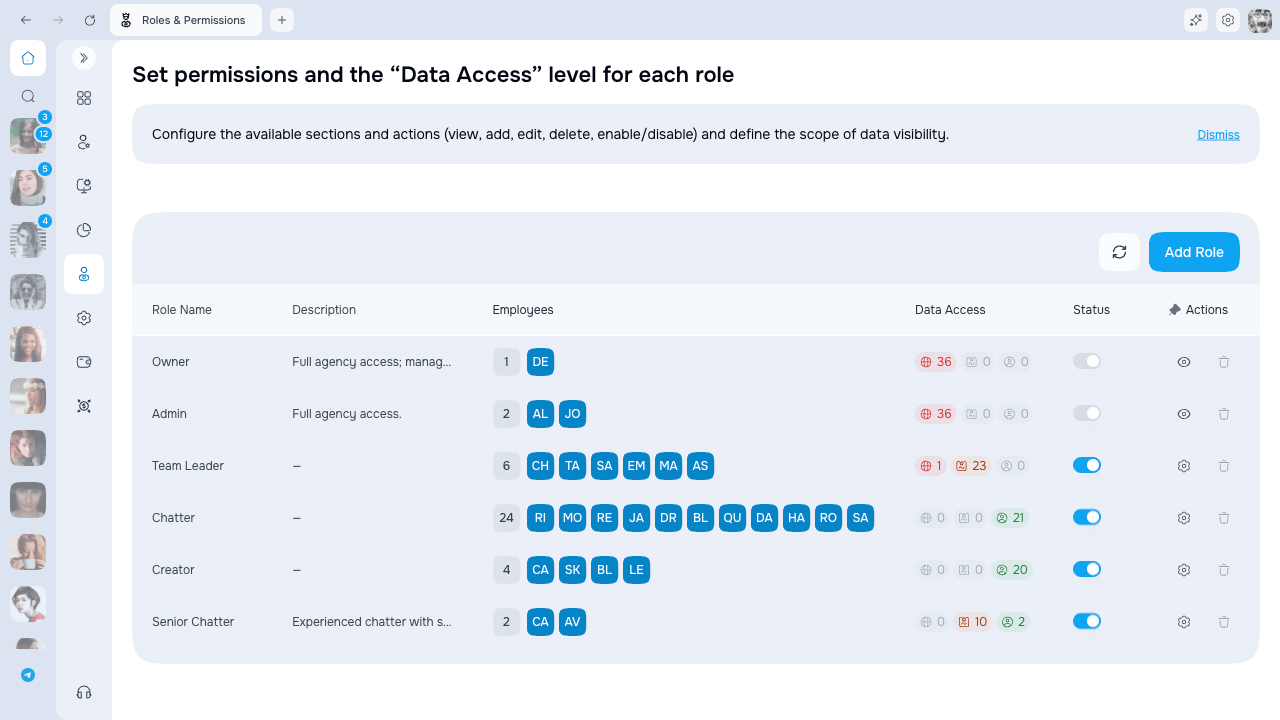
Click the gear icon in the **Actions** column to open the permissions editor. The permission tree has five root groups: **Creators**, **Billing**, **Automation**, **Analytics**, and **Employees**. Role names and descriptions are edited directly from their table cells; the gear does not edit those fields.
## System roles
System roles cannot be edited, deactivated, or deleted. Their status is locked:
| Role | Description |
| --------- | --------------------------------------------------------------------------------- |
| **Owner** | Full access to all features and data. Cannot be assigned to employees |
| **Admin** | Full operational access to features and agency data, with Owner-only restrictions |
### Owner vs Admin
Both roles have full access, but there are important differences:
| Aspect | Owner | Admin |
| ------------------------- | --------------------------------------- | ------------------------- |
| **Created** | Automatically when agency is registered | Assigned to employees |
| **Can be assigned** | No | Yes |
| **Can be deactivated** | No (protected) | No (locked system status) |
| **Can manage Admins** | Yes | No |
| **Can delete the agency** | Yes | No |
| **Per agency** | 1 | Unlimited |
Owner is created with the agency, cannot be assigned to another employee, and is protected from removal. Only the Owner can assign or remove Admin, manage an Admin user, and use **Delete agency**. Admin cannot grant these Owner-only powers, and its system-role status remains locked.
## Default roles
AgencyKey creates starter roles for common jobs:
| Role | Data access scope | Description |
| --------------- | ----------------- | -------------------------------------------------------------------------- |
| **Creator** | Own Data Only | For content creators — access to own accounts, chats, and basic automation |
| **Chatter** | Own Data Only | For chatters — access to own chats and messaging features |
| **Team Leader** | Group & Subgroups | For supervisors — can manage team members and view their data |
### When to use default roles
* **Creator** — assign to models who manage their own content
* **Chatter** — assign to employees who only chat with fans
* **Team Leader** — assign to supervisors who need to oversee their team
Review their current permissions before assignment and customize agency roles when your workflow differs. Every role marked as a system role is locked and view-only, including Admin.
## Custom roles
You can create custom roles with specific permissions for your team needs. Custom roles can be edited, deactivated, or deleted.
## Multiple roles
Employees can have multiple roles assigned. When this happens:
### Permission combining
All permissions from all roles are **combined** (union). The employee gets access to everything that any of their roles allows.
**Example:** Employee has Role A (view accounts) and Role B (edit scripts):
* Can view accounts (from Role A)
* Can edit scripts (from Role B)
### Data access scope merging
When the same permission exists in multiple roles with different scopes, the **broadest scope wins**:
| Scope priority | Level |
| ----------------- | ------- |
| Own Data Only | Lowest |
| Group & Subgroups | Medium |
| All Data | Highest |
**Example:** Employee has:
* Role A: View accounts with "Own Data Only"
* Role B: View accounts with "Group & Subgroups"
* **Result:** Can view accounts with "Group & Subgroups" scope
## Groups & hierarchy
Employees are organized into groups. Groups form a hierarchy:
```
Agency (root)
├── Team Alpha
│ ├── Subteam A1
│ └── Subteam A2
└── Team Beta
└── Subteam B1
```
### How groups work
* Each employee belongs to one group
* Groups can have up to six subgroup levels below the agency root
* Group hierarchy affects what data employees can see
### Group restrictions
| Action | Allowed? |
| ------------------------------ | ------------------------- |
| Delete group with employees | No — move employees first |
| Delete root group | No |
| Move group to different agency | No |
| Create circular hierarchy | No (system prevents) |
### Data visibility by group
When a permission has "Group & Subgroups" access level:
* Employee sees data from their **own group**
* Employee sees data from all **subgroups below** their group
* Employee does **NOT** see data from parent groups or sibling groups
**Example:** An employee in "Team Alpha" with "Group & Subgroups" access:
* Sees Team Alpha data
* Sees Subteam A1 and A2 data
* Does not see Agency (root) data
* Does not see Team Beta data
## Who can edit whom
Employees can only edit other employees who are:
1. In the **same group** as them, OR
2. In a **subgroup** below their group
**Example:** A Team Leader in "Team Alpha":
* Can edit employees in Team Alpha
* Can edit employees in Subteam A1 and A2
* Cannot edit employees in Agency (root)
* Cannot edit employees in Team Beta
## Roles table
| Column | Description |
| ----------- | --------------------------------------- |
| Role Name | Name of the role |
| Description | Brief description of the role's purpose |
| Employees | Who has this role |
| Status | Active or Inactive |
| Actions | Open permissions, Delete |
## Role status
| Status | Description |
| ------------ | ------------------------------------------------------------------------------- |
| **Active** | Role can be assigned to employees |
| **Inactive** | Cannot be assigned to new employees (existing employees keep their permissions) |
Use the toggle in the Status column to change the activity of a custom role. Every system role, including Admin, has a locked status and no active toggle.
## Important warnings
Be careful when managing roles:
* **Removing an employee's only role** can leave them without usable access
* **Employees can have zero roles** — they won't be able to use the system
* **Deactivating a role is not revocation** — existing assignees keep its permissions
* Review every assigned role before narrowing access because permissions are combined
## Access denied behavior
When an employee doesn't have permission for a feature, unavailable menu items and actions are hidden. Opening a restricted page directly does not grant access.
## Access and availability
Opening and changing this page follows role-management permissions. Users with access see the agency-wide roles list; data scopes do not filter it. Every system role remains view-only with a locked status, including Admin, and only the Owner can assign or remove Admin.
## Next steps
* [Managing roles](./managing) — create, edit, and delete roles
* [Configuring permissions](./permissions) — set permissions and data access scopes
1. Create a role with a name and description
2. Configure permissions (which features are available)
3. Set data access scope (how much data is visible)
4. Assign the role to employees in the Team section
Click the gear icon in the **Actions** column to open the permissions editor. The permission tree has five root groups: **Creators**, **Billing**, **Automation**, **Analytics**, and **Employees**. Role names and descriptions are edited directly from their table cells; the gear does not edit those fields.
## System roles
System roles cannot be edited, deactivated, or deleted. Their status is locked:
| Role | Description |
| --------- | --------------------------------------------------------------------------------- |
| **Owner** | Full access to all features and data. Cannot be assigned to employees |
| **Admin** | Full operational access to features and agency data, with Owner-only restrictions |
### Owner vs Admin
Both roles have full access, but there are important differences:
| Aspect | Owner | Admin |
| ------------------------- | --------------------------------------- | ------------------------- |
| **Created** | Automatically when agency is registered | Assigned to employees |
| **Can be assigned** | No | Yes |
| **Can be deactivated** | No (protected) | No (locked system status) |
| **Can manage Admins** | Yes | No |
| **Can delete the agency** | Yes | No |
| **Per agency** | 1 | Unlimited |
Owner is created with the agency, cannot be assigned to another employee, and is protected from removal. Only the Owner can assign or remove Admin, manage an Admin user, and use **Delete agency**. Admin cannot grant these Owner-only powers, and its system-role status remains locked.
## Default roles
AgencyKey creates starter roles for common jobs:
| Role | Data access scope | Description |
| --------------- | ----------------- | -------------------------------------------------------------------------- |
| **Creator** | Own Data Only | For content creators — access to own accounts, chats, and basic automation |
| **Chatter** | Own Data Only | For chatters — access to own chats and messaging features |
| **Team Leader** | Group & Subgroups | For supervisors — can manage team members and view their data |
### When to use default roles
* **Creator** — assign to models who manage their own content
* **Chatter** — assign to employees who only chat with fans
* **Team Leader** — assign to supervisors who need to oversee their team
Review their current permissions before assignment and customize agency roles when your workflow differs. Every role marked as a system role is locked and view-only, including Admin.
## Custom roles
You can create custom roles with specific permissions for your team needs. Custom roles can be edited, deactivated, or deleted.
## Multiple roles
Employees can have multiple roles assigned. When this happens:
### Permission combining
All permissions from all roles are **combined** (union). The employee gets access to everything that any of their roles allows.
**Example:** Employee has Role A (view accounts) and Role B (edit scripts):
* Can view accounts (from Role A)
* Can edit scripts (from Role B)
### Data access scope merging
When the same permission exists in multiple roles with different scopes, the **broadest scope wins**:
| Scope priority | Level |
| ----------------- | ------- |
| Own Data Only | Lowest |
| Group & Subgroups | Medium |
| All Data | Highest |
**Example:** Employee has:
* Role A: View accounts with "Own Data Only"
* Role B: View accounts with "Group & Subgroups"
* **Result:** Can view accounts with "Group & Subgroups" scope
## Groups & hierarchy
Employees are organized into groups. Groups form a hierarchy:
```
Agency (root)
├── Team Alpha
│ ├── Subteam A1
│ └── Subteam A2
└── Team Beta
└── Subteam B1
```
### How groups work
* Each employee belongs to one group
* Groups can have up to six subgroup levels below the agency root
* Group hierarchy affects what data employees can see
### Group restrictions
| Action | Allowed? |
| ------------------------------ | ------------------------- |
| Delete group with employees | No — move employees first |
| Delete root group | No |
| Move group to different agency | No |
| Create circular hierarchy | No (system prevents) |
### Data visibility by group
When a permission has "Group & Subgroups" access level:
* Employee sees data from their **own group**
* Employee sees data from all **subgroups below** their group
* Employee does **NOT** see data from parent groups or sibling groups
**Example:** An employee in "Team Alpha" with "Group & Subgroups" access:
* Sees Team Alpha data
* Sees Subteam A1 and A2 data
* Does not see Agency (root) data
* Does not see Team Beta data
## Who can edit whom
Employees can only edit other employees who are:
1. In the **same group** as them, OR
2. In a **subgroup** below their group
**Example:** A Team Leader in "Team Alpha":
* Can edit employees in Team Alpha
* Can edit employees in Subteam A1 and A2
* Cannot edit employees in Agency (root)
* Cannot edit employees in Team Beta
## Roles table
| Column | Description |
| ----------- | --------------------------------------- |
| Role Name | Name of the role |
| Description | Brief description of the role's purpose |
| Employees | Who has this role |
| Status | Active or Inactive |
| Actions | Open permissions, Delete |
## Role status
| Status | Description |
| ------------ | ------------------------------------------------------------------------------- |
| **Active** | Role can be assigned to employees |
| **Inactive** | Cannot be assigned to new employees (existing employees keep their permissions) |
Use the toggle in the Status column to change the activity of a custom role. Every system role, including Admin, has a locked status and no active toggle.
## Important warnings
Be careful when managing roles:
* **Removing an employee's only role** can leave them without usable access
* **Employees can have zero roles** — they won't be able to use the system
* **Deactivating a role is not revocation** — existing assignees keep its permissions
* Review every assigned role before narrowing access because permissions are combined
## Access denied behavior
When an employee doesn't have permission for a feature, unavailable menu items and actions are hidden. Opening a restricted page directly does not grant access.
## Access and availability
Opening and changing this page follows role-management permissions. Users with access see the agency-wide roles list; data scopes do not filter it. Every system role remains view-only with a locked status, including Admin, and only the Owner can assign or remove Admin.
## Next steps
* [Managing roles](./managing) — create, edit, and delete roles
* [Configuring permissions](./permissions) — set permissions and data access scopes