> ## Documentation Index
> Fetch the complete documentation index at: https://agencykey.com/docs/llms.txt
> Use this file to discover all available pages before exploring further.
# Sending Messages
> Text, media, PPV, Scripts, translations, delayed messages, and the OnlyFans queue
Use the composer at the bottom of an open chat to prepare and send a message as the model selected in the left sidebar.
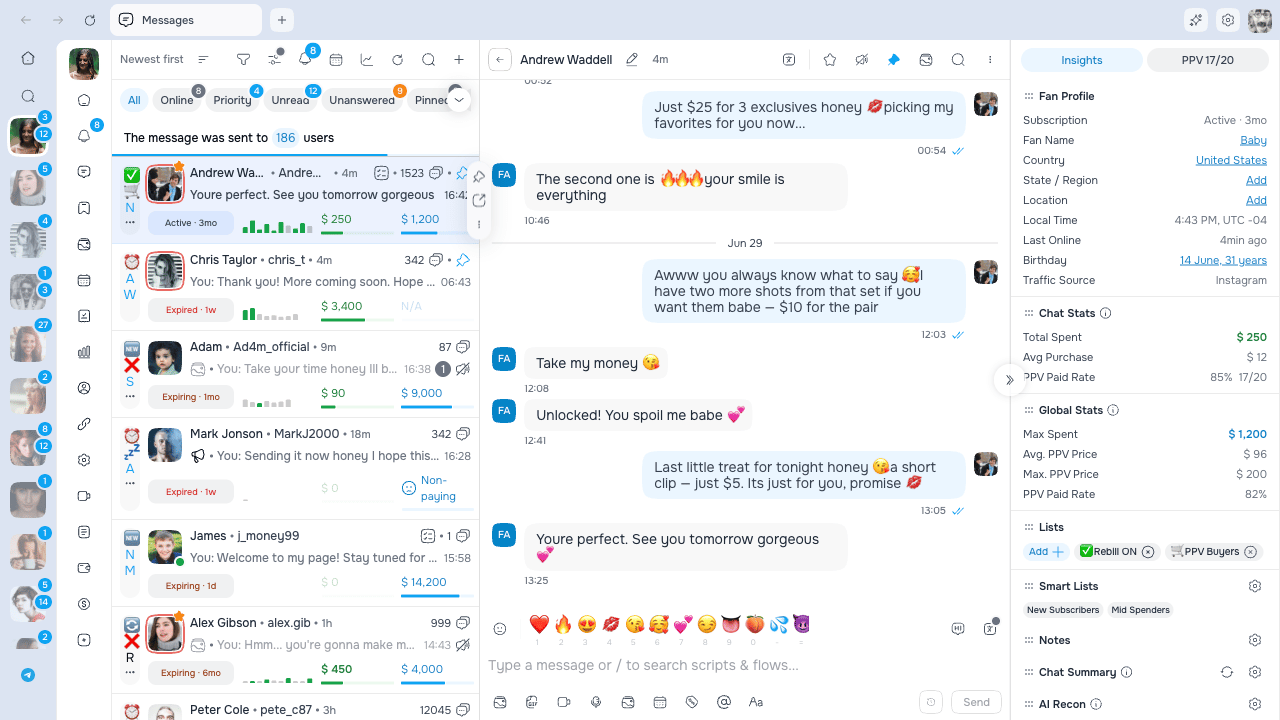 Before sending, verify the selected model, fan, price, and attachments. Drafts and sending actions are isolated by model and chat.
## Composer basics
1. Open the fan's chat.
2. Type in the composer.
3. Add media, a GIF, price, reply, or release-form tags if needed.
4. Review the draft.
5. Click **Send**.
The composer grows as you type. Enter sends according to your keyboard settings; use the visible **Send** button when you want to avoid shortcut ambiguity.
### Text formatting
Open the formatting bar to use the controls available in the current stable version:
* **Bold**
* *Italic*
* text color
* **Clear Formatting**
Formatting is included in regular and OnlyFans scheduled text messages.
## Media and the Vault
The toolbar can include actions for:
| Action | Purpose |
| ------------------------ | ------------------------------------------------- |
| **Add Media** | Upload photos or videos |
| **Add GIF** | Search and attach a GIF |
| **Record Video** | Record video when supported by the device/account |
| **Record Voice** | Record one audio attachment |
| **Add Media From Vault** | Select existing OnlyFans vault content |
| **Message Price** | Turn supported text/media into paid content |
| **Scheduled Messages** | Open the native OnlyFans scheduling flow |
Buttons are hidden or disabled when the draft combination is unsupported or your role lacks the required permission.
### Vault picker
The chat Vault picker marks media that has already been sent to this fan, helping you avoid accidental duplicates.
Before sending, verify the selected model, fan, price, and attachments. Drafts and sending actions are isolated by model and chat.
## Composer basics
1. Open the fan's chat.
2. Type in the composer.
3. Add media, a GIF, price, reply, or release-form tags if needed.
4. Review the draft.
5. Click **Send**.
The composer grows as you type. Enter sends according to your keyboard settings; use the visible **Send** button when you want to avoid shortcut ambiguity.
### Text formatting
Open the formatting bar to use the controls available in the current stable version:
* **Bold**
* *Italic*
* text color
* **Clear Formatting**
Formatting is included in regular and OnlyFans scheduled text messages.
## Media and the Vault
The toolbar can include actions for:
| Action | Purpose |
| ------------------------ | ------------------------------------------------- |
| **Add Media** | Upload photos or videos |
| **Add GIF** | Search and attach a GIF |
| **Record Video** | Record video when supported by the device/account |
| **Record Voice** | Record one audio attachment |
| **Add Media From Vault** | Select existing OnlyFans vault content |
| **Message Price** | Turn supported text/media into paid content |
| **Scheduled Messages** | Open the native OnlyFans scheduling flow |
Buttons are hidden or disabled when the draft combination is unsupported or your role lacks the required permission.
### Vault picker
The chat Vault picker marks media that has already been sent to this fan, helping you avoid accidental duplicates.
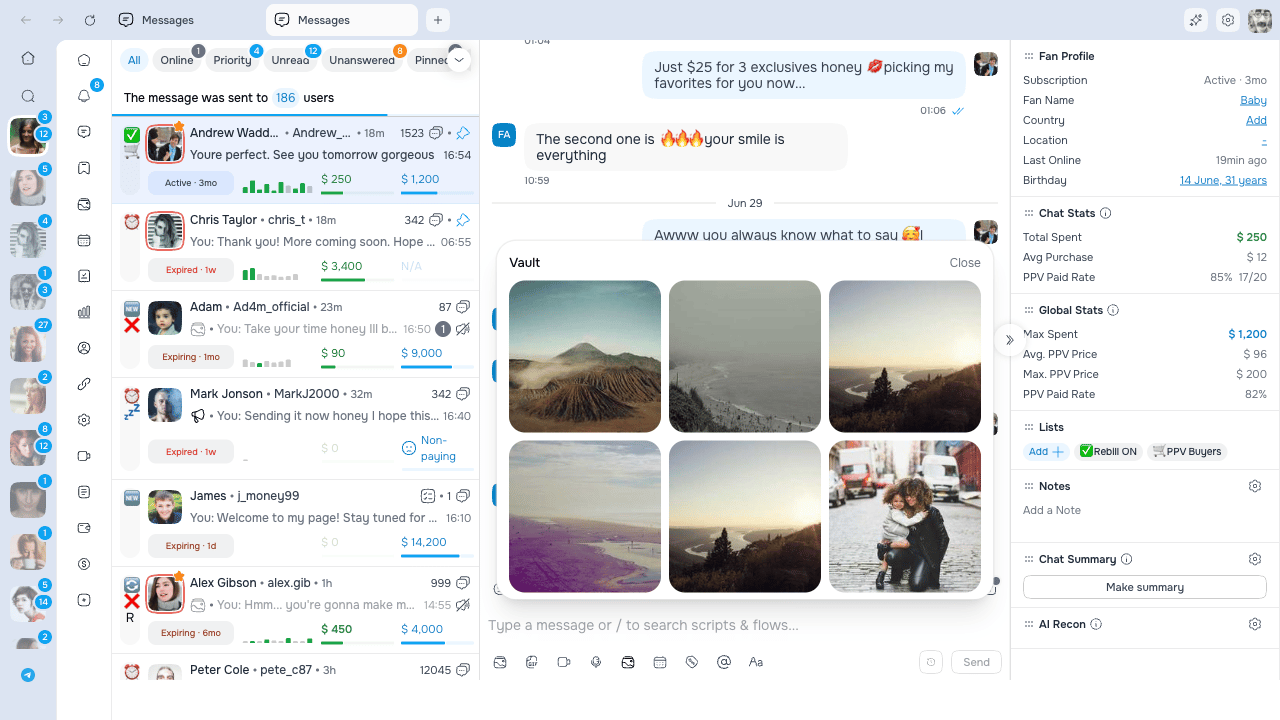 Always open the picker from the correct model: each model has its own Vault and sent-media history.
## Paid messages (PPV)
1. Add supported media or enable paid text.
2. Click **Message Price**.
3. Enter a price from **$3 to $200 USD**.
4. Put any free preview media in **FREE preview**.
5. Keep paid media in **Price to View**.
6. Review the price and send.
A PPV draft can show the price, paid area, free previews, and any required release-form tags before sending.
A free preview is visible before purchase. Check every item is in the intended zone before sending.
## Two ways to send later
AgencyKey exposes two different systems. Choose based on where you want to manage the message.
| | **Delayed Message (AgencyKey)** | **Scheduled Messages (OnlyFans)** |
| -------------------------------- | ------------------------------------------------------ | -------------------------------------------------- |
| Best for | Short delay or a custom future time directly from chat | OnlyFans queue, exact date/time, or Save for later |
| Where it appears before delivery | Pending bubble in the chat | OnlyFans **Scheduled Messages** queue |
| Continues after AgencyKey closes | Yes | Yes |
| GIF | Not supported | Supported |
| Paid media / previews | Supported | Supported |
| Paid locked text | Not supported | Supported |
| Reply relationship | Not supported | Not supported by the AgencyKey scheduled flow |
| Management | Send now or cancel from the pending bubble | Manage in the OnlyFans queue |
### Delayed Message (AgencyKey)
Click the history/clock button next to **Send** and choose:
* **Send immediately** (shown only when you can send regular messages);
* **30 sec**;
* **1, 2, 3, 5, or 10 min**;
* **Custom** future date and time.
The custom time uses the time shown by the app and must be in the future.
After scheduling:
* the chat shows a pending bubble with its send time;
* you can hover it and choose **Send now** if you have regular send access;
* you can cancel it after confirming;
* it remains scheduled if the desktop app is closed or restarted.
A delayed message can carry text, attached media, PPV price, free previews, and release-form tags. It cannot carry a GIF, paid locked text, or a reply link.
#### Failed or late cancellation
* A failed delayed message appears as an error bubble.
* There is no retry action on that bubble: delete it, check the draft, and create a new delayed message.
* If cancellation fails because of a temporary connection error, try again.
* If AgencyKey reports that the message was already sent, check the live thread before composing a replacement.
### Scheduled Messages (OnlyFans)
Use the calendar **Scheduled Messages** button to open the native OnlyFans scheduling flow.
1. Prepare the message.
2. Open **Scheduled Messages**.
3. Pick an exact future date/time, or choose **Save for later**.
4. Confirm the send/save action.
A dated item is placed in the OnlyFans queue and is delivered by OnlyFans. A **Save for later** item stays there without a delivery time until you finish it.
The AgencyKey scheduled flow carries text and formatting, media, GIF, PPV price, free previews, and release-form/creator tags. It does not preserve a reply relationship to another message.
A queued message does not appear as a sent bubble in the conversation. Open **Scheduled Messages** to find and manage it. AgencyKey opens the queue after a successful submission only when your role can view it.
If submission to the queue fails, the draft remains in the composer so you can correct the problem and retry.
## Scripts and Flows
Click **Scripts & Flows**, or type / in the composer, to search content available to your role.
| Action | Result |
| ------------ | ------------------------------------------------------------- |
| **Insert** | Adds the Script to the composer so you can review and edit it |
| **Send** | Sends it immediately when the Script and permissions allow |
| **Run Flow** | Opens the guided sequence for the active fan |
A Script can include text, media, and a PPV price. The `{name}` placeholder uses the available fan name when the Script is prepared.
Use **Insert** for sensitive, paid, or personalized messages so you can verify the fan name, media, and price before sending.
## Translation
Click the translation icon in the chat header. The visible sections depend on your permissions.
### Chat translation
| Setting | Effect |
| --------------------------------- | -------------------------------------------------------------------- |
| **Enable incoming translation** | Translates fan messages into the selected target language |
| **Enable outgoing translation** | Translates your sent messages |
| **Translate chats list previews** | Translates previews in the chat list |
| **Translate AI chat recap** | Translates Chat Summary |
| **Translate AI fan profile** | Translates AI Recon |
| **Translate chat to** | Sets the target language for chat and enabled AI translations |
| **Show translation only** | Hides original text when incoming or outgoing translation is enabled |
### When typing
| Setting | Effect |
| ------------------------------------ | ------------------------------------------------- |
| **Enable translation** | Shows a translation of the text you are composing |
| **Translate before sending to** | Uses a chosen language or **Auto-detect** |
| **Preserve original capitalization** | Keeps capitalization closer to your source text |
| **Warn on language change** | Warns when the detected fan language changes |
With **Auto-detect**, review the detected language shown below the selector. Short messages and names can be detected incorrectly.
Always review translated prices, dates, consent/boundary language, and personal names before sending. Translation can change meaning even when the sentence looks fluent.
## Message and chat actions
Depending on OnlyFans state and your permissions, a message can expose actions such as reply, copy, like, pin/unpin, unsend, hide, or report.
* A reply preview appears above the composer; close it to cancel the reply.
* Pinned messages are available from the chat header.
* **Unpin all** requires confirmation and must be rebuilt manually if used by mistake.
* Unsend availability can be time-limited by OnlyFans.
## Permissions
| Action | Access that may be required |
| ------------------------------------------- | -------------------------------------------------------------------------------------------- |
| Send a regular message | **Send messages** |
| Upload/record media | Media upload, video, or audio permission |
| Send PPV | Paid-message/price permission |
| Create or manage AgencyKey delayed messages | **Delayed messages** and **Send messages**; **Send now** also checks the current send access |
| Add to OnlyFans Scheduled Messages | Create scheduled messages permission |
| Open/manage the OnlyFans queue | Queue viewing/management permission |
| Use Scripts or Flows | Corresponding Scripts/Flows access |
| Translate chat or typing | Chat translation / typing translation permission |
## Recovery checklist
* **Pending delayed bubble missing after reopening** — Reopen the same model and fan; pending and failed delayed items are loaded for that chat.
* **Delayed message failed** — Delete the failed bubble and recreate it; there is no one-click retry.
* **Scheduled item not in chat** — Check the OnlyFans **Scheduled Messages** queue.
* **Queue submission failed** — The composer draft should remain; correct the issue and retry.
* **Button missing** — Check the selected model, draft compatibility, and your permission.
* **Unsure whether it sent** — Check the live conversation and the OnlyFans queue before sending a duplicate.
Always open the picker from the correct model: each model has its own Vault and sent-media history.
## Paid messages (PPV)
1. Add supported media or enable paid text.
2. Click **Message Price**.
3. Enter a price from **$3 to $200 USD**.
4. Put any free preview media in **FREE preview**.
5. Keep paid media in **Price to View**.
6. Review the price and send.
A PPV draft can show the price, paid area, free previews, and any required release-form tags before sending.
A free preview is visible before purchase. Check every item is in the intended zone before sending.
## Two ways to send later
AgencyKey exposes two different systems. Choose based on where you want to manage the message.
| | **Delayed Message (AgencyKey)** | **Scheduled Messages (OnlyFans)** |
| -------------------------------- | ------------------------------------------------------ | -------------------------------------------------- |
| Best for | Short delay or a custom future time directly from chat | OnlyFans queue, exact date/time, or Save for later |
| Where it appears before delivery | Pending bubble in the chat | OnlyFans **Scheduled Messages** queue |
| Continues after AgencyKey closes | Yes | Yes |
| GIF | Not supported | Supported |
| Paid media / previews | Supported | Supported |
| Paid locked text | Not supported | Supported |
| Reply relationship | Not supported | Not supported by the AgencyKey scheduled flow |
| Management | Send now or cancel from the pending bubble | Manage in the OnlyFans queue |
### Delayed Message (AgencyKey)
Click the history/clock button next to **Send** and choose:
* **Send immediately** (shown only when you can send regular messages);
* **30 sec**;
* **1, 2, 3, 5, or 10 min**;
* **Custom** future date and time.
The custom time uses the time shown by the app and must be in the future.
After scheduling:
* the chat shows a pending bubble with its send time;
* you can hover it and choose **Send now** if you have regular send access;
* you can cancel it after confirming;
* it remains scheduled if the desktop app is closed or restarted.
A delayed message can carry text, attached media, PPV price, free previews, and release-form tags. It cannot carry a GIF, paid locked text, or a reply link.
#### Failed or late cancellation
* A failed delayed message appears as an error bubble.
* There is no retry action on that bubble: delete it, check the draft, and create a new delayed message.
* If cancellation fails because of a temporary connection error, try again.
* If AgencyKey reports that the message was already sent, check the live thread before composing a replacement.
### Scheduled Messages (OnlyFans)
Use the calendar **Scheduled Messages** button to open the native OnlyFans scheduling flow.
1. Prepare the message.
2. Open **Scheduled Messages**.
3. Pick an exact future date/time, or choose **Save for later**.
4. Confirm the send/save action.
A dated item is placed in the OnlyFans queue and is delivered by OnlyFans. A **Save for later** item stays there without a delivery time until you finish it.
The AgencyKey scheduled flow carries text and formatting, media, GIF, PPV price, free previews, and release-form/creator tags. It does not preserve a reply relationship to another message.
A queued message does not appear as a sent bubble in the conversation. Open **Scheduled Messages** to find and manage it. AgencyKey opens the queue after a successful submission only when your role can view it.
If submission to the queue fails, the draft remains in the composer so you can correct the problem and retry.
## Scripts and Flows
Click **Scripts & Flows**, or type / in the composer, to search content available to your role.
| Action | Result |
| ------------ | ------------------------------------------------------------- |
| **Insert** | Adds the Script to the composer so you can review and edit it |
| **Send** | Sends it immediately when the Script and permissions allow |
| **Run Flow** | Opens the guided sequence for the active fan |
A Script can include text, media, and a PPV price. The `{name}` placeholder uses the available fan name when the Script is prepared.
Use **Insert** for sensitive, paid, or personalized messages so you can verify the fan name, media, and price before sending.
## Translation
Click the translation icon in the chat header. The visible sections depend on your permissions.
### Chat translation
| Setting | Effect |
| --------------------------------- | -------------------------------------------------------------------- |
| **Enable incoming translation** | Translates fan messages into the selected target language |
| **Enable outgoing translation** | Translates your sent messages |
| **Translate chats list previews** | Translates previews in the chat list |
| **Translate AI chat recap** | Translates Chat Summary |
| **Translate AI fan profile** | Translates AI Recon |
| **Translate chat to** | Sets the target language for chat and enabled AI translations |
| **Show translation only** | Hides original text when incoming or outgoing translation is enabled |
### When typing
| Setting | Effect |
| ------------------------------------ | ------------------------------------------------- |
| **Enable translation** | Shows a translation of the text you are composing |
| **Translate before sending to** | Uses a chosen language or **Auto-detect** |
| **Preserve original capitalization** | Keeps capitalization closer to your source text |
| **Warn on language change** | Warns when the detected fan language changes |
With **Auto-detect**, review the detected language shown below the selector. Short messages and names can be detected incorrectly.
Always review translated prices, dates, consent/boundary language, and personal names before sending. Translation can change meaning even when the sentence looks fluent.
## Message and chat actions
Depending on OnlyFans state and your permissions, a message can expose actions such as reply, copy, like, pin/unpin, unsend, hide, or report.
* A reply preview appears above the composer; close it to cancel the reply.
* Pinned messages are available from the chat header.
* **Unpin all** requires confirmation and must be rebuilt manually if used by mistake.
* Unsend availability can be time-limited by OnlyFans.
## Permissions
| Action | Access that may be required |
| ------------------------------------------- | -------------------------------------------------------------------------------------------- |
| Send a regular message | **Send messages** |
| Upload/record media | Media upload, video, or audio permission |
| Send PPV | Paid-message/price permission |
| Create or manage AgencyKey delayed messages | **Delayed messages** and **Send messages**; **Send now** also checks the current send access |
| Add to OnlyFans Scheduled Messages | Create scheduled messages permission |
| Open/manage the OnlyFans queue | Queue viewing/management permission |
| Use Scripts or Flows | Corresponding Scripts/Flows access |
| Translate chat or typing | Chat translation / typing translation permission |
## Recovery checklist
* **Pending delayed bubble missing after reopening** — Reopen the same model and fan; pending and failed delayed items are loaded for that chat.
* **Delayed message failed** — Delete the failed bubble and recreate it; there is no one-click retry.
* **Scheduled item not in chat** — Check the OnlyFans **Scheduled Messages** queue.
* **Queue submission failed** — The composer draft should remain; correct the issue and retry.
* **Button missing** — Check the selected model, draft compatibility, and your permission.
* **Unsure whether it sent** — Check the live conversation and the OnlyFans queue before sending a duplicate.