> ## Documentation Index
> Fetch the complete documentation index at: https://agencykey.com/docs/llms.txt
> Use this file to discover all available pages before exploring further.
# Chat Interface
> Chat list, model-scoped tabs, navigation, notifications, and chat actions
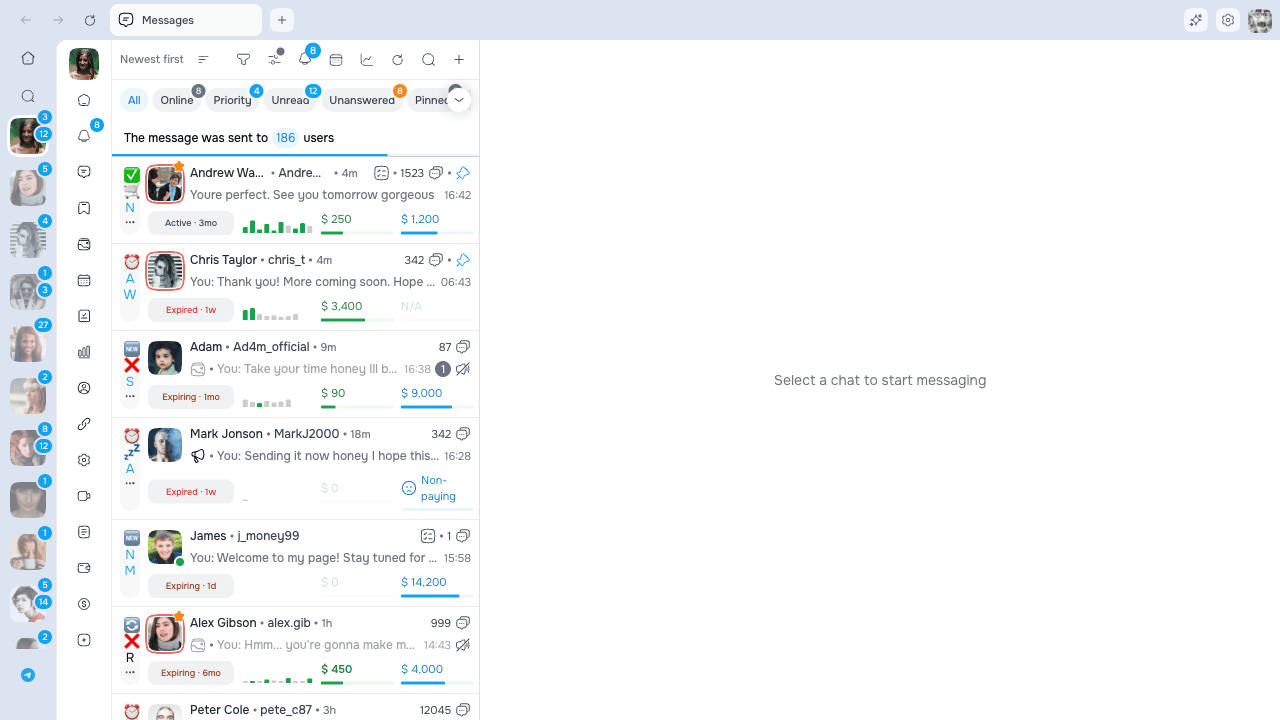
The full OnlyFans workspace is available in the AgencyKey desktop app. Select a model in the left sidebar to open that model's chat list, tabs, notifications, drafts, and OnlyFans session.
 Always verify the selected model before sending, editing fan data, muting, blocking, or deleting a chat. Switching models restores that model's own workspace.
Desktop state is also kept separately for each signed-in AgencyKey account. One operator's open tabs and drafts are not reused when another AgencyKey account signs in.
## Chat list
The list on the left belongs to the currently selected model. A row can show:
| Element | Meaning |
| ----------------------------------- | ------------------------------------------------------------------------ |
| **Avatar and name** | The fan in this model's conversation |
| **Green status dot / last seen** | Current or most recent OnlyFans activity |
| **Message preview and time** | Latest visible message |
| **Unread badge** | Number of unread messages |
| **Typing** | The fan is currently typing |
| **Pin** | Chat pinned by AgencyKey |
| **Mute icon** | Notifications muted for this chat |
| **Media / megaphone** | Latest message contains media or came from a mass mailing |
| **Star** | The fan also has a creator account |
| **List markers** | Custom lists that include the fan |
| **Subscription, PPV, spent badges** | Available monetization signals for this model and permitted shared scope |
A **Non-paying** signal can replace a cross-model maximum when enough permitted shared data is available. It is guidance, not proof of the fan's finances or future behavior. See [Insights Panel](./insights-panel#non-paying-signal).
### Recent-purchase highlight
When enabled in chat-list view settings, **Total Spent** can use a stronger green highlight for a configurable period after a recorded purchase. Use it as a recency signal and still verify the payment in the conversation or statistics.
### Pinned chats
Pin a conversation from its context menu or with the displayed keyboard shortcut.
* Maximum: **10 pinned chats per model**
* Pinned chats stay above normal rows in filters and search
* Pin state is synchronized for authorized users/devices
* Unpin a chat before pinning another when the limit is reached
This AgencyKey pin is separate from the native OnlyFans **Pinned** filter.
## Tabs and filters above the list
Built-in tabs can include **All**, **Online**, **Priority**, **Unread**, **Unanswered**, **Pinned**, and **With Tips**. Custom lists can also appear as tabs.
**Unanswered** helps manage conversations where the fan still needs a reply or the chat was marked unanswered manually. Use **Mark as Answered / Unanswered** when available. At the bottom of a long result, **Scan more** checks older chats.
* **All** remains available as the fallback.
* Use the tabs dropdown to show/hide optional native tabs.
* Pin frequently used custom lists to the tab bar.
* Search the dropdown when there are many lists.
* Hidden-tab and pinned-list choices are kept per model.
## Search, filters, and view settings
### Search
Search finds fans within the current model and combines with the active tab and filters. Clear the search to return to the full current view.
### Filters
The filter popover can include:
| Filter | Effect |
| ------------------- | ------------------------------------------------------ |
| **Online** | Show currently online fans |
| **Hide creators** | Exclude fans who also have creator accounts |
| **Hide non-paying** | Exclude chats carrying the available Non-paying signal |
Filters stack. A highlighted filter icon means at least one is active.
**Hide non-paying** depends on available shared statistics and the selected model's sharing level. It is not a simple local spending threshold, and it may not classify every fan.
### Chat-list view settings
Use the gear to choose what appears on rows:
* custom name, original name, username, and emoji handling;
* avatar, creator marker, online state, list markers, message count, and unanswered indicator;
* subscription, PPV paid rate, total spent, recent-purchase highlight, and cross-model maximum;
* automatic refresh interval.
The preview reflects the current choices. Settings are saved for the model/operator workspace. A manual refresh reloads the list when you need an immediate update.
## Opening and managing chats
* **Click** a row to open it.
* **Cmd/Ctrl-click** or **Open in New Tab** opens it in a background model tab.
* Drag tabs to reorder them.
* Close a tab with its X.
* Swipe left on a chat row to switch its read/unread state when that action is available.
Tabs, drafts, and the last active tab are kept separately for each model. Switching models and returning restores that model's previous tabs.
## Desktop tabs and address field
The desktop header displays **one tab row at a time**:
| Current surface | Tabs shown |
| ------------------- | ------------------------------------- |
| A model is selected | OnlyFans tabs belonging to that model |
| CRM is selected | AgencyKey CRM page tabs |
It does not display separate model and CRM rows simultaneously.
Always verify the selected model before sending, editing fan data, muting, blocking, or deleting a chat. Switching models restores that model's own workspace.
Desktop state is also kept separately for each signed-in AgencyKey account. One operator's open tabs and drafts are not reused when another AgencyKey account signs in.
## Chat list
The list on the left belongs to the currently selected model. A row can show:
| Element | Meaning |
| ----------------------------------- | ------------------------------------------------------------------------ |
| **Avatar and name** | The fan in this model's conversation |
| **Green status dot / last seen** | Current or most recent OnlyFans activity |
| **Message preview and time** | Latest visible message |
| **Unread badge** | Number of unread messages |
| **Typing** | The fan is currently typing |
| **Pin** | Chat pinned by AgencyKey |
| **Mute icon** | Notifications muted for this chat |
| **Media / megaphone** | Latest message contains media or came from a mass mailing |
| **Star** | The fan also has a creator account |
| **List markers** | Custom lists that include the fan |
| **Subscription, PPV, spent badges** | Available monetization signals for this model and permitted shared scope |
A **Non-paying** signal can replace a cross-model maximum when enough permitted shared data is available. It is guidance, not proof of the fan's finances or future behavior. See [Insights Panel](./insights-panel#non-paying-signal).
### Recent-purchase highlight
When enabled in chat-list view settings, **Total Spent** can use a stronger green highlight for a configurable period after a recorded purchase. Use it as a recency signal and still verify the payment in the conversation or statistics.
### Pinned chats
Pin a conversation from its context menu or with the displayed keyboard shortcut.
* Maximum: **10 pinned chats per model**
* Pinned chats stay above normal rows in filters and search
* Pin state is synchronized for authorized users/devices
* Unpin a chat before pinning another when the limit is reached
This AgencyKey pin is separate from the native OnlyFans **Pinned** filter.
## Tabs and filters above the list
Built-in tabs can include **All**, **Online**, **Priority**, **Unread**, **Unanswered**, **Pinned**, and **With Tips**. Custom lists can also appear as tabs.
**Unanswered** helps manage conversations where the fan still needs a reply or the chat was marked unanswered manually. Use **Mark as Answered / Unanswered** when available. At the bottom of a long result, **Scan more** checks older chats.
* **All** remains available as the fallback.
* Use the tabs dropdown to show/hide optional native tabs.
* Pin frequently used custom lists to the tab bar.
* Search the dropdown when there are many lists.
* Hidden-tab and pinned-list choices are kept per model.
## Search, filters, and view settings
### Search
Search finds fans within the current model and combines with the active tab and filters. Clear the search to return to the full current view.
### Filters
The filter popover can include:
| Filter | Effect |
| ------------------- | ------------------------------------------------------ |
| **Online** | Show currently online fans |
| **Hide creators** | Exclude fans who also have creator accounts |
| **Hide non-paying** | Exclude chats carrying the available Non-paying signal |
Filters stack. A highlighted filter icon means at least one is active.
**Hide non-paying** depends on available shared statistics and the selected model's sharing level. It is not a simple local spending threshold, and it may not classify every fan.
### Chat-list view settings
Use the gear to choose what appears on rows:
* custom name, original name, username, and emoji handling;
* avatar, creator marker, online state, list markers, message count, and unanswered indicator;
* subscription, PPV paid rate, total spent, recent-purchase highlight, and cross-model maximum;
* automatic refresh interval.
The preview reflects the current choices. Settings are saved for the model/operator workspace. A manual refresh reloads the list when you need an immediate update.
## Opening and managing chats
* **Click** a row to open it.
* **Cmd/Ctrl-click** or **Open in New Tab** opens it in a background model tab.
* Drag tabs to reorder them.
* Close a tab with its X.
* Swipe left on a chat row to switch its read/unread state when that action is available.
Tabs, drafts, and the last active tab are kept separately for each model. Switching models and returning restores that model's previous tabs.
## Desktop tabs and address field
The desktop header displays **one tab row at a time**:
| Current surface | Tabs shown |
| ------------------- | ------------------------------------- |
| A model is selected | OnlyFans tabs belonging to that model |
| CRM is selected | AgencyKey CRM page tabs |
It does not display separate model and CRM rows simultaneously.
 ### Edit the active tab address
Click the tab that is already active to turn its title into an address field.
* Press **Enter** to open the address in that tab.
* Press **Esc** or click away to cancel.
* A model tab shows an OnlyFans address.
* A CRM tab shows the AgencyKey page route.
Only AgencyKey and OnlyFans addresses are accepted.
### Where a pasted link opens
| Link | Pasted on a model tab | Pasted on a CRM tab |
| ------------- | ----------------------- | -------------------------------------------------------------- |
| **OnlyFans** | Opens in that model tab | Opens under the only open model, or asks you to choose a model |
| **AgencyKey** | Opens in a new CRM tab | Opens in the current CRM tab |
If there is not exactly one open model for an OnlyFans link, a searchable model picker shows the models you can access. Select deliberately: the resulting OnlyFans tab and session belong to that model.
### New tabs and CRM limits
* **+** on a model surface opens a new **Chats** tab for that model.
* **+** on CRM opens **Dashboard**.
* CRM supports up to **5 tabs**.
* At least one CRM tab remains open, so the last one has no close action.
Open tabs are restored across desktop restarts for the same signed-in AgencyKey account.
## Chat header
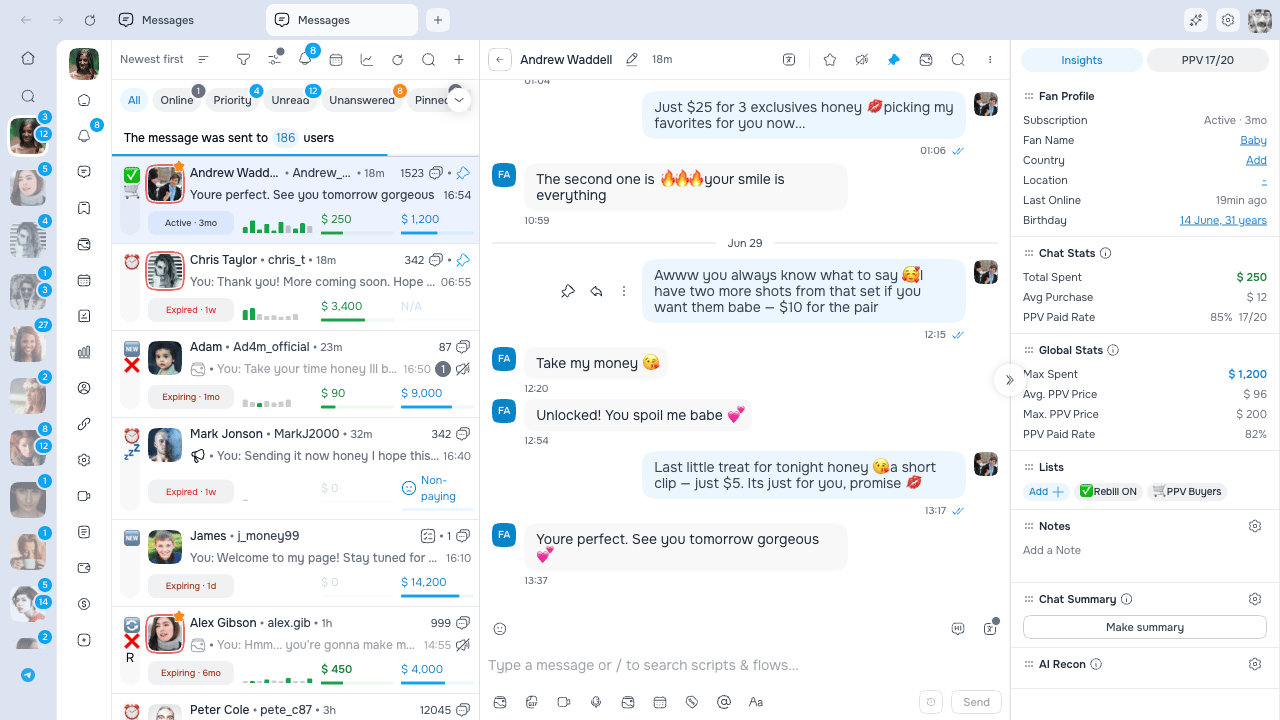
Available controls can include:
| Control | Purpose |
| ---------------------- | -------------------------------------------------------------- |
| **Back** | Return to the model's chat list |
| **Fan name** | View or edit the custom nickname when permitted |
| **Online / last seen** | Check recent activity |
| **Lists** | Add or remove the fan from lists |
| **Mute** | Mute/unmute this model's chat notifications |
| **Translation** | Configure chat, typing, Chat Summary, and AI Recon translation |
| **Search** | Find text in the active conversation |
| **Pinned messages** | Open pins for this chat |
| **Menu** | OnlyFans actions such as block/restrict when permitted |
Missing controls usually mean the action is not available in the current OnlyFans state or your role lacks the selected model's permission.
### Block and restrict
* **Block** prevents contact according to OnlyFans behavior and opens a confirmation.
* **Restrict** limits the fan's interaction/visibility according to OnlyFans behavior.
* **Unblock** and **Unrestrict** reverse those states when permitted.
Check the selected model and fan before confirming.
## Pinned messages
Open **Pinned messages** from the chat header to search the current chat's pins.
* Pin or unpin individual messages from their message actions.
* **Unpin all** asks for confirmation.
* Removing all pins cannot be undone automatically; re-pin messages manually if needed.
## Insights / PPV and chat tools
The open chat can include:
| Area | Purpose |
| -------------------------- | ----------------------------------------------------------------------- |
| **Insights: Notes** | Team context not shown to the fan |
| **Insights: Chat Summary** | AI summary of this model/fan conversation |
| **Insights: AI Recon** | AI briefing from eligible shared model conversations |
| **Insights / PPV tabs** | Fan profile, model-specific/shared statistics, lists, and paid messages |
| **Flow Runner** | Guided Script/Flow steps for the active fan |
Sections are shown only when permitted. Insights sections can be collapsed and reordered, and the right panel remembers its state for the model/operator workspace.
Read [Chat Summary](./chat-summary), [AI Recon](./ai-recon), and [Insights Panel](./insights-panel) before relying on shared or AI-generated information.
## Notifications panel
The bell opens OnlyFans notifications for the current model.
* Switch and reorder categories available to the account.
* Refresh without leaving the chat workspace.
* **Mark all as read** affects only the active notification category and requires permission.
* Review quick fan statistics and add the fan to a list.
* Send a quick text reply or open the fan's chat in a background tab.
* Opening the panel alone does not mark items as read.
Notification drafts and actions belong to the current model.
## Chat context menu
Right-click a chat row for actions available to your role:
| Action | Typical shortcut | Result |
| ------------------------------- | ---------------- | -------------------------------------------------------------------- |
| **Open in New Tab** | T | Opens a background tab for this model |
| **Pin chat / Unpin chat** | P | Changes the AgencyKey pin |
| **Add to List** | L | Opens the model's list picker |
| **Mark as Read/Unread** | R | Changes read state |
| **Mark as Answered/Unanswered** | A | Adds or removes the chat from the Unanswered workflow when available |
| **Mute/Unmute** | M | Changes notifications for this chat |
| **Delete Chat** | D | Opens a permanent-deletion confirmation |
These letter shortcuts work while the context or **More** menu is open; they are not global chat-list shortcuts. They do not bypass confirmation or permissions.
## Permanently delete a chat
**Delete Chat permanently deletes the conversation in OnlyFans and it cannot be restored.** It does not merely hide the conversation from AgencyKey.
For a single chat, **Delete Chat** and its D shortcut open a confirmation dialog. Bulk delete also requires confirmation.
Before confirming:
1. Check the selected model.
2. Check the fan's name and username.
3. Make sure you intend to remove the entire OnlyFans conversation.
4. Use mute, mark as read, or list organization instead if you only want to clean up your workspace.
Deletion requires the corresponding chat-clear permission. If a chat disappears unexpectedly, contact your administrator; there is no restore action in AgencyKey.
## Troubleshooting
* **Wrong tabs after switching** — Confirm the selected model; each model restores its own tab set.
* **A pasted OnlyFans link asks for a model** — Choose from the searchable picker; AgencyKey cannot infer the account when zero or several models are open.
* **A CRM page opens in another tab** — AgencyKey links pasted on a model surface intentionally open a CRM tab.
* **A control is missing** — Check the selected model, OnlyFans session, allowed section, and role permission.
* **Reconnect screen appears** — Reconnect if you manage the account; otherwise ask a manager/admin.
* **Shared or AI data differs between models** — Their sharing scopes and creator-specific history can differ by design.
### Edit the active tab address
Click the tab that is already active to turn its title into an address field.
* Press **Enter** to open the address in that tab.
* Press **Esc** or click away to cancel.
* A model tab shows an OnlyFans address.
* A CRM tab shows the AgencyKey page route.
Only AgencyKey and OnlyFans addresses are accepted.
### Where a pasted link opens
| Link | Pasted on a model tab | Pasted on a CRM tab |
| ------------- | ----------------------- | -------------------------------------------------------------- |
| **OnlyFans** | Opens in that model tab | Opens under the only open model, or asks you to choose a model |
| **AgencyKey** | Opens in a new CRM tab | Opens in the current CRM tab |
If there is not exactly one open model for an OnlyFans link, a searchable model picker shows the models you can access. Select deliberately: the resulting OnlyFans tab and session belong to that model.
### New tabs and CRM limits
* **+** on a model surface opens a new **Chats** tab for that model.
* **+** on CRM opens **Dashboard**.
* CRM supports up to **5 tabs**.
* At least one CRM tab remains open, so the last one has no close action.
Open tabs are restored across desktop restarts for the same signed-in AgencyKey account.
## Chat header
Available controls can include:
| Control | Purpose |
| ---------------------- | -------------------------------------------------------------- |
| **Back** | Return to the model's chat list |
| **Fan name** | View or edit the custom nickname when permitted |
| **Online / last seen** | Check recent activity |
| **Lists** | Add or remove the fan from lists |
| **Mute** | Mute/unmute this model's chat notifications |
| **Translation** | Configure chat, typing, Chat Summary, and AI Recon translation |
| **Search** | Find text in the active conversation |
| **Pinned messages** | Open pins for this chat |
| **Menu** | OnlyFans actions such as block/restrict when permitted |
Missing controls usually mean the action is not available in the current OnlyFans state or your role lacks the selected model's permission.
### Block and restrict
* **Block** prevents contact according to OnlyFans behavior and opens a confirmation.
* **Restrict** limits the fan's interaction/visibility according to OnlyFans behavior.
* **Unblock** and **Unrestrict** reverse those states when permitted.
Check the selected model and fan before confirming.
## Pinned messages
Open **Pinned messages** from the chat header to search the current chat's pins.
* Pin or unpin individual messages from their message actions.
* **Unpin all** asks for confirmation.
* Removing all pins cannot be undone automatically; re-pin messages manually if needed.
## Insights / PPV and chat tools
The open chat can include:
| Area | Purpose |
| -------------------------- | ----------------------------------------------------------------------- |
| **Insights: Notes** | Team context not shown to the fan |
| **Insights: Chat Summary** | AI summary of this model/fan conversation |
| **Insights: AI Recon** | AI briefing from eligible shared model conversations |
| **Insights / PPV tabs** | Fan profile, model-specific/shared statistics, lists, and paid messages |
| **Flow Runner** | Guided Script/Flow steps for the active fan |
Sections are shown only when permitted. Insights sections can be collapsed and reordered, and the right panel remembers its state for the model/operator workspace.
Read [Chat Summary](./chat-summary), [AI Recon](./ai-recon), and [Insights Panel](./insights-panel) before relying on shared or AI-generated information.
## Notifications panel
The bell opens OnlyFans notifications for the current model.
* Switch and reorder categories available to the account.
* Refresh without leaving the chat workspace.
* **Mark all as read** affects only the active notification category and requires permission.
* Review quick fan statistics and add the fan to a list.
* Send a quick text reply or open the fan's chat in a background tab.
* Opening the panel alone does not mark items as read.
Notification drafts and actions belong to the current model.
## Chat context menu
Right-click a chat row for actions available to your role:
| Action | Typical shortcut | Result |
| ------------------------------- | ---------------- | -------------------------------------------------------------------- |
| **Open in New Tab** | T | Opens a background tab for this model |
| **Pin chat / Unpin chat** | P | Changes the AgencyKey pin |
| **Add to List** | L | Opens the model's list picker |
| **Mark as Read/Unread** | R | Changes read state |
| **Mark as Answered/Unanswered** | A | Adds or removes the chat from the Unanswered workflow when available |
| **Mute/Unmute** | M | Changes notifications for this chat |
| **Delete Chat** | D | Opens a permanent-deletion confirmation |
These letter shortcuts work while the context or **More** menu is open; they are not global chat-list shortcuts. They do not bypass confirmation or permissions.
## Permanently delete a chat
**Delete Chat permanently deletes the conversation in OnlyFans and it cannot be restored.** It does not merely hide the conversation from AgencyKey.
For a single chat, **Delete Chat** and its D shortcut open a confirmation dialog. Bulk delete also requires confirmation.
Before confirming:
1. Check the selected model.
2. Check the fan's name and username.
3. Make sure you intend to remove the entire OnlyFans conversation.
4. Use mute, mark as read, or list organization instead if you only want to clean up your workspace.
Deletion requires the corresponding chat-clear permission. If a chat disappears unexpectedly, contact your administrator; there is no restore action in AgencyKey.
## Troubleshooting
* **Wrong tabs after switching** — Confirm the selected model; each model restores its own tab set.
* **A pasted OnlyFans link asks for a model** — Choose from the searchable picker; AgencyKey cannot infer the account when zero or several models are open.
* **A CRM page opens in another tab** — AgencyKey links pasted on a model surface intentionally open a CRM tab.
* **A control is missing** — Check the selected model, OnlyFans session, allowed section, and role permission.
* **Reconnect screen appears** — Reconnect if you manage the account; otherwise ask a manager/admin.
* **Shared or AI data differs between models** — Their sharing scopes and creator-specific history can differ by design.