> ## Documentation Index
> Fetch the complete documentation index at: https://agencykey.com/docs/llms.txt
> Use this file to discover all available pages before exploring further.
# Creating a Campaign
> Step-by-step guide to creating a new mass message campaign
## Before you start
Open **Automation → Message Campaigns** and choose a connected creator account. Your role must allow you to view and create campaigns for that creator. Publishing is a separate action: saving a campaign never sends it.
## Creating a new campaign
Click **New Message** in the top-right corner, then select the creator account you want to send from.
### Unified model selector
The creator dropdown uses the same account picker as other Automation pages, including **Fan Lists**. Each option shows the creator avatar and `@username`. Search by display name or username, and recheck the selected creator before composing the campaign.
## Basic settings
### Campaign name
Enter a descriptive name for your campaign. This field is **required** and helps you identify campaigns in the list.
### Note
Add an optional note for your team. This is internal only and won't be visible to fans.
## Message text
Write your message content in the text input field. The editor supports:
* **Emoji support** - Add emojis to make messages more engaging
* **\{name} tag** - Personalizes the message with each fan's display name
## Message price (PPV)
Enter a price in **dollars** (up to **\$200**), then choose exactly what the fan must unlock:
* Turn on **Text is paid** if the message text should be hidden behind the price.
* For every attachment that should be paid, turn on its **Paid** checkbox.
* Leave an attachment unchecked only when that media should remain free.
Setting a price alone does not automatically mark the text or every attachment as paid. Review each checkbox before saving so free media is not sent by mistake.
## Media attachments
Enhance your message with media content:
* Add photos and videos from the model's gallery
* Select multiple files for a single message
* Use each attachment's **Paid** checkbox to decide whether it is locked
## Save first, launch after review
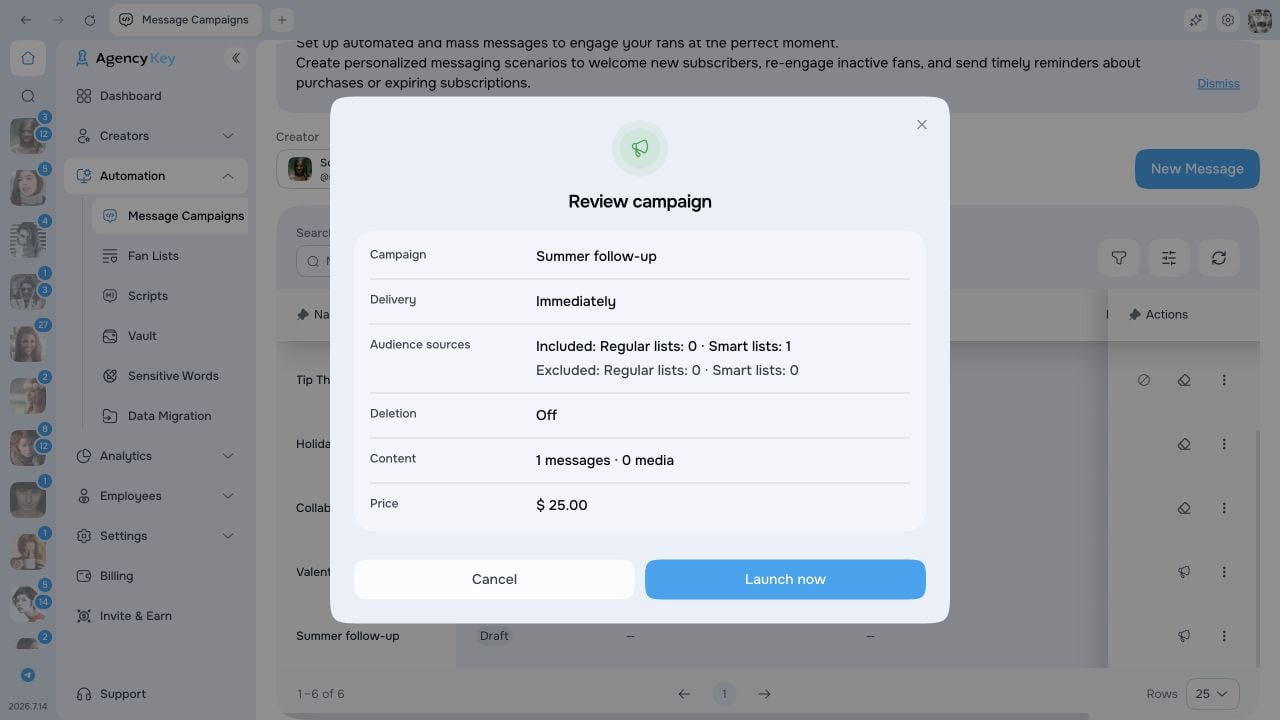
Saving never sends or schedules the campaign. It creates an editable **Draft**. After saving, review the recipient count, message and media, price, removal timer, stop limits, sending speed, and estimated duration. Then use **Launch** and confirm when the campaign should start.
 ### Auto-Unsend unread messages
Enable **Delete if fan hasn't read the message** to delete eligible sent messages that fans have not opened after a specified time:
* Set the number of hours (1–23) after which eligible unread copies should be deleted
* Useful for time-sensitive promotions or flash sales
OnlyFans permits deletion for up to 24 hours after sending. Purchased or otherwise ineligible copies cannot be deleted even when Auto-Unsend is enabled.
## Campaign limits
Set optional limits to control when a campaign should automatically stop:
| Limit | Description |
| ---------------------- | -------------------------------------------------------------------------------------------- |
| **Stop sending after** | Set a date and time after which the campaign will be automatically stopped |
| **Maximum messages** | Set the maximum number of messages to send. The campaign will stop after reaching this count |
Both limits are optional. If neither is set, the campaign will continue until all targeted fans have been reached.
## Sending speed
Control how fast your campaign sends messages:
| Option | Description |
| ----------- | ------------------------------------------------------------------------------------------ |
| **Default** | Uses the model account's current default sending speed |
| **Custom** | Choose a rate inside the allowed range displayed in the editor, if your role can change it |
The form shows an estimated delivery time based on the selected speed and current target audience.
Use a slower speed for campaigns targeting engaged fans to make messages appear more natural.
## Auto-Save
While creating a campaign, your changes are automatically saved as a local draft. If you close the page or browser accidentally, your work will be restored when you return.
Local drafts are saved on your device only. They don't sync between browsers or devices.
## Saving
Click **Save** to create a **Draft**. Nothing is sent at this point. Open the draft, complete the review, and use **Launch** to move it into the sending workflow. A launched campaign that is waiting for its scheduled start or a sending slot appears as **Pending**.
**Done when:** the table shows a **Draft** for the intended creator with the expected audience, content, price, and settings. No fan receives it until a user with publishing access selects **Launch** and confirms the start.
## Validation
The form validates all fields when you click **"Save"**. If there are issues, inline error messages appear directly on the fields that need attention.
Common validation errors:
| Error | Cause |
| ----------------------- | ----------------------------------------------------------------- |
| Empty message text | The message body is required and cannot be blank |
| Invalid price | The price must be a valid number between \$0 and \$200 |
| Launch date in the past | Choose a future date and time when launching a scheduled campaign |
If **New Message** is missing, ask the Owner or someone who manages team access to review your campaign creation permission. If the creator is missing, check your creator assignment and the account's connection status.
### Auto-Unsend unread messages
Enable **Delete if fan hasn't read the message** to delete eligible sent messages that fans have not opened after a specified time:
* Set the number of hours (1–23) after which eligible unread copies should be deleted
* Useful for time-sensitive promotions or flash sales
OnlyFans permits deletion for up to 24 hours after sending. Purchased or otherwise ineligible copies cannot be deleted even when Auto-Unsend is enabled.
## Campaign limits
Set optional limits to control when a campaign should automatically stop:
| Limit | Description |
| ---------------------- | -------------------------------------------------------------------------------------------- |
| **Stop sending after** | Set a date and time after which the campaign will be automatically stopped |
| **Maximum messages** | Set the maximum number of messages to send. The campaign will stop after reaching this count |
Both limits are optional. If neither is set, the campaign will continue until all targeted fans have been reached.
## Sending speed
Control how fast your campaign sends messages:
| Option | Description |
| ----------- | ------------------------------------------------------------------------------------------ |
| **Default** | Uses the model account's current default sending speed |
| **Custom** | Choose a rate inside the allowed range displayed in the editor, if your role can change it |
The form shows an estimated delivery time based on the selected speed and current target audience.
Use a slower speed for campaigns targeting engaged fans to make messages appear more natural.
## Auto-Save
While creating a campaign, your changes are automatically saved as a local draft. If you close the page or browser accidentally, your work will be restored when you return.
Local drafts are saved on your device only. They don't sync between browsers or devices.
## Saving
Click **Save** to create a **Draft**. Nothing is sent at this point. Open the draft, complete the review, and use **Launch** to move it into the sending workflow. A launched campaign that is waiting for its scheduled start or a sending slot appears as **Pending**.
**Done when:** the table shows a **Draft** for the intended creator with the expected audience, content, price, and settings. No fan receives it until a user with publishing access selects **Launch** and confirms the start.
## Validation
The form validates all fields when you click **"Save"**. If there are issues, inline error messages appear directly on the fields that need attention.
Common validation errors:
| Error | Cause |
| ----------------------- | ----------------------------------------------------------------- |
| Empty message text | The message body is required and cannot be blank |
| Invalid price | The price must be a valid number between \$0 and \$200 |
| Launch date in the past | Choose a future date and time when launching a scheduled campaign |
If **New Message** is missing, ask the Owner or someone who manages team access to review your campaign creation permission. If the creator is missing, check your creator assignment and the account's connection status.