> ## Documentation Index
> Fetch the complete documentation index at: https://agencykey.com/docs/llms.txt
> Use this file to discover all available pages before exploring further.
# Data Migration
> Import and export fan notes, Vault metadata, scripts, and flows for one creator at a time
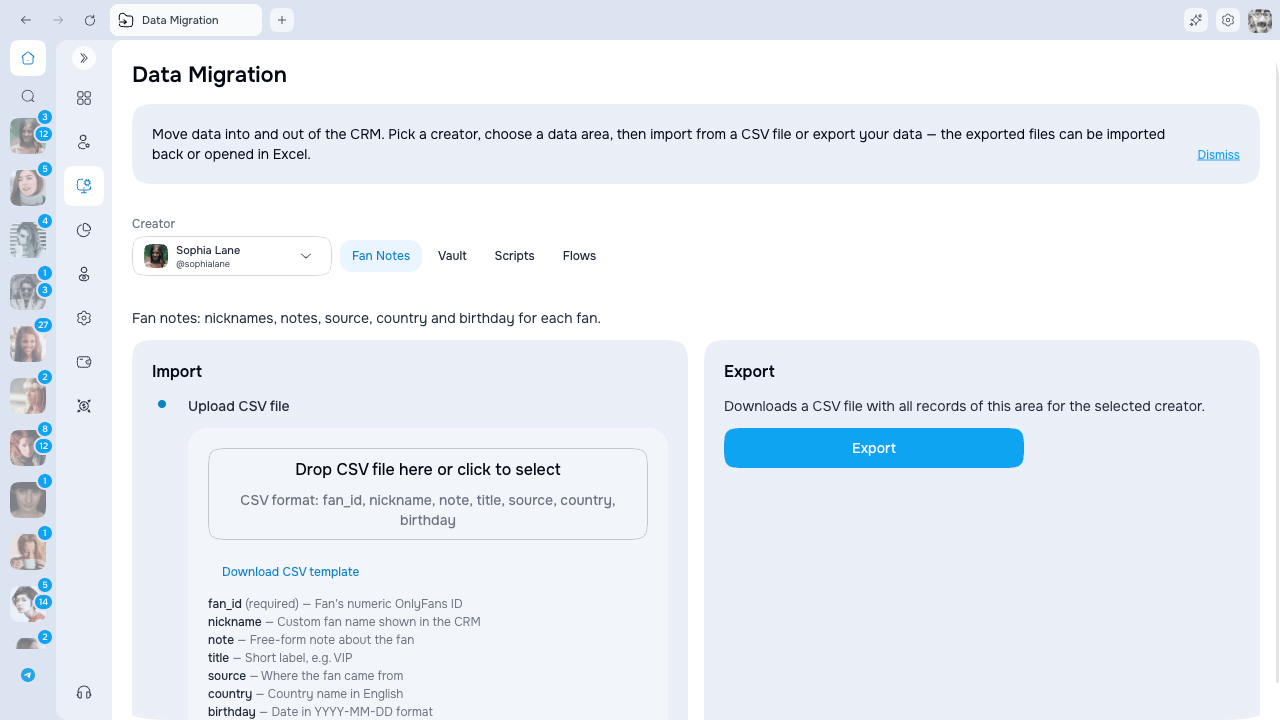
Data Migration helps you move supported creator data into or out of AgencyKey. Open **Automation → Data Migration**, select a creator, and choose an available data tab.
 ## Supported data
| Area | Import | Export | What is included |
| ------------- | ------ | ------ | --------------------------------------------------------------- |
| **Fan Notes** | CSV | CSV | Notes associated with fans |
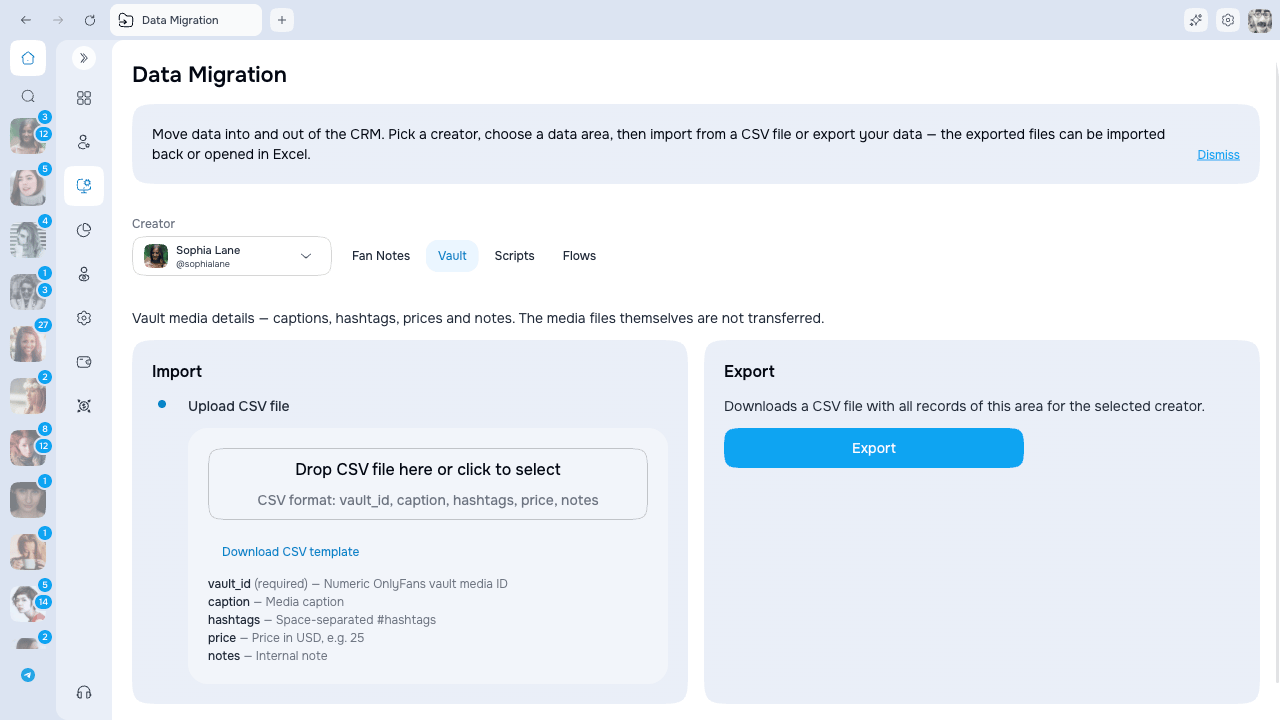
| **Vault** | CSV | CSV | Captions, hashtags, prices, notes, and other supported metadata |
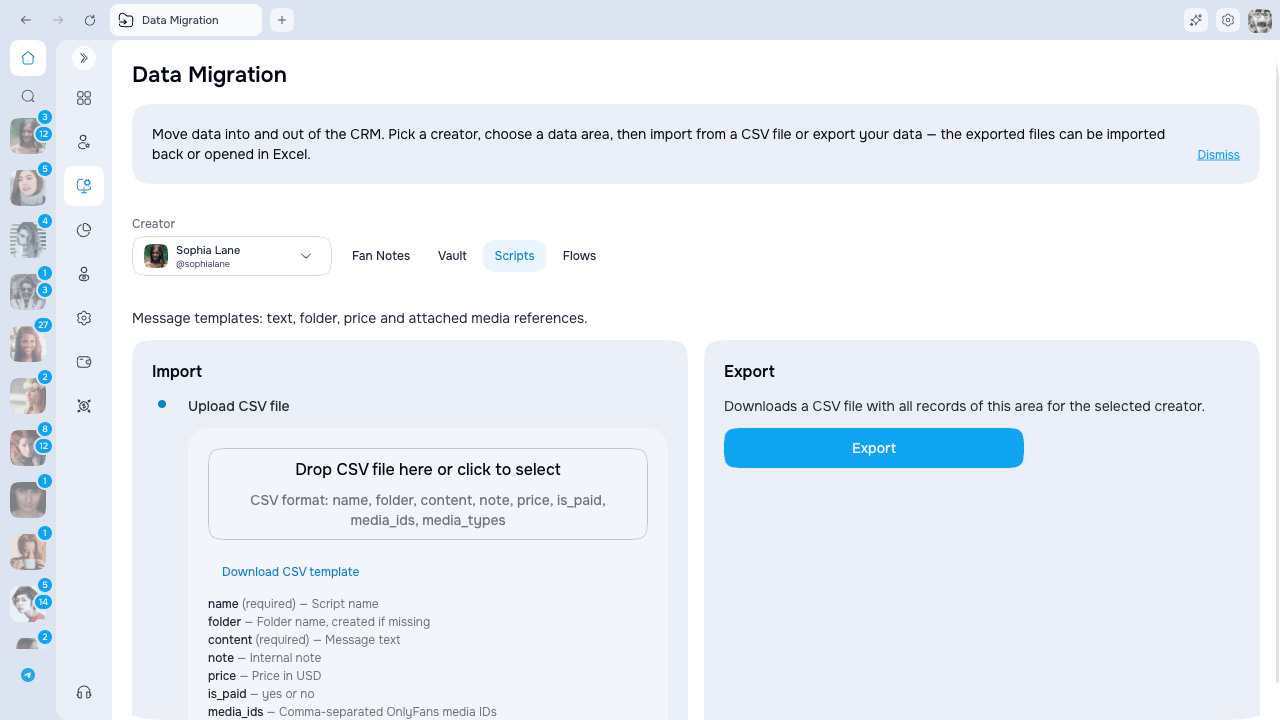
| **Scripts** | CSV | CSV | Script text, folder, price, and references to attached media |
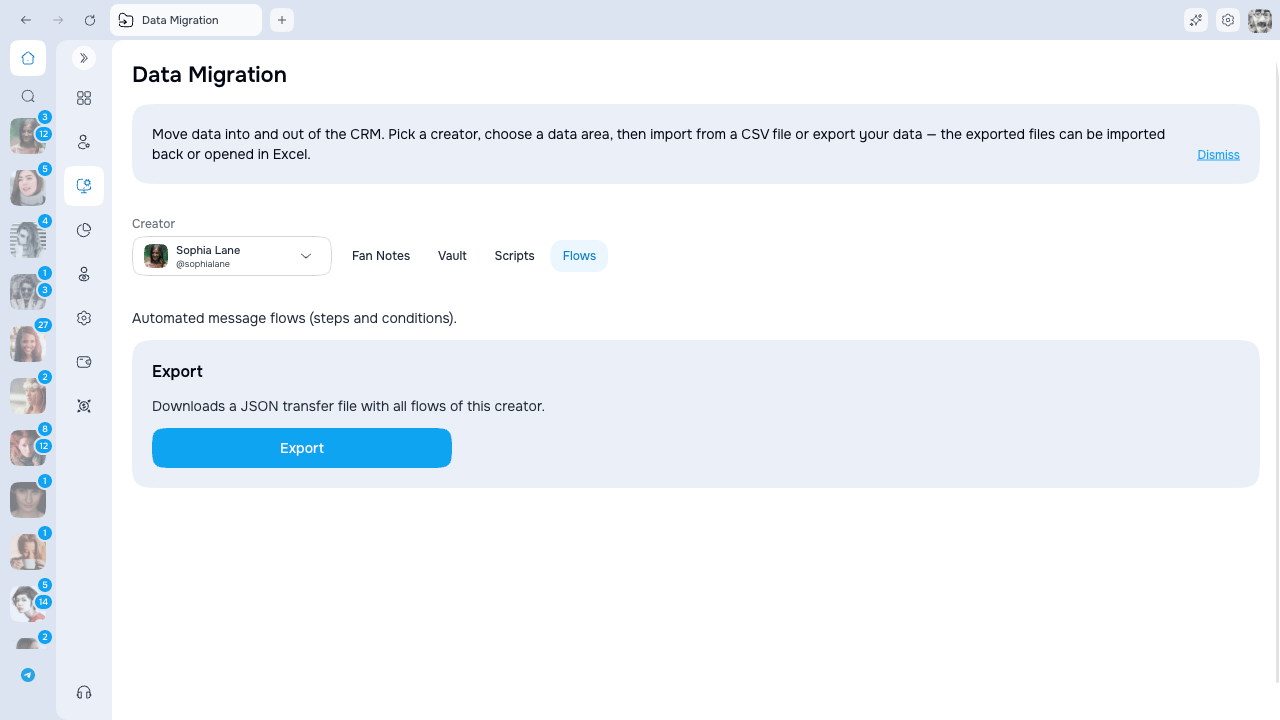
| **Flows** | — | JSON | Flow structure for backup or review |
A Vault migration transfers supported **metadata only**. It does not copy the photo, video, GIF, or audio files themselves. Script media is represented by references; confirm that the corresponding media exists for the destination creator before using an imported script.
## Supported data
| Area | Import | Export | What is included |
| ------------- | ------ | ------ | --------------------------------------------------------------- |
| **Fan Notes** | CSV | CSV | Notes associated with fans |
| **Vault** | CSV | CSV | Captions, hashtags, prices, notes, and other supported metadata |
| **Scripts** | CSV | CSV | Script text, folder, price, and references to attached media |
| **Flows** | — | JSON | Flow structure for backup or review |
A Vault migration transfers supported **metadata only**. It does not copy the photo, video, GIF, or audio files themselves. Script media is represented by references; confirm that the corresponding media exists for the destination creator before using an imported script.
 ## Before you migrate
* Confirm whether the destination already contains the same notes, metadata, or scripts; importing does not serve as a general duplicate-cleanup tool.
* Keep the original export until the destination is verified.
* Review failed rows instead of assuming that a completed job imported every row.
* For Vault or Scripts, verify media separately because media files are not transferred by the CSV.
## Import a CSV
1. Select the destination creator and open **Fan Notes**, **Vault**, or **Scripts**.
2. Download the template for that tab.
3. Keep its column names and fill in your data.
4. Upload a CSV file up to **10 MB**.
5. Review the preview: **Total rows**, **Valid**, and **With errors**.
6. Start the import only after the valid count and destination creator are correct.
Rows with validation errors are skipped when the file also contains valid rows. After the job finishes, download the failed-row file, correct those rows, and import only the corrected data rather than uploading the full file again.
Start with a small sample and confirm the result before importing a large file. This is especially useful for Vault metadata and script media references.
## Export data
1. Select the creator and data tab.
2. Click **Export**.
3. Keep the page open, or return later to the same creator and tab while the export is prepared.
4. Download the file when its status is ready.
Fan Notes, Vault, and Scripts export as CSV; Flows export as JSON. An export contains the supported data available for the selected creator and does not grant access to a creator outside your scope.
## If you leave the page
Imports and exports continue after you leave the page. If you close or reload it, reopen **Data Migration**, select the same creator and tab, and check the existing progress before starting the same operation again. The download action appears when the file is ready.
## Permissions
Fan Notes, Vault, Scripts, and Flows have separate migration permissions, and import/export actions can be permissioned independently. You see only the tabs and actions available to your role and creator scope.
## Before you migrate
* Confirm whether the destination already contains the same notes, metadata, or scripts; importing does not serve as a general duplicate-cleanup tool.
* Keep the original export until the destination is verified.
* Review failed rows instead of assuming that a completed job imported every row.
* For Vault or Scripts, verify media separately because media files are not transferred by the CSV.
## Import a CSV
1. Select the destination creator and open **Fan Notes**, **Vault**, or **Scripts**.
2. Download the template for that tab.
3. Keep its column names and fill in your data.
4. Upload a CSV file up to **10 MB**.
5. Review the preview: **Total rows**, **Valid**, and **With errors**.
6. Start the import only after the valid count and destination creator are correct.
Rows with validation errors are skipped when the file also contains valid rows. After the job finishes, download the failed-row file, correct those rows, and import only the corrected data rather than uploading the full file again.
Start with a small sample and confirm the result before importing a large file. This is especially useful for Vault metadata and script media references.
## Export data
1. Select the creator and data tab.
2. Click **Export**.
3. Keep the page open, or return later to the same creator and tab while the export is prepared.
4. Download the file when its status is ready.
Fan Notes, Vault, and Scripts export as CSV; Flows export as JSON. An export contains the supported data available for the selected creator and does not grant access to a creator outside your scope.
## If you leave the page
Imports and exports continue after you leave the page. If you close or reload it, reopen **Data Migration**, select the same creator and tab, and check the existing progress before starting the same operation again. The download action appears when the file is ready.
## Permissions
Fan Notes, Vault, Scripts, and Flows have separate migration permissions, and import/export actions can be permissioned independently. You see only the tabs and actions available to your role and creator scope.