> ## Documentation Index
> Fetch the complete documentation index at: https://agencykey.com/docs/llms.txt
> Use this file to discover all available pages before exploring further.
# Dashboard Overview
> The first page you see after logging in with key information overview
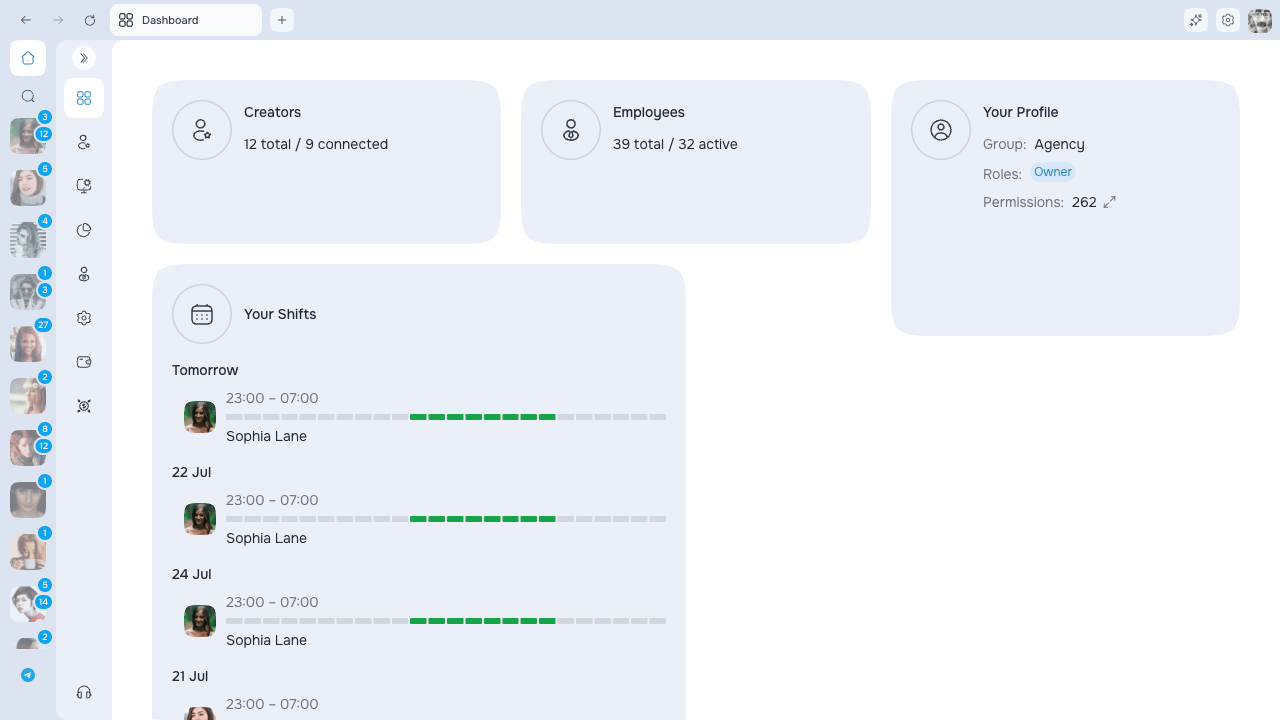
Here you'll find a quick overview of your organization and personal profile.
## Customize your Dashboard
Your Dashboard is a grid of cards that you arrange to match the way you work. There's no edit mode and no **Save** button — the page is always live, and your changes stick on their own.
 ### Move a card
Hover over a card and a small grip appears in its top-left corner. Grab that grip and drag the card wherever you want it. The other cards slide out of the way to make room, so cards never overlap.
### Resize a card
Drag the bottom-right corner of any card to make it bigger or smaller. Each card has a minimum size, so it never shrinks down to unreadable.
### It saves itself
The moment you finish moving or resizing a card, your arrangement is saved to your account. Reload the page, come back tomorrow, or sign in on another computer — your Dashboard comes back exactly as you left it.
Your arrangement is private to you. It never changes anyone else's Dashboard, and no one else's arrangement changes yours.
If a save can't go through, the card snaps back to where it was and you'll see a short notice. Just move it again once your connection is back.
The Dashboard is built for a wide window and works on desktop only. There's no separate layout for phones.
## Stats cards
At the top of the page, you'll see statistics cards. Which cards appear depends on your access permissions.
### Creators
Shows the total number of creator accounts and how many are currently connected.
Example: "5 total / 3 connected"
### Employees
Shows the total number of employees and how many are currently active.
Example: "10 total / 7 active"
## Your profile
A card displaying information about your account:
| Field | Description |
| --------------- | ---------------------------------------------------------------- |
| **Group** | Your group within the organization (or "Not assigned" if none) |
| **Roles** | Your assigned roles, or "Owner" if you're the organization owner |
| **Permissions** | Number of permissions you have — click to expand the full list |
## Your shifts
If you have access to view shifts, this section shows your upcoming work schedule:
* Shifts are grouped by day: **Today**, **Tomorrow**, or specific dates
* Up to 5 upcoming shifts are displayed
* Each shift shows: time range, visual timeline bar, and creator name
If you have no upcoming shifts, you'll see "No upcoming shifts".
## What you see
The content displayed on the Dashboard depends on your permissions:
* Stats cards only appear if you have the corresponding access rights
* The shifts section only appears if you have permission to view shifts
* Profile information is always visible for your own account
## Next steps
* [Choose your role path](/docs/getting-started/index) — follow the Owner, Manager, or Chatter first-day checklist
* [Learn the sidebar](/docs/sidebar/index) — find features, creators, and open chats
* [Open Help](/docs/help/index) — start from the symptom when something is missing or not working
### Move a card
Hover over a card and a small grip appears in its top-left corner. Grab that grip and drag the card wherever you want it. The other cards slide out of the way to make room, so cards never overlap.
### Resize a card
Drag the bottom-right corner of any card to make it bigger or smaller. Each card has a minimum size, so it never shrinks down to unreadable.
### It saves itself
The moment you finish moving or resizing a card, your arrangement is saved to your account. Reload the page, come back tomorrow, or sign in on another computer — your Dashboard comes back exactly as you left it.
Your arrangement is private to you. It never changes anyone else's Dashboard, and no one else's arrangement changes yours.
If a save can't go through, the card snaps back to where it was and you'll see a short notice. Just move it again once your connection is back.
The Dashboard is built for a wide window and works on desktop only. There's no separate layout for phones.
## Stats cards
At the top of the page, you'll see statistics cards. Which cards appear depends on your access permissions.
### Creators
Shows the total number of creator accounts and how many are currently connected.
Example: "5 total / 3 connected"
### Employees
Shows the total number of employees and how many are currently active.
Example: "10 total / 7 active"
## Your profile
A card displaying information about your account:
| Field | Description |
| --------------- | ---------------------------------------------------------------- |
| **Group** | Your group within the organization (or "Not assigned" if none) |
| **Roles** | Your assigned roles, or "Owner" if you're the organization owner |
| **Permissions** | Number of permissions you have — click to expand the full list |
## Your shifts
If you have access to view shifts, this section shows your upcoming work schedule:
* Shifts are grouped by day: **Today**, **Tomorrow**, or specific dates
* Up to 5 upcoming shifts are displayed
* Each shift shows: time range, visual timeline bar, and creator name
If you have no upcoming shifts, you'll see "No upcoming shifts".
## What you see
The content displayed on the Dashboard depends on your permissions:
* Stats cards only appear if you have the corresponding access rights
* The shifts section only appears if you have permission to view shifts
* Profile information is always visible for your own account
## Next steps
* [Choose your role path](/docs/getting-started/index) — follow the Owner, Manager, or Chatter first-day checklist
* [Learn the sidebar](/docs/sidebar/index) — find features, creators, and open chats
* [Open Help](/docs/help/index) — start from the symptom when something is missing or not working