> ## Documentation Index
> Fetch the complete documentation index at: https://agencykey.com/docs/llms.txt
> Use this file to discover all available pages before exploring further.
# Billing
> Understand trials, subscriptions, balance, and payment history
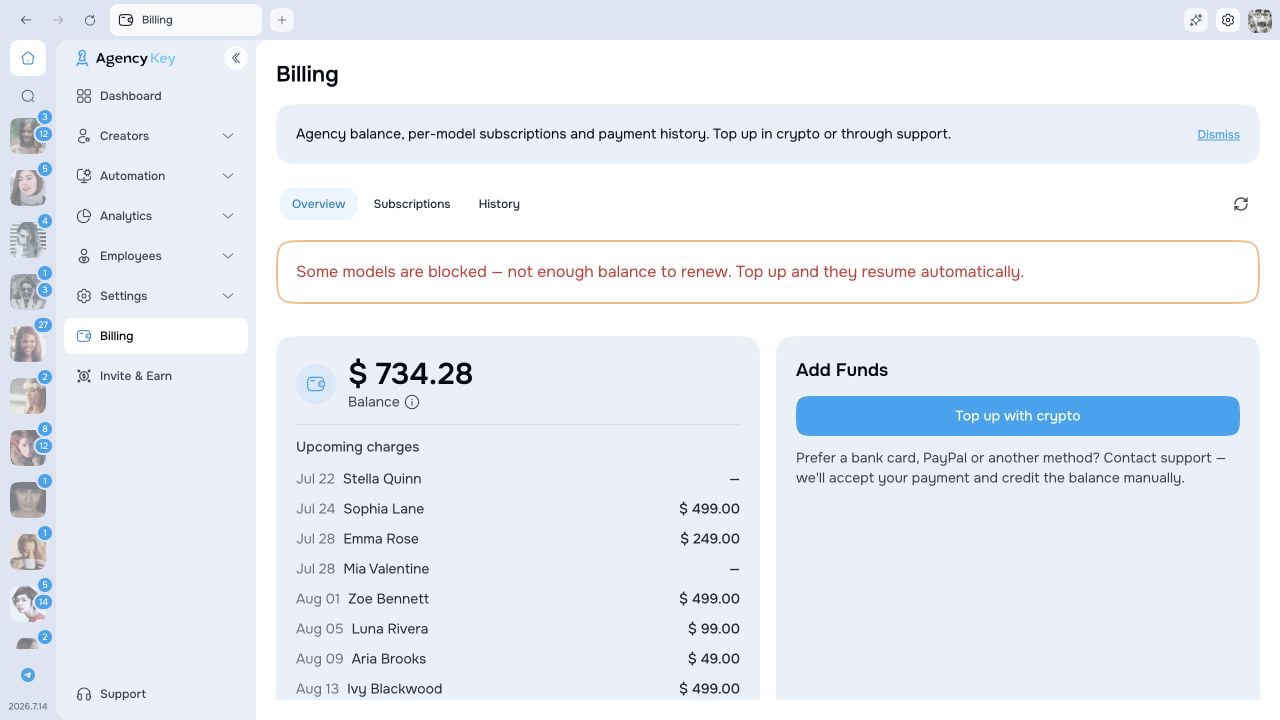
Billing uses a prepaid agency balance and a separate subscription for each connected creator. Open **Billing** to see the Overview, Subscriptions, and History tabs.
## Trial period
Each newly connected creator receives up to **30 active days** of trial use.
An active day is a day when the creator is used in CRM messaging or AgencyKey automations run for that creator, including automated messages, mass messages, Smart Lists, or AI features. Days with no qualifying activity do not consume the 30-day allowance.
The trial nevertheless ends no later than **90 calendar days after the creator was connected**. It therefore ends at whichever comes first:
* 30 active days are used; or
* 90 calendar days pass from connection.
Billing shows the active-day progress. It does not currently show a separate date for the 90-day calendar deadline, so keep the creator's connection date available if you need to plan around that cap.
## Paid subscriptions
After the trial, the subscription renews monthly for each creator. The current tier and price are based on that creator's net earnings over the previous 30 days and are shown in the interface before renewal.
Charges come from the shared agency balance. One creator's subscription status does not change the status of other creators.
## Overview
The Overview tab shows:
* available agency balance;
* upcoming charges and total expected monthly amount;
* creator subscription summaries;
* recent balance transactions;
* the option to add funds.
 ## Top up the balance
Click **Add Funds** and choose **Top up with crypto**. Select a supported asset and network, then use the displayed address or QR code.
## Top up the balance
Click **Add Funds** and choose **Top up with crypto**. Select a supported asset and network, then use the displayed address or QR code.
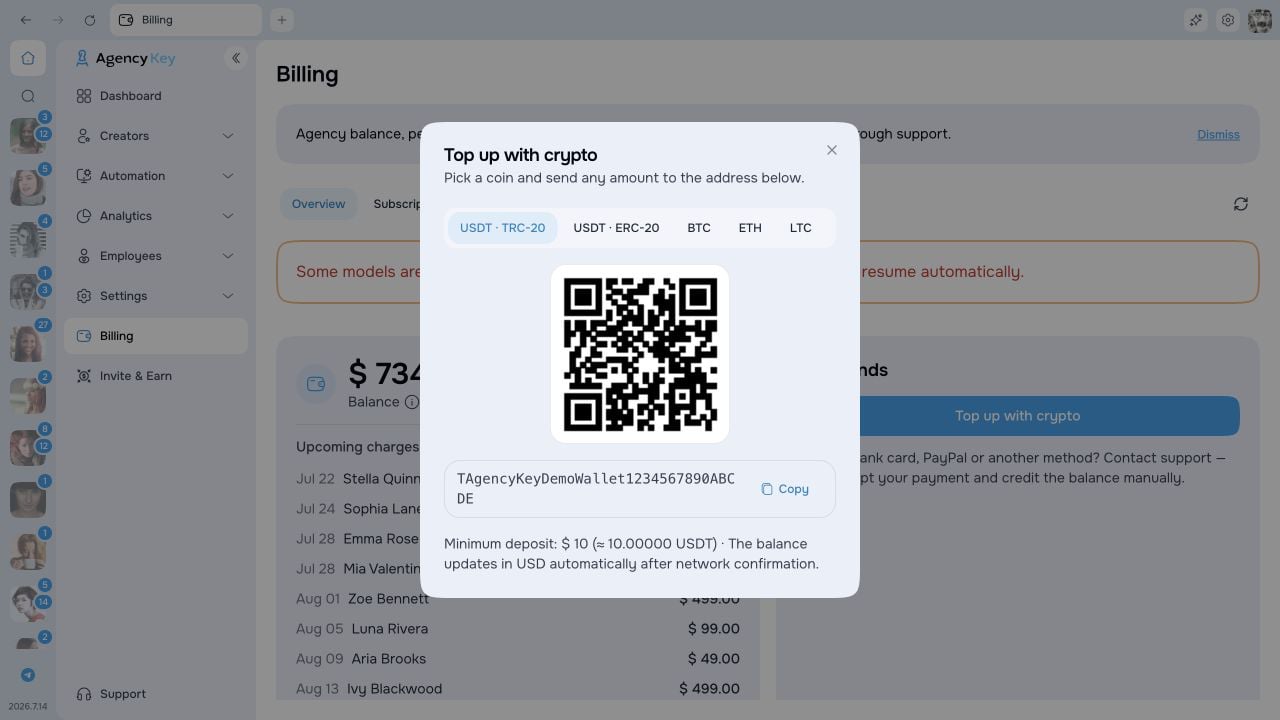 The available options are USDT on TRC20 or ERC20, BTC, ETH, LTC, and TRX. Always use the exact network shown and send at least the minimum amount displayed. Funds appear in the USD balance after the required network confirmations.
Sending an asset through the wrong network can permanently lose the transfer. Confirm the asset, network, address, and minimum before sending.
For every deposit, reopen **Add Funds** and copy the address and network currently displayed. Do not rely on an address saved from an earlier payment. For another payment method or a manual balance credit, contact AgencyKey support.
### Confirm that the deposit was credited
After sending, open **Billing → History** and refresh the page. Do not send a second transfer just because the first one is still waiting.
| Deposit status | What it means | What to do |
| -------------- | ---------------------------------------------------------------------------------------------- | ---------------------------------------------------------------------------------- |
| **Pending** | The deposit was recorded but has not completed the required confirmation and crediting process | Wait for network confirmations, then refresh Billing and your wallet transaction |
| **Completed** | The deposit was credited to the agency balance | Confirm that the Overview balance increased by the expected USD amount |
| **Failed** | The deposit was not credited | Do not repeat the transfer to a saved address; contact Support before trying again |
The top-up is complete only when History shows **Completed** and the available agency balance has increased. If your wallet shows the required confirmations but Billing remains Pending, Failed, or has no matching entry after refresh, contact [AgencyKey Support](https://t.me/AgencyKey_bot). Include the agency email, asset and network, amount, transfer time with time zone, and transaction hash.
Support may need the public transaction hash, but never send a wallet recovery phrase, private key, password, verification code, or session credentials.
## Renewal failure and grace period
If the balance cannot cover a renewal, that creator enters a **7-day grace period**. The creator remains available during grace. Top up before the period ends; AgencyKey retries and restores the normal subscription state after payment.
If payment is still unavailable after grace:
* outgoing messages for that creator are paused, including automation sends;
* other creators continue according to their own subscription status;
* existing CRM data, settings, administration, and analytics remain available.
Top up the agency balance to pay the outstanding renewal and resume the creator.
## Subscription statuses
| Status | Meaning |
| --------------- | -------------------------------------------------------------------------------------- |
| **Trial** | The creator is using the active-day trial within its calendar cap |
| **Active** | The current paid period is covered |
| **Payment due** | Renewal failed and the 7-day grace period is running |
| **Blocked** | Grace ended without payment; outgoing messages are paused |
| **Cancelled** | Automatic renewal is off; access continues until the current trial or paid period ends |
## Cancel or resume renewal
In **Subscriptions**, open the creator and choose **Cancel renewal**. The current trial or paid period is not shortened and no new charge is made at its end. After that date, outgoing messages pause.
Choose **Resume** to turn renewal back on. If the trial or paid period has already ended, the next charge is immediate. A blocked creator may show **Top up & resume**; after the required balance is available, service restores automatically.
## Refunds and balance returns
For eligible charges, request deadlines, processing times, and the return of unused paid balance, see [Refunds and balance returns](/docs/billing/refunds).
## Transaction history
The History tab lists top-ups, subscription charges, and refunds. It also shows the payment source, such as crypto, manual credit, or agency balance, and the transaction status. Use the type filters to narrow the list and the status guidance above to confirm a crypto top-up.
## Permissions
Billing access is granular. A role can separately be allowed to:
* view billing information;
* add funds;
* manage creator subscriptions.
The Owner retains full access. For every other employee, review the Billing permissions in their assigned role.
The available options are USDT on TRC20 or ERC20, BTC, ETH, LTC, and TRX. Always use the exact network shown and send at least the minimum amount displayed. Funds appear in the USD balance after the required network confirmations.
Sending an asset through the wrong network can permanently lose the transfer. Confirm the asset, network, address, and minimum before sending.
For every deposit, reopen **Add Funds** and copy the address and network currently displayed. Do not rely on an address saved from an earlier payment. For another payment method or a manual balance credit, contact AgencyKey support.
### Confirm that the deposit was credited
After sending, open **Billing → History** and refresh the page. Do not send a second transfer just because the first one is still waiting.
| Deposit status | What it means | What to do |
| -------------- | ---------------------------------------------------------------------------------------------- | ---------------------------------------------------------------------------------- |
| **Pending** | The deposit was recorded but has not completed the required confirmation and crediting process | Wait for network confirmations, then refresh Billing and your wallet transaction |
| **Completed** | The deposit was credited to the agency balance | Confirm that the Overview balance increased by the expected USD amount |
| **Failed** | The deposit was not credited | Do not repeat the transfer to a saved address; contact Support before trying again |
The top-up is complete only when History shows **Completed** and the available agency balance has increased. If your wallet shows the required confirmations but Billing remains Pending, Failed, or has no matching entry after refresh, contact [AgencyKey Support](https://t.me/AgencyKey_bot). Include the agency email, asset and network, amount, transfer time with time zone, and transaction hash.
Support may need the public transaction hash, but never send a wallet recovery phrase, private key, password, verification code, or session credentials.
## Renewal failure and grace period
If the balance cannot cover a renewal, that creator enters a **7-day grace period**. The creator remains available during grace. Top up before the period ends; AgencyKey retries and restores the normal subscription state after payment.
If payment is still unavailable after grace:
* outgoing messages for that creator are paused, including automation sends;
* other creators continue according to their own subscription status;
* existing CRM data, settings, administration, and analytics remain available.
Top up the agency balance to pay the outstanding renewal and resume the creator.
## Subscription statuses
| Status | Meaning |
| --------------- | -------------------------------------------------------------------------------------- |
| **Trial** | The creator is using the active-day trial within its calendar cap |
| **Active** | The current paid period is covered |
| **Payment due** | Renewal failed and the 7-day grace period is running |
| **Blocked** | Grace ended without payment; outgoing messages are paused |
| **Cancelled** | Automatic renewal is off; access continues until the current trial or paid period ends |
## Cancel or resume renewal
In **Subscriptions**, open the creator and choose **Cancel renewal**. The current trial or paid period is not shortened and no new charge is made at its end. After that date, outgoing messages pause.
Choose **Resume** to turn renewal back on. If the trial or paid period has already ended, the next charge is immediate. A blocked creator may show **Top up & resume**; after the required balance is available, service restores automatically.
## Refunds and balance returns
For eligible charges, request deadlines, processing times, and the return of unused paid balance, see [Refunds and balance returns](/docs/billing/refunds).
## Transaction history
The History tab lists top-ups, subscription charges, and refunds. It also shows the payment source, such as crypto, manual credit, or agency balance, and the transaction status. Use the type filters to narrow the list and the status guidance above to confirm a crypto top-up.
## Permissions
Billing access is granular. A role can separately be allowed to:
* view billing information;
* add funds;
* manage creator subscriptions.
The Owner retains full access. For every other employee, review the Billing permissions in their assigned role.