> ## Documentation Index
> Fetch the complete documentation index at: https://agencykey.com/docs/llms.txt
> Use this file to discover all available pages before exploring further.
# CRM Account Security
> Protect your AgencyKey login with 2FA and recovery codes
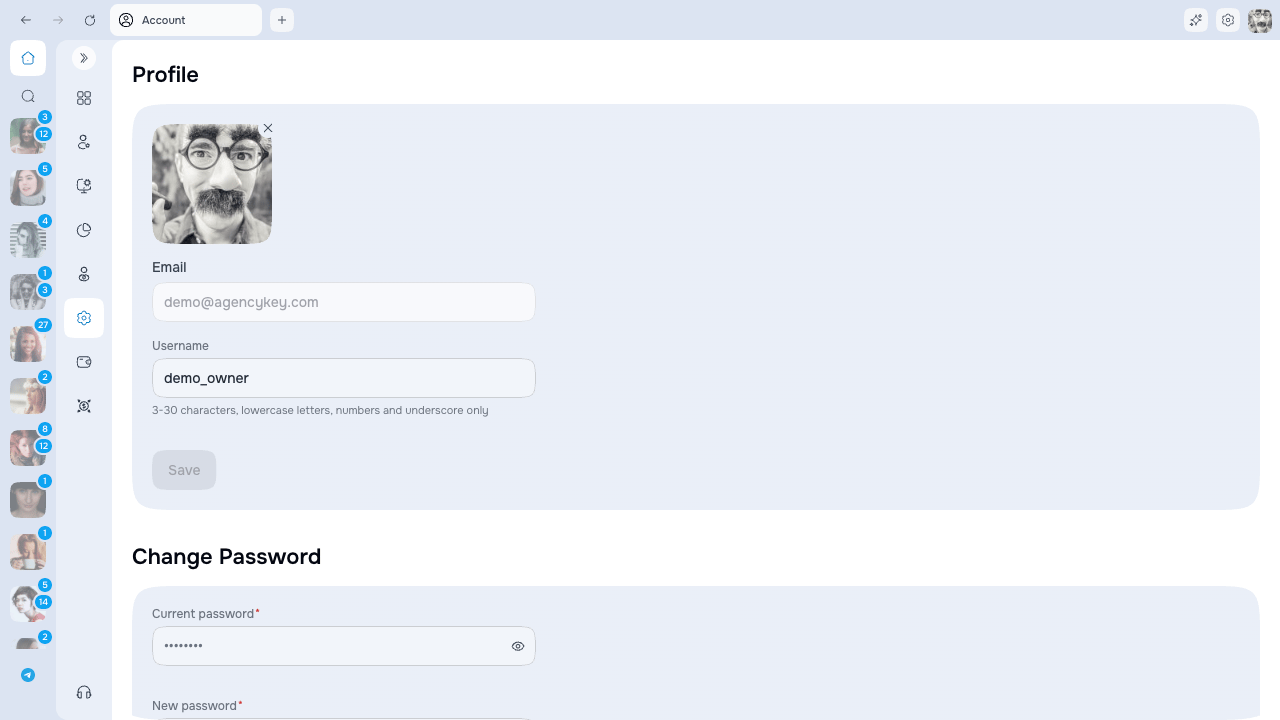
AgencyKey account security is configured in **Settings → Account**. These controls protect the CRM login; they are separate from any security settings on OnlyFans.
 ## Use a strong password
Use a unique password with at least 8 characters, including an uppercase letter, a lowercase letter, and a number. Do not reuse it on OnlyFans or share it with another employee.
Changing the password requires your current password. After the change, AgencyKey signs out all of your sessions, including the current one, so sign in again with the new password.
## Enable two-factor authentication
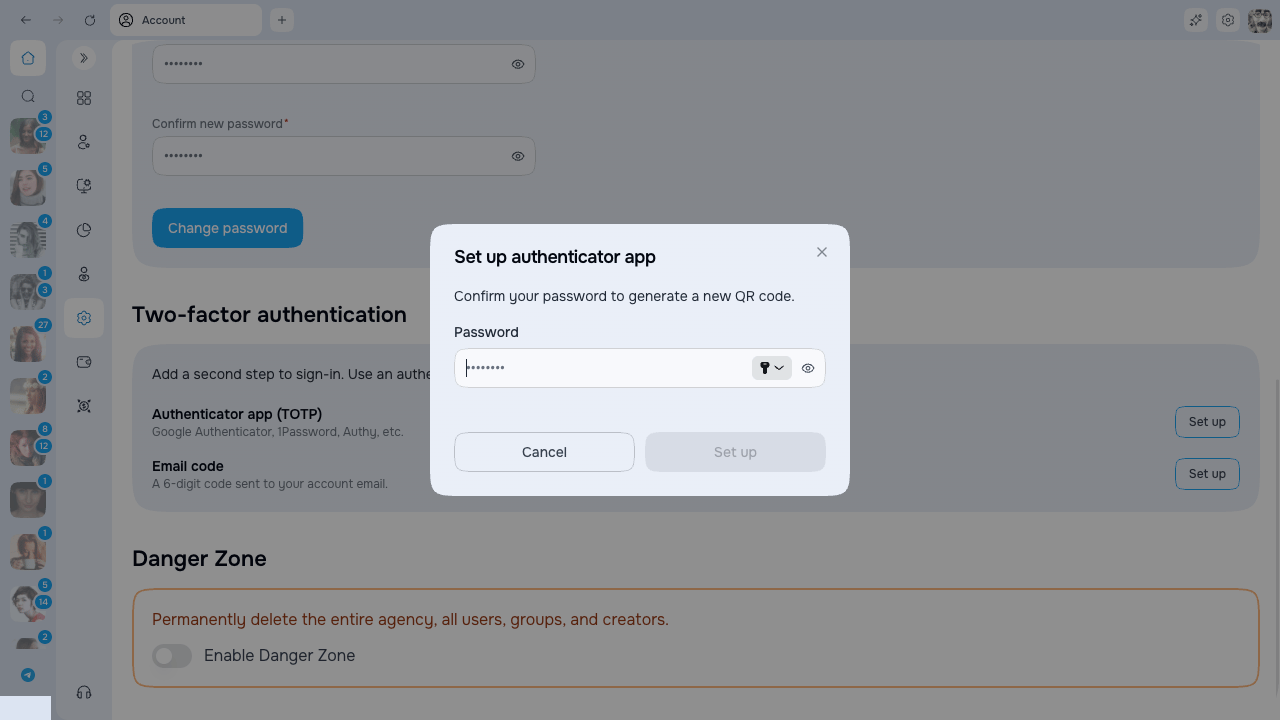
You can enable either or both methods:
| Method | Setup |
| --------------------- | -------------------------------------------------------------------------------------------------------------- |
| **Authenticator app** | Confirm your password, scan the QR code or enter the secret manually, then enter the 6-digit code from the app |
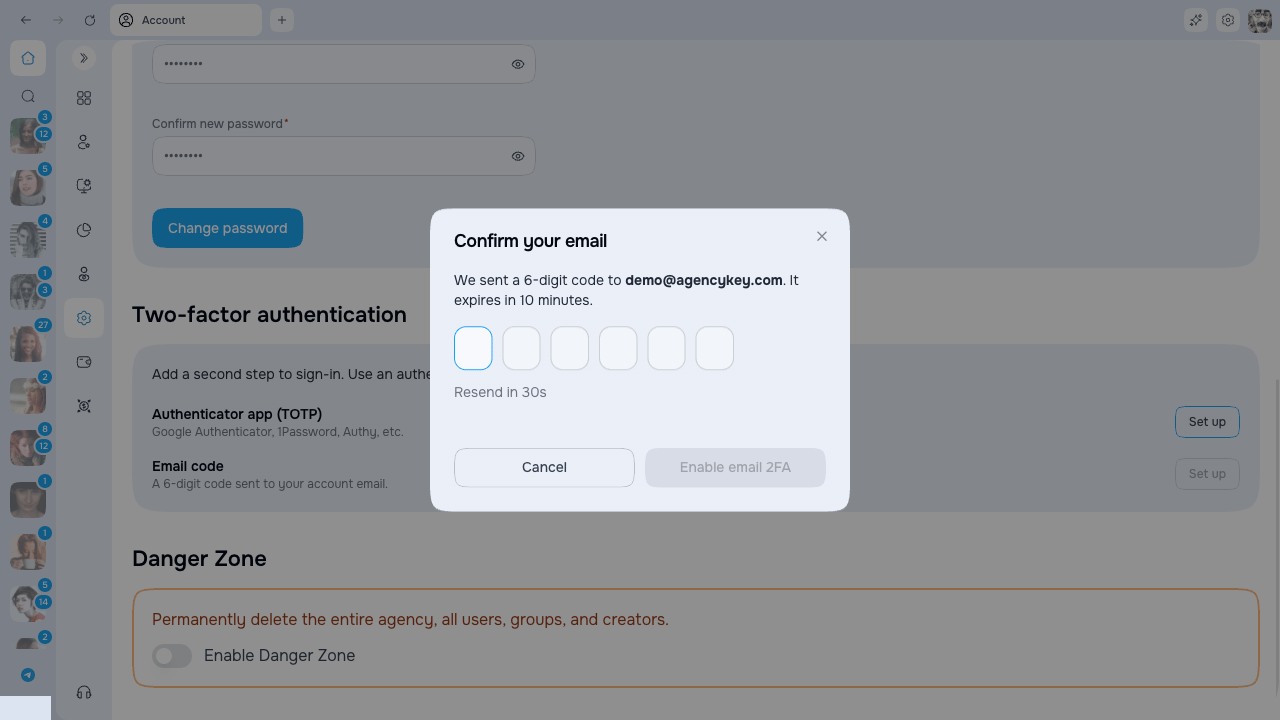
| **Email code** | Request and enter the 6-digit code sent to your account email |
Email codes expire after 10 minutes. A new email code can be requested after the 30-second resend timer finishes.
When both methods are enabled, the sign-in screen lets you choose an available method.
## Use a strong password
Use a unique password with at least 8 characters, including an uppercase letter, a lowercase letter, and a number. Do not reuse it on OnlyFans or share it with another employee.
Changing the password requires your current password. After the change, AgencyKey signs out all of your sessions, including the current one, so sign in again with the new password.
## Enable two-factor authentication
You can enable either or both methods:
| Method | Setup |
| --------------------- | -------------------------------------------------------------------------------------------------------------- |
| **Authenticator app** | Confirm your password, scan the QR code or enter the secret manually, then enter the 6-digit code from the app |
| **Email code** | Request and enter the 6-digit code sent to your account email |
Email codes expire after 10 minutes. A new email code can be requested after the 30-second resend timer finishes.
When both methods are enabled, the sign-in screen lets you choose an available method.
 ## Save recovery codes
Recovery codes appear once when the first 2FA method is enabled.
* Save them before closing the dialog.
* Each code can be used only once.
* Keep them somewhere secure and separate from the device you use to sign in.
* Do not send them in team chats or store them with the account password.
You can copy all codes or download them as a text file.
## Regenerate recovery codes
Use **Regenerate recovery codes** if the saved set may be exposed or is running low. You must confirm your password. Regenerating immediately invalidates every code from the previous set.
## Disable a method
Disabling an authenticator or email method requires your current password. Keep at least one method enabled whenever possible.
## If you lose access
1. Try another enabled 2FA method.
2. Use one unused recovery code.
3. If neither is available, contact AgencyKey support. Identity verification will be required.
AgencyKey support will not ask you to send your password, current 2FA code, or recovery-code list. Never share those values.
## Save recovery codes
Recovery codes appear once when the first 2FA method is enabled.
* Save them before closing the dialog.
* Each code can be used only once.
* Keep them somewhere secure and separate from the device you use to sign in.
* Do not send them in team chats or store them with the account password.
You can copy all codes or download them as a text file.
## Regenerate recovery codes
Use **Regenerate recovery codes** if the saved set may be exposed or is running low. You must confirm your password. Regenerating immediately invalidates every code from the previous set.
## Disable a method
Disabling an authenticator or email method requires your current password. Keep at least one method enabled whenever possible.
## If you lose access
1. Try another enabled 2FA method.
2. Use one unused recovery code.
3. If neither is available, contact AgencyKey support. Identity verification will be required.
AgencyKey support will not ask you to send your password, current 2FA code, or recovery-code list. Never share those values.