> ## Documentation Index
> Fetch the complete documentation index at: https://agencykey.com/docs/llms.txt
> Use this file to discover all available pages before exploring further.
# Analytics
> Analytics shows the performance of your team's work
Use Analytics to compare attributed employee work with creator-level business results. Choose the report that matches the question you need to answer instead of expecting both areas to show identical totals.
## Where to find it
Open **Analytics → By Employees** for Employee Analytics. For the creator dashboard, open **Analytics → By Creators**.
## What you can do
* Compare employees or creators over a selected period
* Break employee results down by creator, or creator results down by employee
* Compare the current period with the previous one
* Choose visible columns and export a summary or detailed CSV report
* Review creator balances, revenue, subscriptions, cohorts, and fan funnel in Creator Analytics
## Analytics areas
AgencyKey has two analytics areas with different purposes:
| Area | Best for |
| ---------------------- | ----------------------------------------------------------------------------------------------------- |
| **Employee Analytics** | Attributed team activity, sales, response time, and employee/creator breakdowns |
| **Creator Analytics** | Creator-level balances, revenue, subscriptions, cohorts, fan funnel, and an expandable activity table |
This page describes the **Employee Analytics** table. See [Creator Analytics](./creator-analytics) for the modern creator dashboard.
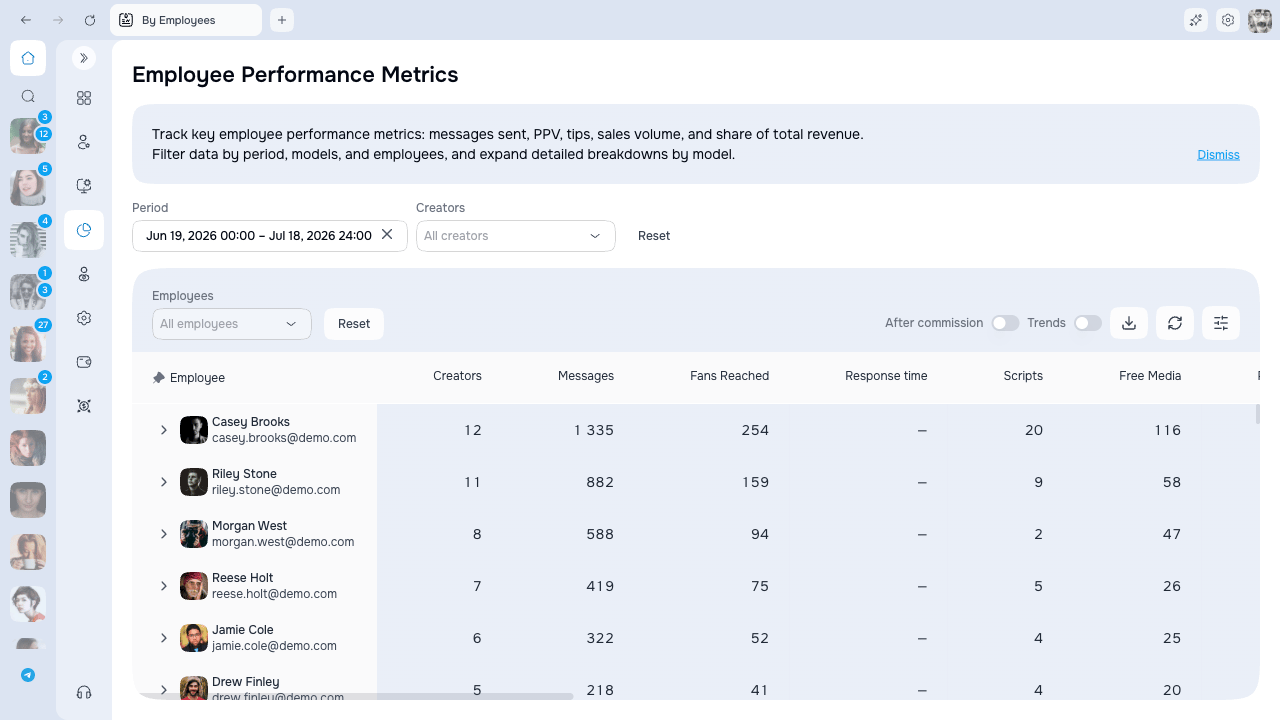 ## Two Employee Analytics views
| View | Grouping | Details |
| ---------------- | ---------------- | --------------------- |
| **By Employees** | Rows = employees | Expand → by creators |
| **By Creators** | Rows = creators | Expand → by employees |
Choose the view based on what you want to analyze:
* Who among employees sells the most? → By Employees
* Which creator generates more revenue? → By Creators
## Filters
Available filters:
* **Period** — select a date range (defaults to the current month)
* **Trends** — toggle to compare values with the previous period
* **Creators** — filter by specific creators
* **Employees** — filter by specific employees
## Expandable rows
Click on a row to see details:
* In "By Employees": shows breakdown by creators
* In "By Creators": shows breakdown by employees
## Summary rows
At the bottom of the table:
* **Total** adds count and money metrics. **PPV Open %** is recalculated as total sold divided by total sent, and non-additive metrics such as response-time median show a dash.
* **Average** divides count and money totals by the number of visible main rows. Percentage and median fields that should not be averaged show a dash.
## Export to CSV
Click the **Export** button to download the data as a CSV file. You can export a summary table or a detailed report with expanded rows.
## Column visibility
Click the **Columns** button to show/hide columns. Settings are saved.
## Access and availability
Each analytics view requires its own permission:
* **Analytics → By Employees**
* **Analytics → By Creators**
The data you see depends on your access scope — you will only see employees and creators you have been granted access to.
Employee rows contain activity and sales that can be attributed to a CRM employee. Creator-originated, automated, system, or otherwise unattributed activity does not appear under an employee. Because Creator Analytics measures creator results while Employee Analytics measures attributed employee work, their totals can legitimately differ. Attribution follows [Sales Settings](../sales-settings/index).
## Next steps
* [Metrics reference](./metrics) — detailed description of all available metrics
* [Creator Analytics](./creator-analytics) — balances, revenue, subscriptions, cohorts, funnel, and table
## Two Employee Analytics views
| View | Grouping | Details |
| ---------------- | ---------------- | --------------------- |
| **By Employees** | Rows = employees | Expand → by creators |
| **By Creators** | Rows = creators | Expand → by employees |
Choose the view based on what you want to analyze:
* Who among employees sells the most? → By Employees
* Which creator generates more revenue? → By Creators
## Filters
Available filters:
* **Period** — select a date range (defaults to the current month)
* **Trends** — toggle to compare values with the previous period
* **Creators** — filter by specific creators
* **Employees** — filter by specific employees
## Expandable rows
Click on a row to see details:
* In "By Employees": shows breakdown by creators
* In "By Creators": shows breakdown by employees
## Summary rows
At the bottom of the table:
* **Total** adds count and money metrics. **PPV Open %** is recalculated as total sold divided by total sent, and non-additive metrics such as response-time median show a dash.
* **Average** divides count and money totals by the number of visible main rows. Percentage and median fields that should not be averaged show a dash.
## Export to CSV
Click the **Export** button to download the data as a CSV file. You can export a summary table or a detailed report with expanded rows.
## Column visibility
Click the **Columns** button to show/hide columns. Settings are saved.
## Access and availability
Each analytics view requires its own permission:
* **Analytics → By Employees**
* **Analytics → By Creators**
The data you see depends on your access scope — you will only see employees and creators you have been granted access to.
Employee rows contain activity and sales that can be attributed to a CRM employee. Creator-originated, automated, system, or otherwise unattributed activity does not appear under an employee. Because Creator Analytics measures creator results while Employee Analytics measures attributed employee work, their totals can legitimately differ. Attribution follows [Sales Settings](../sales-settings/index).
## Next steps
* [Metrics reference](./metrics) — detailed description of all available metrics
* [Creator Analytics](./creator-analytics) — balances, revenue, subscriptions, cohorts, funnel, and table