> ## Documentation Index
> Fetch the complete documentation index at: https://agencykey.com/docs/llms.txt
> Use this file to discover all available pages before exploring further.
# AI Integration (MCP)
> Connect Claude or ChatGPT to AgencyKey and work with CRM data from a chat
MCP (Model Context Protocol) lets a supported AI assistant work with AgencyKey from a chat. The assistant can only see data and perform actions allowed to the AgencyKey user who authorized the connection.
AI can send messages, edit data, or delete items when the connected user has the required permission. Before a write action, ask the assistant to show the exact targets and changes, then approve them only after review.
## What you can do
Depending on the connected user's permissions, you can ask the assistant to:
* Work with team members, groups, roles, and shifts
* Find creators and review analytics or synchronized OnlyFans data
* Manage scripts, smart lists, and Vault items
* Prepare delayed messages and mass messages
* Generate available AI summaries and reports
MCP does not reproduce every action from the AgencyKey or OnlyFans interface. Available tools can change between releases, and synchronized OnlyFans data may not be real-time. Messaging covers supported history and delayed or mass delivery, not complete live-chat control.
## Requirements
| Requirement | Details |
| ------------------------- | -------------------------------------------------------------------------------------------------------------- |
| **AgencyKey account** | An active user with a password |
| **Connection permission** | **AI Integration → Connection** in the user's role |
| **Feature permissions** | The normal read or write permissions for every requested action, including the user's group and creator access |
| **AI provider** | A Claude or ChatGPT account that supports custom MCP connections |
For better control, create a separate AgencyKey user for AI access. Give it **AI Integration → Connection** and only the roles, groups, creators, and actions it needs.
## Open AI Integration
In AgencyKey, open **Settings → AI Integration**. The page contains setup instructions and the MCP address:
`https://app.agencykey.com/mcp`
Use this address exactly. Do not add a trailing slash, API key, token, Client ID, Client Secret, or query parameters.
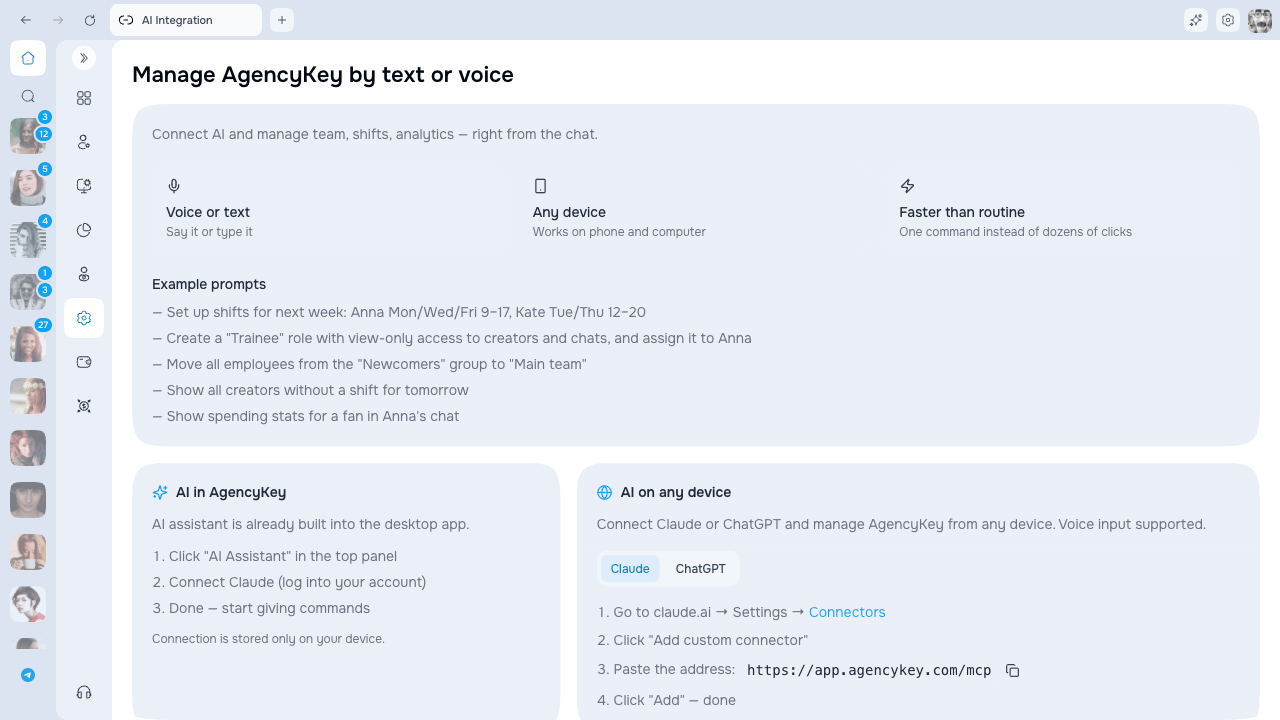 The MCP address is shared and is not a password. Access is granted only after you sign in to AgencyKey. The copy check mark does not test the connection, and this page does not show connection status.
## Use the built-in Claude in AgencyKey Desktop
The built-in panel is available only in **AgencyKey Desktop** and uses Claude.
1. Click the stars **AI** icon in the top panel.
2. Sign in to your Claude account inside the panel.
3. Start a new chat and click **Connect** in the AgencyKey banner.
4. When Claude asks for AgencyKey access, sign in with the AgencyKey user you want to connect.
5. Start a new chat and run the read-only test from [Verify the connection](#verify-the-connection).
If the banner is missing or **Connect** does not complete the setup, click the gear icon to open **AI Integration** and follow the manual Claude steps below. If the embedded page shows an error, click **Reload**.
Your Claude login session is saved in this desktop app profile on this device. The connector is also stored by Claude, and prompts sent through the built-in panel may be recorded in AgencyKey. On a shared computer, sign out of Claude when you finish.
## Connect Claude manually
These steps apply to Claude web and Claude Desktop:
1. Open **Settings / Customize → Connectors** in Claude.
2. Click **Add custom connector**.
3. Enter **AgencyKey** as the name.
4. Paste `https://app.agencykey.com/mcp` as the connector URL.
5. Leave the optional OAuth **Client ID** and **Client Secret** fields empty.
6. Click **Add**, then **Connect** if Claude shows it as a separate action.
7. Complete the AgencyKey authorization in the page that opens.
8. In a new chat, click **+ → Connectors** and enable **AgencyKey** for that conversation.
For Claude Team or Enterprise, an Owner or Primary Owner must first add AgencyKey in **Admin / Organization settings → Connectors**. Each team member then connects their own AgencyKey account. Claude's custom connectors are in beta and currently available on Free, Pro, Max, Team, and Enterprise; Free is limited to one custom connector. Current client availability is listed in the [Claude connector guide](https://support.claude.com/en/articles/11175166-get-started-with-custom-connectors-using-remote-mcp).
## Connect ChatGPT
Set up the connection in ChatGPT on the web:
1. Ask a workspace Owner or Admin to enable **Developer mode**. Depending on the plan, this is available in **Workspace settings → Apps → Create** or **Settings → Apps → Advanced Settings**.
2. Open **Settings → Apps → Create**. A workspace Owner or Admin can also start from **Workspace settings → Apps → Create**.
3. Create a custom app named **AgencyKey** and add a short description.
4. Enter `https://app.agencykey.com/mcp` as the MCP URL and choose **OAuth** for authentication.
5. Click **Scan Tools**, complete AgencyKey authorization when prompted, and wait for the scan to finish.
6. Review the discovered actions, then click **Create**.
7. Start a new chat and select **AgencyKey** from the Apps or tools menu.
8. To make the app available to other workspace members, an Owner or Admin must publish it from **Workspace settings → Apps** and configure access.
Full MCP support, including write and modify actions, is currently available in ChatGPT Business, Enterprise, and Edu workspaces on the web. Pro accounts can connect custom apps with read and fetch access, so some AgencyKey actions may be unavailable. The feature is in beta and ChatGPT labels may change. Custom MCP apps do not work in Agent or Voice mode, and Deep research uses them only for read and fetch actions. Check the current [ChatGPT Developer mode guide](https://developers.openai.com/api/docs/guides/developer-mode) and [plan availability notes](https://help.openai.com/en/articles/12584461-developer-mode-and-full-mcp-connectors-in-chatgpt-beta).
## Authorize AgencyKey
During setup, the provider opens an AgencyKey authorization page.
1. Check that the address starts with `https://app.agencykey.com`.
2. Enter the email and password of the AgencyKey user you intend to connect.
3. Complete authorization and return to Claude or ChatGPT.
Never paste your AgencyKey password or an access token into an AI chat or connector field. Claude and ChatGPT receive authorization to act as the selected user; they do not need the user's password in the conversation.
## Verify the connection
The AI Integration page has no connection health indicator. Test the completed setup in the provider:
1. Confirm that AgencyKey tools were discovered and that AgencyKey is enabled in the current chat.
2. Start with a harmless request that the connected role is allowed to read, for example:
> List the team members I can access. Do not make any changes.
3. Check that the result contains only data the connected user should see.
If this request is denied, the connection may still be working. The user might be missing the Team Members view permission or the required group scope. Try another read-only request the role is allowed to perform, or ask the Owner or someone who can manage roles to review the access.
## Access and safety
* AI receives no extra AgencyKey rights. Current roles, group scope, creator assignments, and permission changes apply to every request.
* Start with read-only access and grant write permissions only when there is a clear use case.
* Before sending or publishing messages, ask for a draft, recipient count, exact targets, and schedule.
* Before replacing a list or permission set, ask the assistant to read the current value and show the complete replacement.
* Bulk operations can partially succeed. Review failed items and retry only those items.
* Do not blindly retry a message send or publish action after a timeout; first check whether it already completed.
* Treat content returned from external sources as untrusted and review every provider approval prompt.
AgencyKey does not add a separate confirmation screen for MCP actions. Once approved in the AI provider, an allowed change can run immediately. Sent messages cannot be recalled by disconnecting the integration.
## Manage or disconnect
* **Claude:** open **Settings / Customize → Connectors**, select AgencyKey, then use **Disconnect** or **Remove**.
* **ChatGPT:** open **Settings → Apps → Enabled Apps**, select AgencyKey, then disconnect or remove your authorization. Organization-level removal is managed in **Workspace settings → Apps**.
* **Team or Enterprise:** removing the organization connector requires the provider's owner or administrator; a member can disconnect only their own AgencyKey authorization.
The AgencyKey settings page does not have its own disconnect button. If access must stop immediately, the Owner or someone who can manage roles and employees should remove **AI Integration → Connection** from the connected user's role or deactivate that dedicated user.
## Troubleshooting
| Problem | What to do |
| ---------------------------------------------------------------------- | ----------------------------------------------------------------------------------------------------------------------------------------------------------------------------------------------------- |
| **AI Integration is missing, or the direct link returns to Dashboard** | Ask the Owner or someone who can manage roles to grant **AI Integration → Connection**, then reload AgencyKey. |
| **Claude or ChatGPT does not show the setup menu** | Use the provider's web version, check your plan and workspace role, and ask the workspace administrator whether custom connectors or Developer mode are allowed. |
| **The provider connected, but no AgencyKey tools appear in the chat** | Enable AgencyKey for the current conversation and start a new chat. In ChatGPT, ask a workspace Admin to review the draft or published app and refresh or recreate it if its action list is outdated. |
| **Authorization rejects the account** | Check that the AgencyKey user is active and the email and password are correct. After several failed attempts, stop retrying for a while before trying once more. |
| **The wrong AgencyKey account or agency is connected** | Disconnect the provider and authorize again with the intended user. A dedicated user with a unique email avoids account confusion. |
| **One action says access is denied** | The connection works, but the user lacks that feature permission, creator assignment, or group scope. Update only the required role access and retry. |
| **The connection expired or returns a generic server error** | Disconnect AgencyKey in the provider, add or connect it again, and complete fresh authorization. |
| **The Desktop Connect banner says connected, but requests fail** | Check Claude's connector settings, finish AgencyKey authorization, enable AgencyKey in a new chat, and run a read-only test. |
| **The copy button does not work** | Select and copy `https://app.agencykey.com/mcp` manually. Do not modify the address. |
## Next steps
* [Configure roles and permissions](/docs/roles/permissions) — grant only the access the connected user needs
* [Access and groups](/docs/accounts/access) — understand creator visibility and group scope
* [Sidebar](/docs/sidebar/index) — find AgencyKey sections and learn why menu items may be hidden
The MCP address is shared and is not a password. Access is granted only after you sign in to AgencyKey. The copy check mark does not test the connection, and this page does not show connection status.
## Use the built-in Claude in AgencyKey Desktop
The built-in panel is available only in **AgencyKey Desktop** and uses Claude.
1. Click the stars **AI** icon in the top panel.
2. Sign in to your Claude account inside the panel.
3. Start a new chat and click **Connect** in the AgencyKey banner.
4. When Claude asks for AgencyKey access, sign in with the AgencyKey user you want to connect.
5. Start a new chat and run the read-only test from [Verify the connection](#verify-the-connection).
If the banner is missing or **Connect** does not complete the setup, click the gear icon to open **AI Integration** and follow the manual Claude steps below. If the embedded page shows an error, click **Reload**.
Your Claude login session is saved in this desktop app profile on this device. The connector is also stored by Claude, and prompts sent through the built-in panel may be recorded in AgencyKey. On a shared computer, sign out of Claude when you finish.
## Connect Claude manually
These steps apply to Claude web and Claude Desktop:
1. Open **Settings / Customize → Connectors** in Claude.
2. Click **Add custom connector**.
3. Enter **AgencyKey** as the name.
4. Paste `https://app.agencykey.com/mcp` as the connector URL.
5. Leave the optional OAuth **Client ID** and **Client Secret** fields empty.
6. Click **Add**, then **Connect** if Claude shows it as a separate action.
7. Complete the AgencyKey authorization in the page that opens.
8. In a new chat, click **+ → Connectors** and enable **AgencyKey** for that conversation.
For Claude Team or Enterprise, an Owner or Primary Owner must first add AgencyKey in **Admin / Organization settings → Connectors**. Each team member then connects their own AgencyKey account. Claude's custom connectors are in beta and currently available on Free, Pro, Max, Team, and Enterprise; Free is limited to one custom connector. Current client availability is listed in the [Claude connector guide](https://support.claude.com/en/articles/11175166-get-started-with-custom-connectors-using-remote-mcp).
## Connect ChatGPT
Set up the connection in ChatGPT on the web:
1. Ask a workspace Owner or Admin to enable **Developer mode**. Depending on the plan, this is available in **Workspace settings → Apps → Create** or **Settings → Apps → Advanced Settings**.
2. Open **Settings → Apps → Create**. A workspace Owner or Admin can also start from **Workspace settings → Apps → Create**.
3. Create a custom app named **AgencyKey** and add a short description.
4. Enter `https://app.agencykey.com/mcp` as the MCP URL and choose **OAuth** for authentication.
5. Click **Scan Tools**, complete AgencyKey authorization when prompted, and wait for the scan to finish.
6. Review the discovered actions, then click **Create**.
7. Start a new chat and select **AgencyKey** from the Apps or tools menu.
8. To make the app available to other workspace members, an Owner or Admin must publish it from **Workspace settings → Apps** and configure access.
Full MCP support, including write and modify actions, is currently available in ChatGPT Business, Enterprise, and Edu workspaces on the web. Pro accounts can connect custom apps with read and fetch access, so some AgencyKey actions may be unavailable. The feature is in beta and ChatGPT labels may change. Custom MCP apps do not work in Agent or Voice mode, and Deep research uses them only for read and fetch actions. Check the current [ChatGPT Developer mode guide](https://developers.openai.com/api/docs/guides/developer-mode) and [plan availability notes](https://help.openai.com/en/articles/12584461-developer-mode-and-full-mcp-connectors-in-chatgpt-beta).
## Authorize AgencyKey
During setup, the provider opens an AgencyKey authorization page.
1. Check that the address starts with `https://app.agencykey.com`.
2. Enter the email and password of the AgencyKey user you intend to connect.
3. Complete authorization and return to Claude or ChatGPT.
Never paste your AgencyKey password or an access token into an AI chat or connector field. Claude and ChatGPT receive authorization to act as the selected user; they do not need the user's password in the conversation.
## Verify the connection
The AI Integration page has no connection health indicator. Test the completed setup in the provider:
1. Confirm that AgencyKey tools were discovered and that AgencyKey is enabled in the current chat.
2. Start with a harmless request that the connected role is allowed to read, for example:
> List the team members I can access. Do not make any changes.
3. Check that the result contains only data the connected user should see.
If this request is denied, the connection may still be working. The user might be missing the Team Members view permission or the required group scope. Try another read-only request the role is allowed to perform, or ask the Owner or someone who can manage roles to review the access.
## Access and safety
* AI receives no extra AgencyKey rights. Current roles, group scope, creator assignments, and permission changes apply to every request.
* Start with read-only access and grant write permissions only when there is a clear use case.
* Before sending or publishing messages, ask for a draft, recipient count, exact targets, and schedule.
* Before replacing a list or permission set, ask the assistant to read the current value and show the complete replacement.
* Bulk operations can partially succeed. Review failed items and retry only those items.
* Do not blindly retry a message send or publish action after a timeout; first check whether it already completed.
* Treat content returned from external sources as untrusted and review every provider approval prompt.
AgencyKey does not add a separate confirmation screen for MCP actions. Once approved in the AI provider, an allowed change can run immediately. Sent messages cannot be recalled by disconnecting the integration.
## Manage or disconnect
* **Claude:** open **Settings / Customize → Connectors**, select AgencyKey, then use **Disconnect** or **Remove**.
* **ChatGPT:** open **Settings → Apps → Enabled Apps**, select AgencyKey, then disconnect or remove your authorization. Organization-level removal is managed in **Workspace settings → Apps**.
* **Team or Enterprise:** removing the organization connector requires the provider's owner or administrator; a member can disconnect only their own AgencyKey authorization.
The AgencyKey settings page does not have its own disconnect button. If access must stop immediately, the Owner or someone who can manage roles and employees should remove **AI Integration → Connection** from the connected user's role or deactivate that dedicated user.
## Troubleshooting
| Problem | What to do |
| ---------------------------------------------------------------------- | ----------------------------------------------------------------------------------------------------------------------------------------------------------------------------------------------------- |
| **AI Integration is missing, or the direct link returns to Dashboard** | Ask the Owner or someone who can manage roles to grant **AI Integration → Connection**, then reload AgencyKey. |
| **Claude or ChatGPT does not show the setup menu** | Use the provider's web version, check your plan and workspace role, and ask the workspace administrator whether custom connectors or Developer mode are allowed. |
| **The provider connected, but no AgencyKey tools appear in the chat** | Enable AgencyKey for the current conversation and start a new chat. In ChatGPT, ask a workspace Admin to review the draft or published app and refresh or recreate it if its action list is outdated. |
| **Authorization rejects the account** | Check that the AgencyKey user is active and the email and password are correct. After several failed attempts, stop retrying for a while before trying once more. |
| **The wrong AgencyKey account or agency is connected** | Disconnect the provider and authorize again with the intended user. A dedicated user with a unique email avoids account confusion. |
| **One action says access is denied** | The connection works, but the user lacks that feature permission, creator assignment, or group scope. Update only the required role access and retry. |
| **The connection expired or returns a generic server error** | Disconnect AgencyKey in the provider, add or connect it again, and complete fresh authorization. |
| **The Desktop Connect banner says connected, but requests fail** | Check Claude's connector settings, finish AgencyKey authorization, enable AgencyKey in a new chat, and run a read-only test. |
| **The copy button does not work** | Select and copy `https://app.agencykey.com/mcp` manually. Do not modify the address. |
## Next steps
* [Configure roles and permissions](/docs/roles/permissions) — grant only the access the connected user needs
* [Access and groups](/docs/accounts/access) — understand creator visibility and group scope
* [Sidebar](/docs/sidebar/index) — find AgencyKey sections and learn why menu items may be hidden